File conversion is a vital step in the GIS process that confirms the application for spatial data on different platforms and systems. The process is simplified by the MAPOG Converter Tool, providing simple and fast conversion of data between various formats.
What is MapInfo File?
The geographic information system software MapInfo Professional uses a file format called a MapInfo file. It can be used to build and analyze maps and stores geographic data such as boundaries, points of interest, and maps. Environmental studies, urban planning, and other applications using spatial data frequently use it.
Online GIS Data Conversion
Key Concept for Conversion MapInfo to SQLITE:
A simple step for converting data with different formats by the MAPOG Converter Tool. A step-by-step tutorial on MapInfo file to SQLITE.
Step-by-Step Guide to Converting MapInfo to SQLITE
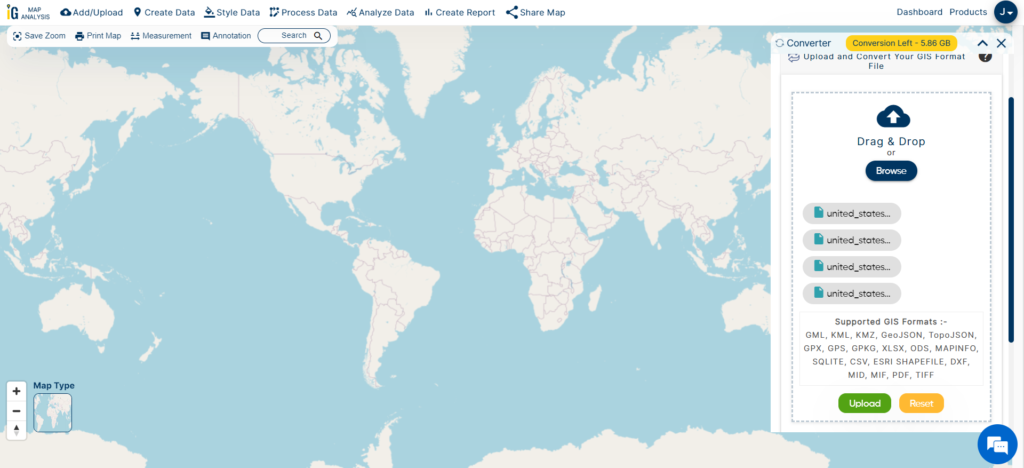
Step 1: Upload the Data
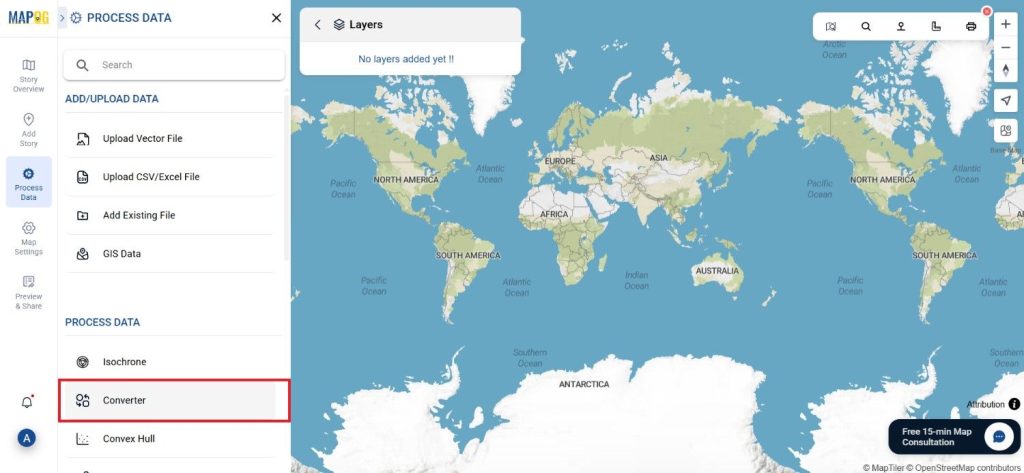
First, in MAPOG, choose the “Process Data” section. Select the “Converter Tool” option from there.
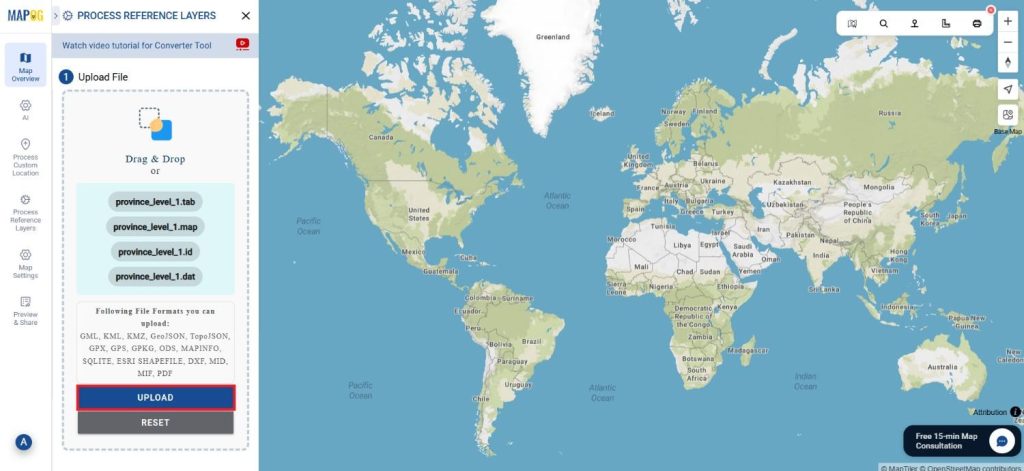
Before uploading your MapInfo file to the platform, make sure it is ready for conversion.
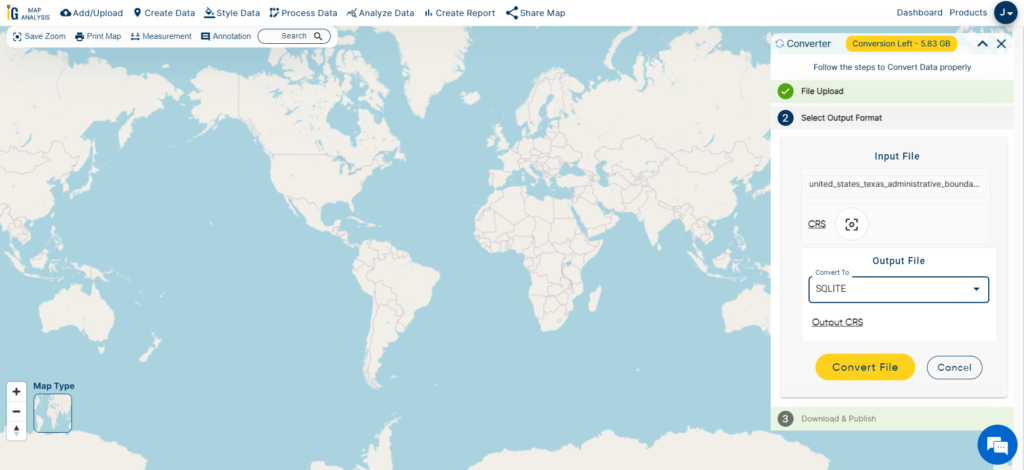
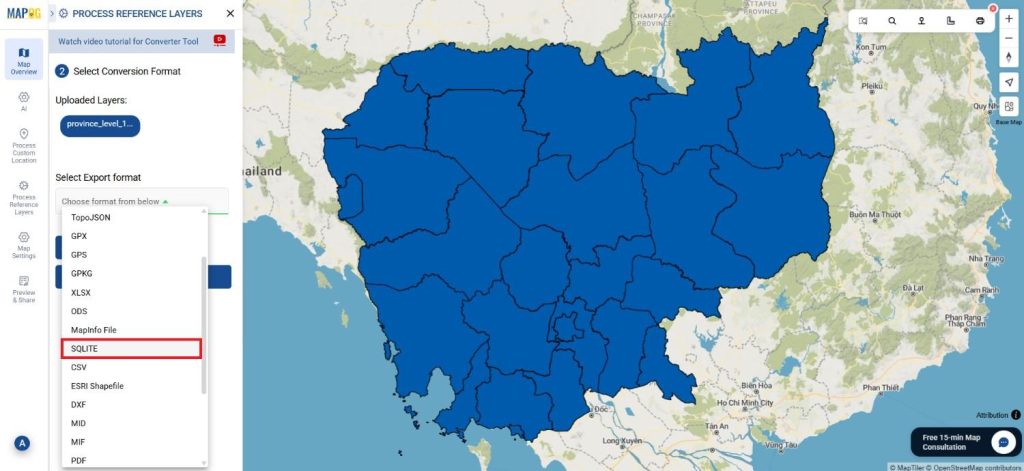
Step 2: Select the Format for Conversion
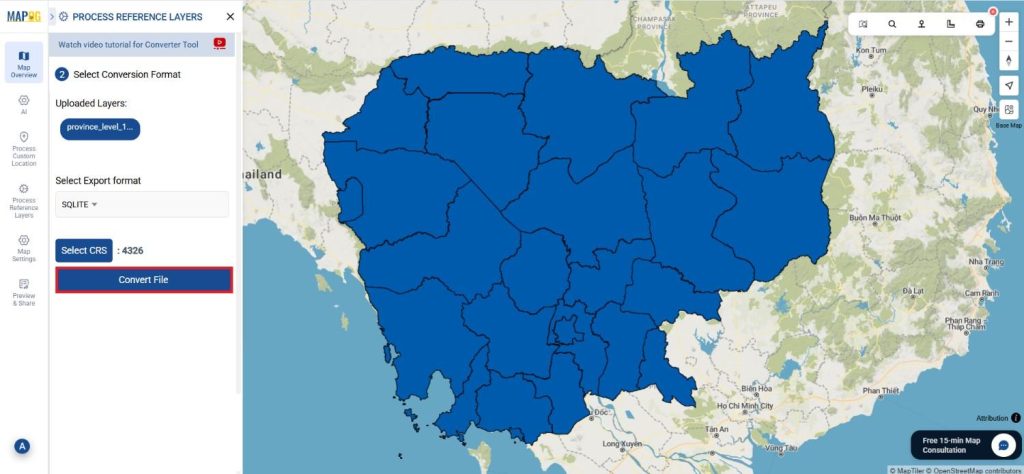
Choose SQLITE as the export format next. You can now select a format that will work best for your needs for purposes of data management and storage while still being suitable with SQLite database systems.
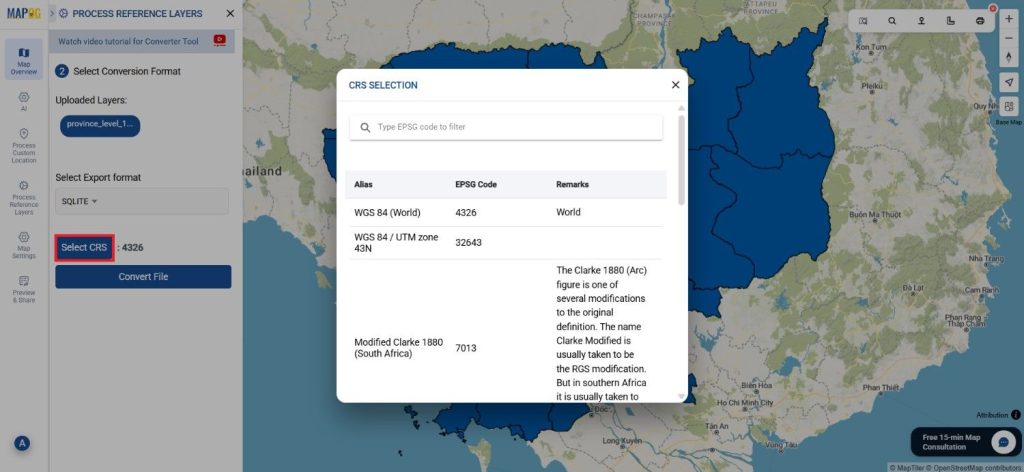
Step 3: Choose the Output Coordinate Reference System (CRS)
Choosing the right CRS is crucial if your data contains geographic data. This ensures that the SQLITE database appropriately displays the spatial data.
Step 4: Execute the Conversion
After you have selected the options, you require start the conversion. Your MapInfo file converted to SQLITE format by the MAPOG.
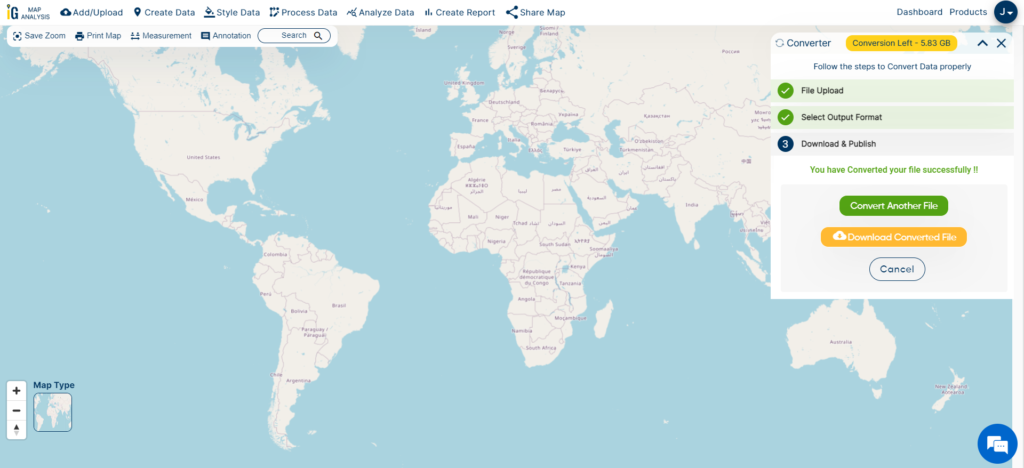
Step 5: Review and Download
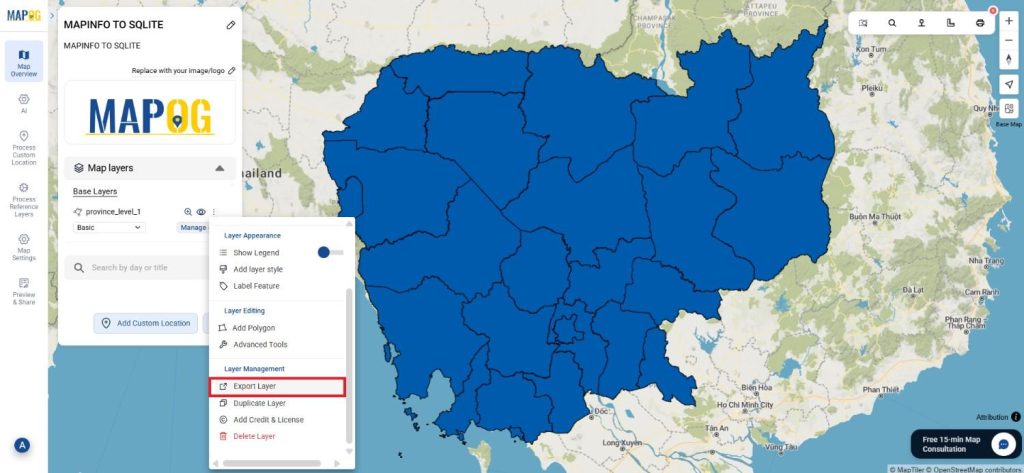
Check the output when the conversion is complete and download the SQLITE file.
Conclusion:
For GIS specialists, the MAPOG Converter Tool is a priceless tool since it makes converting geographical data into other formats easier. You may quickly and simply convert MapInfo files to SQLITE format by following these easy steps, which will ensure that your data is saved in a useful and flexible database format that is suitable for spatial analysis and querying. If you need to download any data file in MapInfo or in any other formats like GPS, GPKG, TOPOJSON. visit GIS DATA. Here we have 900+ data layers for 200+ countries.
Additional Tools for Further Analysis:
With MAPOG’s versatile toolkit, you can effortlessly upload vectors and upload Excel or CSV data, incorporate existing layers, perform polygon splitting, use the converter for various formats, calculate isochrones, and utilize the Export Tool.
Learn About MAPOG:
MAPOG is perfect for people who want to use visually striking and interactive maps to make their data come to life. It lets you build engaging narratives by connecting maps with visuals like text and images. Producing shareable content is made easy with MAPOG, whether you’re marketing a project, giving a tour or presenting research.
Here are some other blogs you might be interested in:
- Convert Online GIS data : KML to PDF file
- Converting KML to GeoTIFF , Online Gis Data Converter
- Converting KMZ to SHP : Online GIS Data Conversion
- Converting TopoJSON to SHP Online : GIS Data Converter
- Converting GeoJSON to TopoJSON with MAPOG
- Converting GeoJSON to CSV with MAPOG
- Converting KMZ to KML with MAPOG
- Converting GML to KML with MAPOG
- Convert KMZ to TopoJSON Online
- Converting KMZ to GeoJSON Online
- Convert KML to MID Online
- Online Conversion KML to MIF