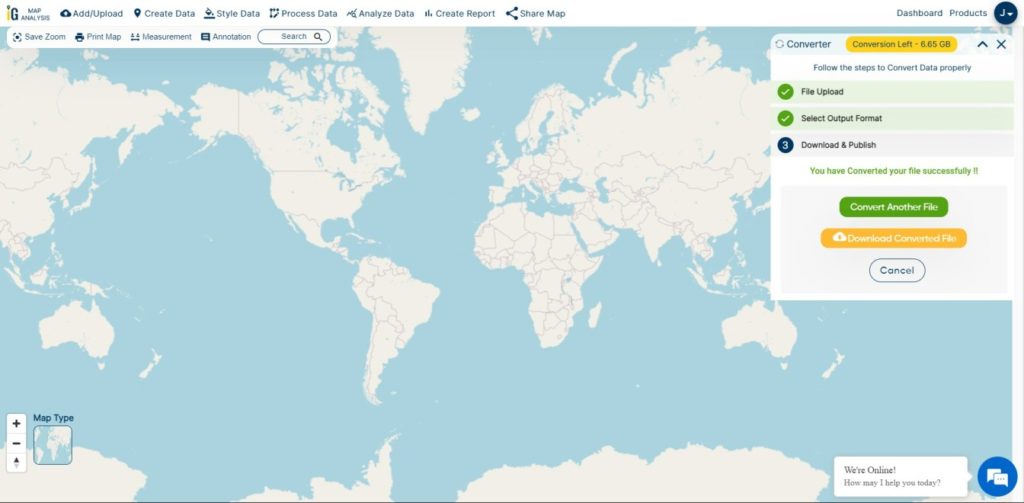
This tutorial will guide you through convert DXF file to KMZ format using the Converter Tool in MAPOG. Whether you’re a MAPOG novice or an experienced user, this step-by-step guide will make the conversion process straightforward, helping you confidently transform your DXF file into KMZ format.
Key Concept to Converting Files:
The Converter Tool in MAPOG serves as a key mechanism for converting data between two different formats. Imagine it as a smooth transition where you provide data in one format, and it efficiently transforms it into another format tailored to your analytical requirements. Additionally, GIS data can be exported in multiple formats, enhancing its versatility and applicability across different uses.
Step 1: Upload Your Data:
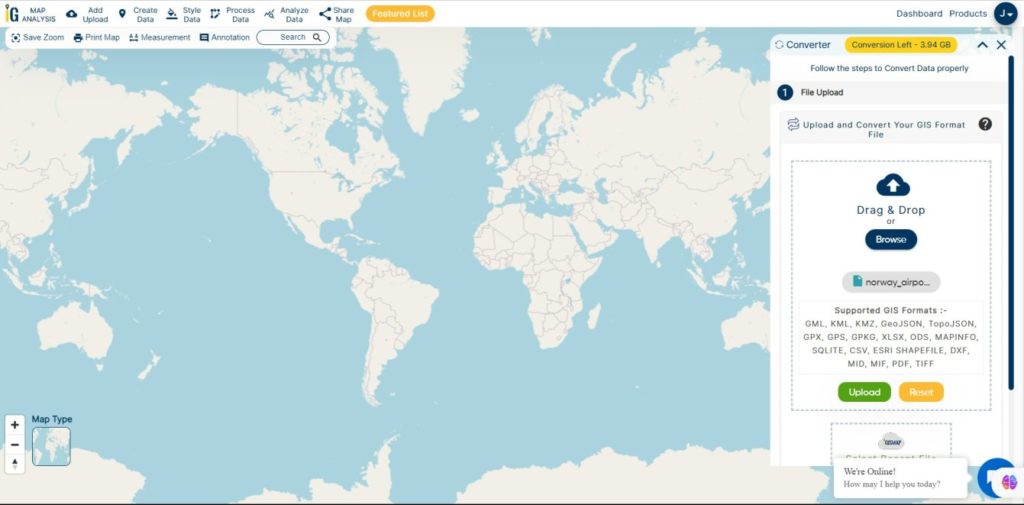
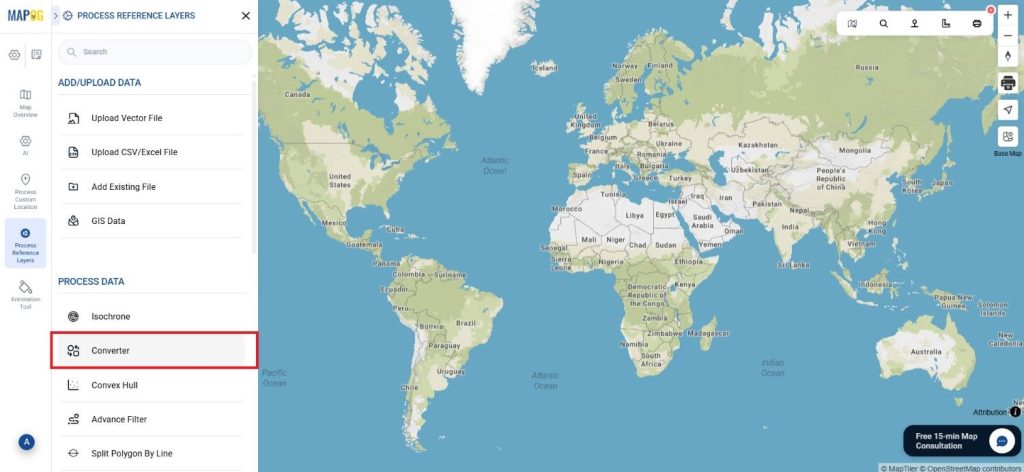
1. Navigate to “Process Reference Layers” and select the “Converter Tool” option.
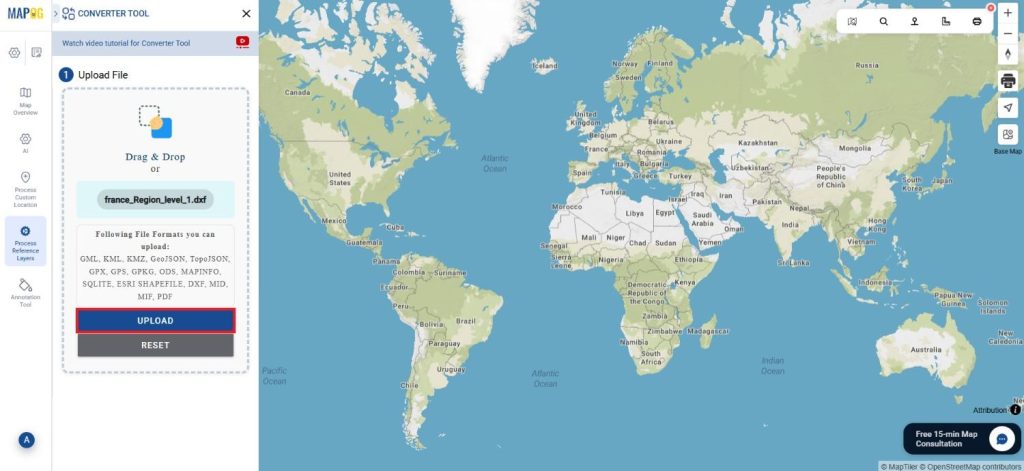
2. Upload your DXF file. This is where you begin by supplying the data that you want to convert.
Step 2: Choose the Conversion Format:
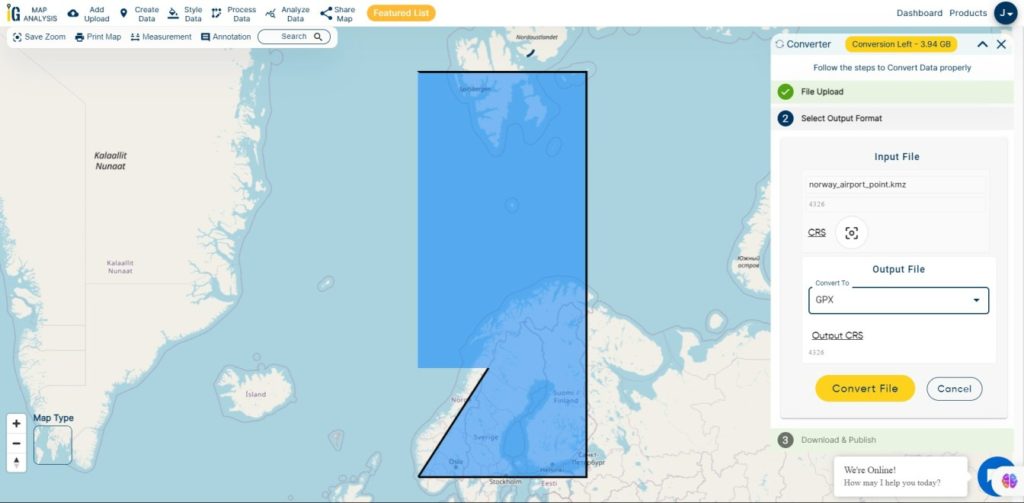
- Select KMZ as the output format if you intend to export just the data. Although the tool provides several options to achieve this, this guide specifically focuses on converting the file to KMZ.
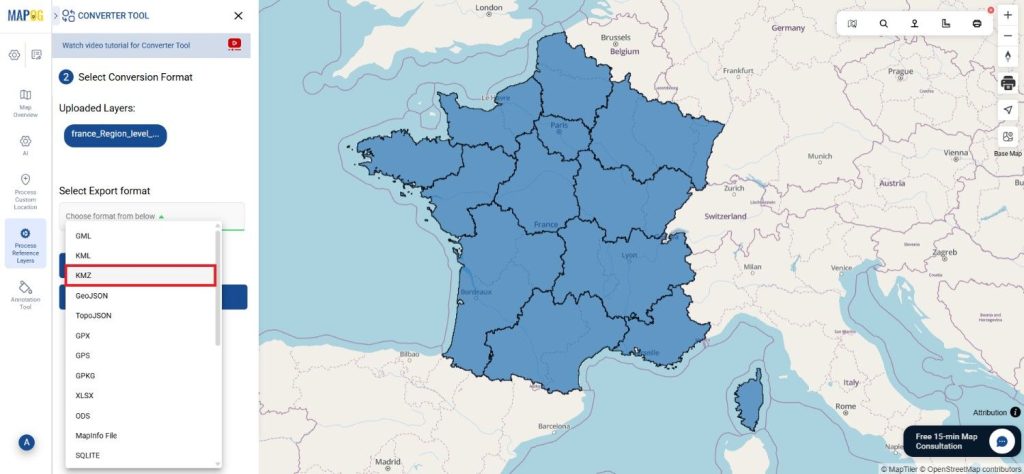
- You can also set the Output CRS as per your need.
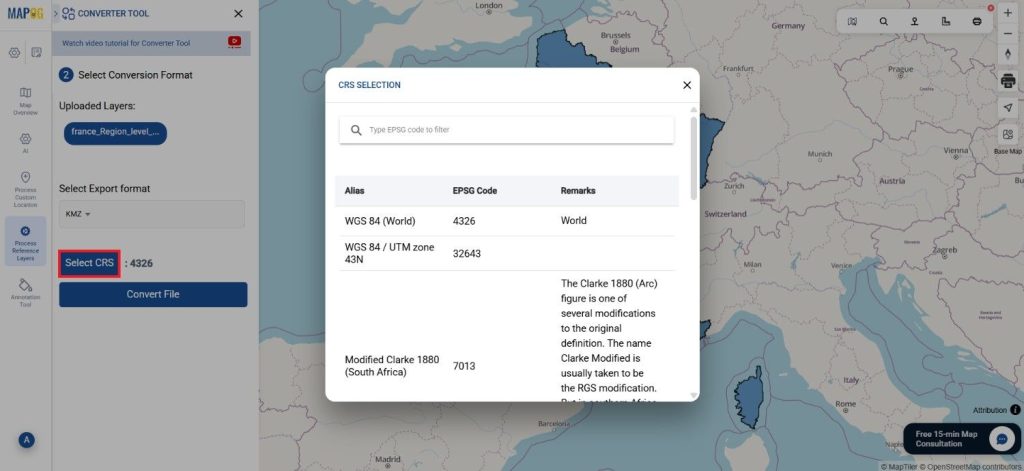
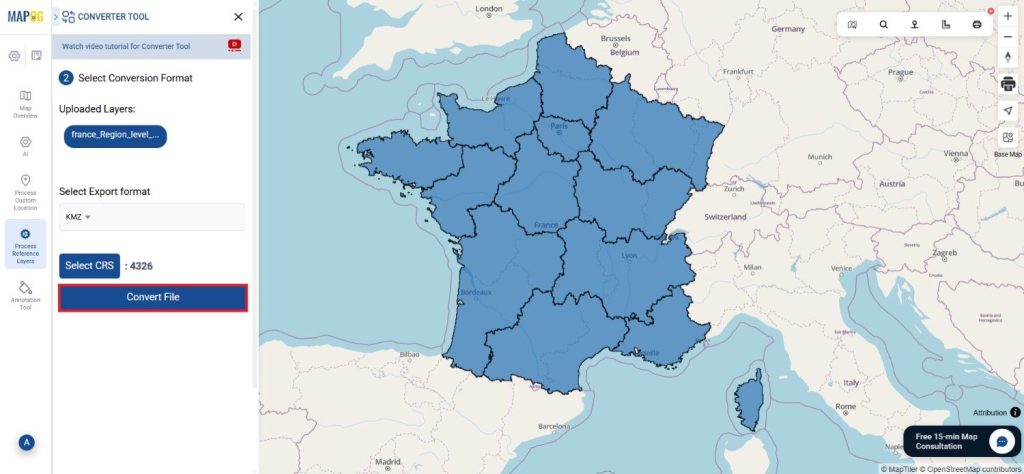
Step 3 : Execute the Conversion:
Go to ‘Convert Files’ and allow the tool to work. With the Converter Tool, you just supply your data, and it takes care of converting from DXF to KMZ format.
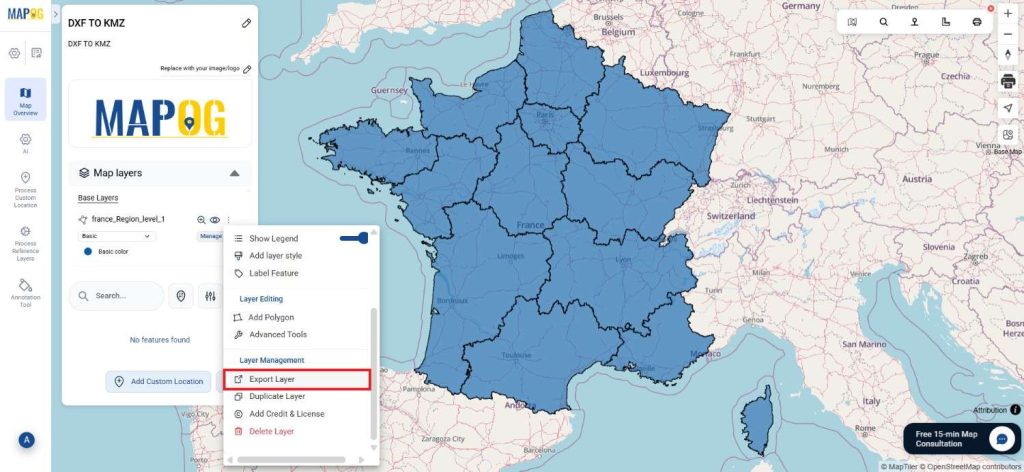
Step 4: Review and Download:
Take a moment to examine your converted KMZ data to confirm its accuracy. Once you’re confident with the outcome, go ahead and download the file. This step is essential to ensure that the conversion was successful and that all your data is correctly maintained.
Result:
You’ve successfully converted DXF to KMZ using MAPOG’s straightforward tools. This process not only simplifies your data management but also enhances the versatility of your data across different GIS platforms. For assistance or inquiries, contact us at support@mapog.com. Happy mapping!
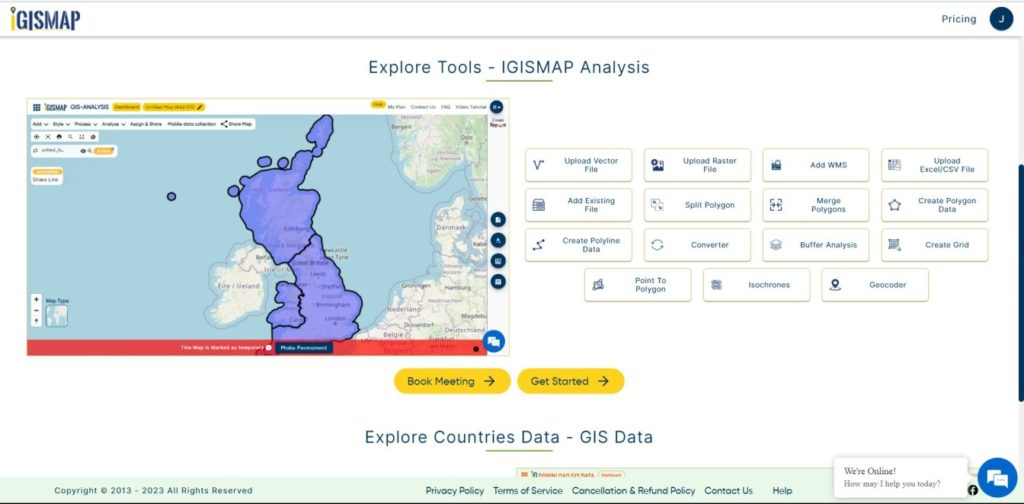
With MAPOG’s versatile toolkit, you can effortlessly upload vectors and upload Excel or CSV data, incorporate existing layers, perform polygon splitting, use the converter for various formats, calculate isochrones, and utilize the Export Tool.
Use MAPOG for mapping and visualizing data across all domains. Its tools make analysis easy and accurate. Convert files to get data in the format you need.
Here are some other blogs you might be interested in:
- Converting KMZ to GeoJSON Online
- Convert KML to MID Online
- Online Conversion KML to MIF
- Convert Online GIS data : KML to PDF file
- Converting KML to GeoTIFF , Online Gis Data Converter
- Converting KMZ to SHP : Online GIS Data Conversion
- Converting TopoJSON to SHP Online : GIS Data Converter
- Converting GeoJSON to TopoJSON with MAPOG
- Converting GeoJSON to CSV with MAPOG
- Converting KMZ to KML with MAPOG
- Converting GML to KML with MAPOG
- Convert KMZ to TopoJSON Online