
This guide will walk you through the process of converting a DXF file into an ESRI Shapefile format using the Converter Tool in MAPOG. Whether you’re new to MAPOG or have some experience, this straightforward tutorial will help you efficiently transform your DXF files into ESRI Shapefiles.
What is DXF Data Format:
DXF is short for Drawing Exchange Format or Drawing Interchange Format and is a type of vector file. Engineers, designers and architects often use the DXF format for 2D and 3D drawings during product design. This data format can be used in case of analyzing the maps. It can be of many types like point, line and polygon or any boundaries.
Online GIS Data Conversion
Converting DXF Data into ESRI Shapefile Format:
MAPOG includes an advanced Converter Tool that enables users to easily switch between various data formats to meet their specific needs. This tool simplifies the process of converting data for multiple GIS applications, offering both flexibility and efficiency in handling different formats. For instance, MAPOG’s Converter Tool can convert DXF data into the ESRI Shapefile format, reducing file size while preserving essential geographic details. This makes the data more suitable for web-based mapping and interactive platforms, ultimately enhancing workflows and significantly improving GIS data usability.
Steps to Convert DXF to ESRI Shapefile:
Step 1: Upload the Data :
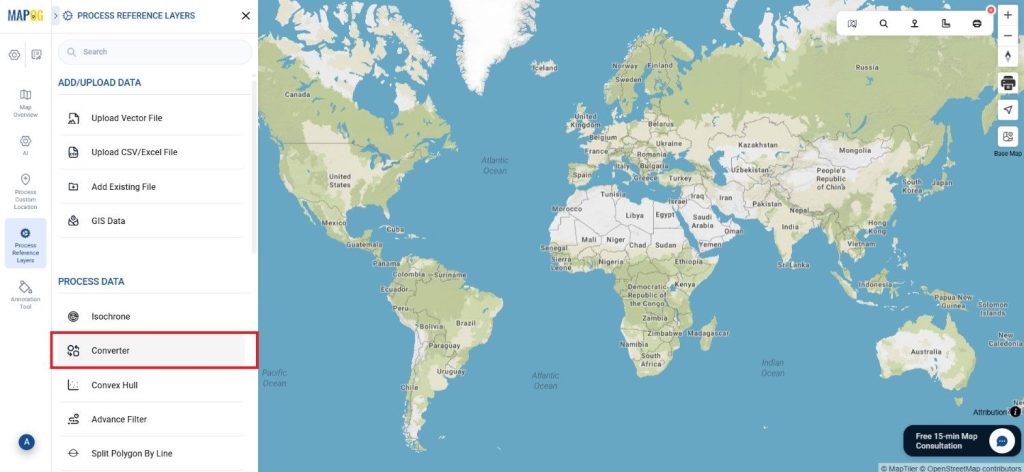
- Go to “Process Reference layers” from the header and choose the “Converter Tool” option.
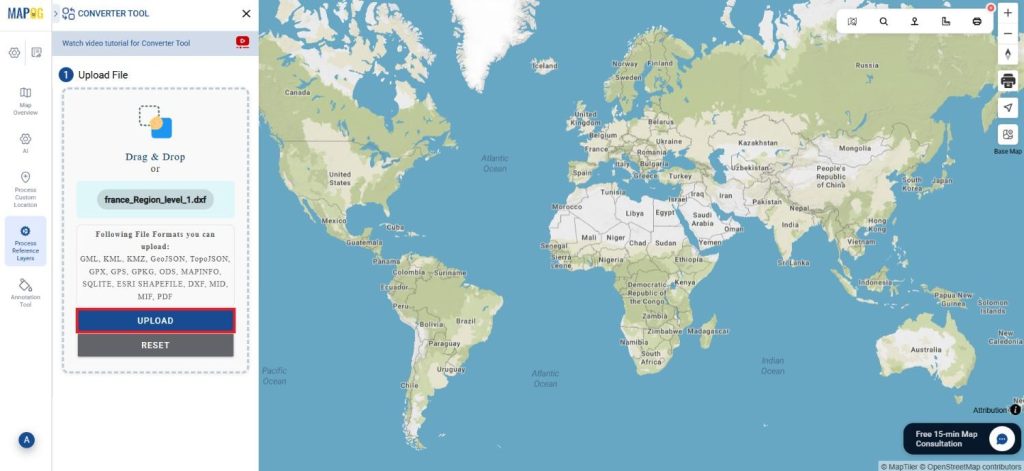
2. Upload your DXF file to start the conversion process by providing the data you wish to transform.
Step 2: Choose Your Output Format:
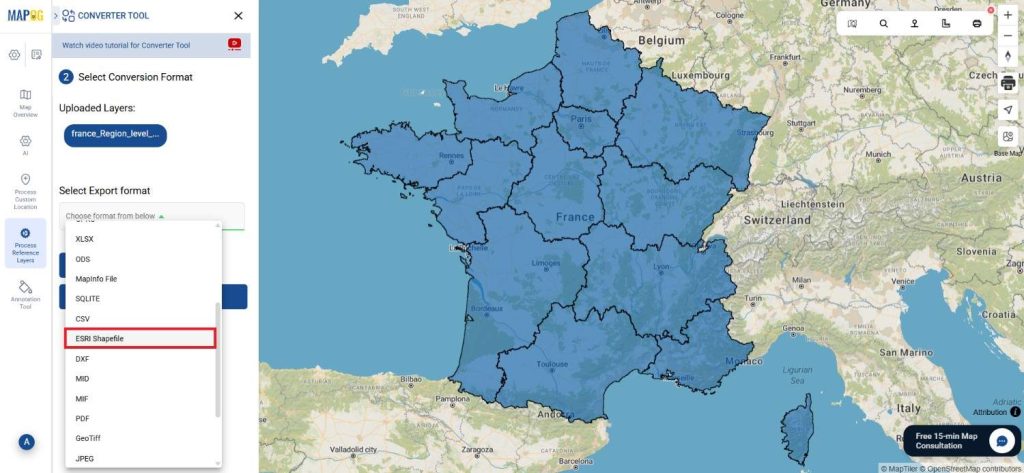
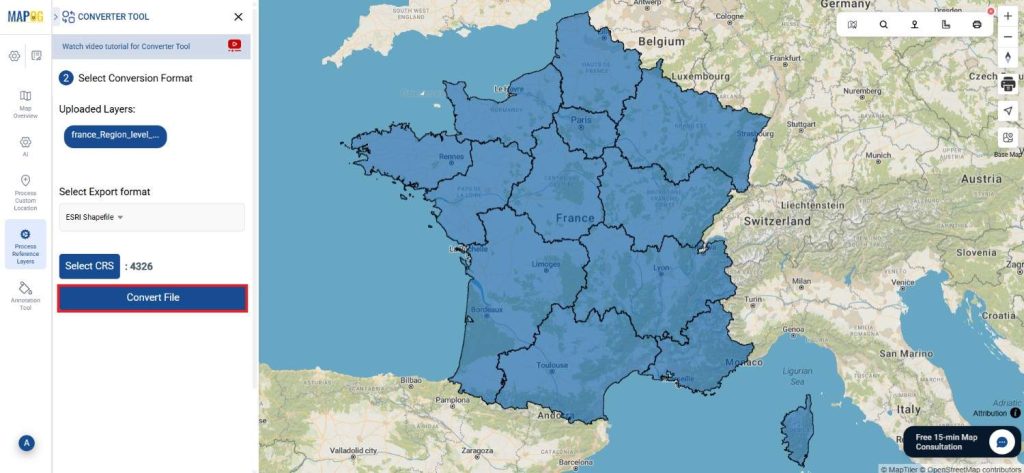
Select ESRI Shapefile as the output format for exporting your data. Although the Converter Tool offers a variety of format options, this guide focuses specifically on converting your file to the ESRI Shapefile format.
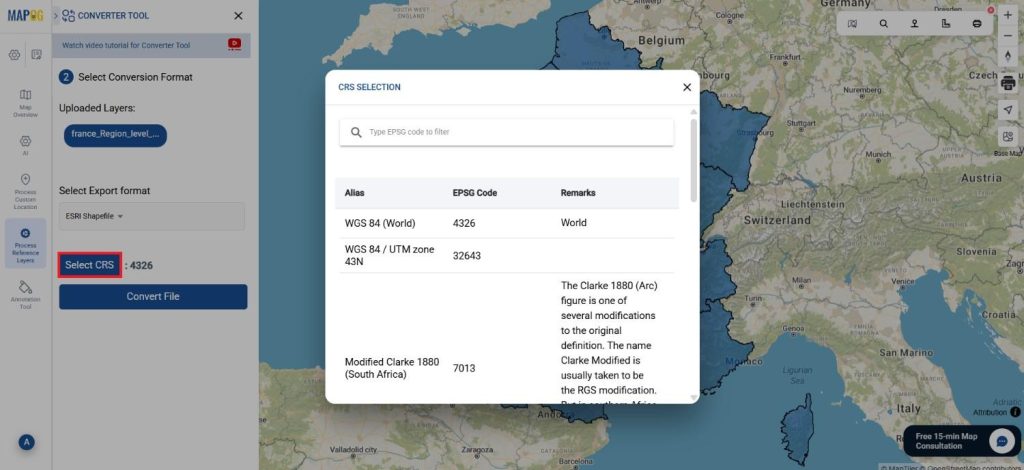
2. You can also set the Output Coordinate Reference System (CRS) according to your spatial analysis requirements.
Step 3: Execute the Conversion:
Navigate to the ‘Convert Files’ section and let the tool do the work for you. Simply upload your data, and the Converter Tool will automatically convert your DXF file into the ESRI Shapefile format, ensuring a smooth and efficient process.
Step 4: Review and Download:
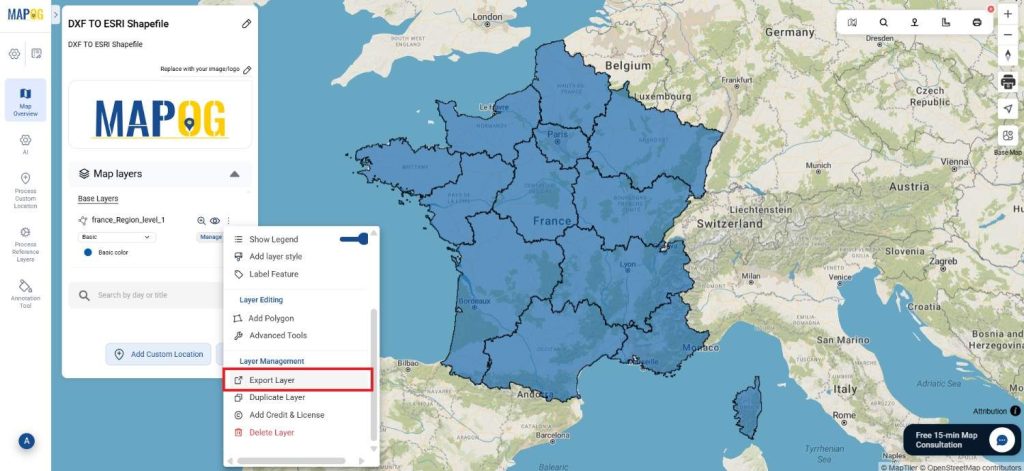
Examine your converted ESRI Shapefile to verify its accuracy. Once you’ve confirmed that the conversion results are correct and meet your requirements, download the file. This step is essential to ensure that the conversion was successful and your data integrity remains intact.
Result:
You’ve successfully converted DXF to ESRI Shapefile using MAPOG’s straightforward tools. This process not only simplifies your data management but also enhances the versatility of your data across different GIS platforms. For assistance or inquiries, contact us at support@mapog.com. Happy mapping!
With MAPOG’s versatile toolkit, you can effortlessly upload vectors and upload Excel or CSV data, incorporate existing layers, perform polygon splitting, use the converter for various formats, calculate isochrones, and utilize the Export Tool.
Use MAPOG for mapping and visualizing data across all domains. Its tools make analysis easy and accurate. Convert files to get data in the format you need.
Here are some other blogs you might be interested in:
- Converting KMZ to GeoJSON Online
- Convert KML to MID Online
- Online Conversion KML to MIF
- Convert Online GIS data : KML to PDF file
- Converting KML to GeoTIFF , Online Gis Data Converter
- Converting KMZ to SHP : Online GIS Data Conversion
- Converting TopoJSON to SHP Online : GIS Data Converter
- Converting GeoJSON to TopoJSON with MAPOG
- Converting GeoJSON to CSV with MAPOG
- Converting KMZ to KML with MAPOG
- Converting GML to KML with MAPOG
- Convert KMZ to TopoJSON Online