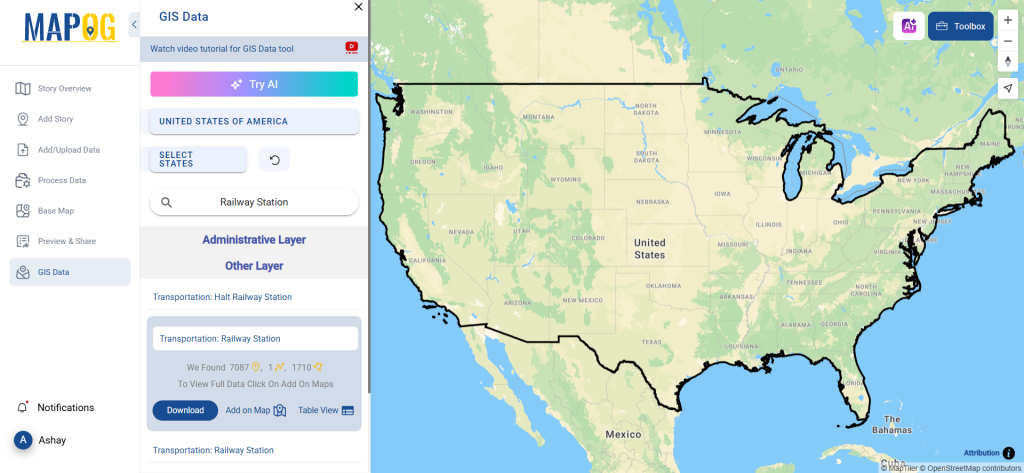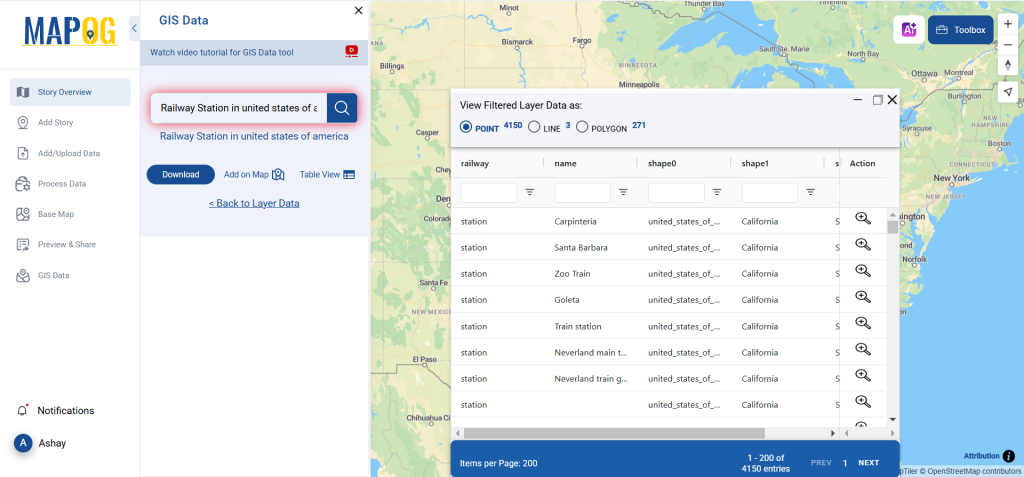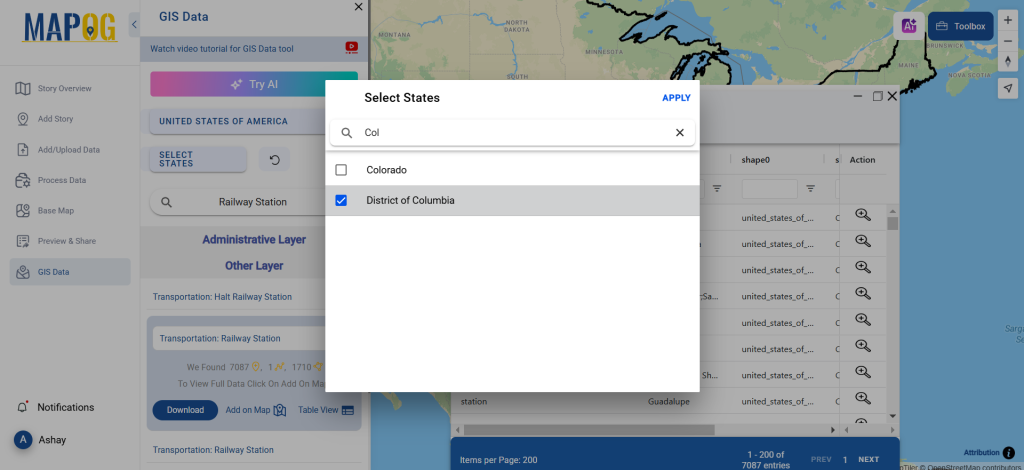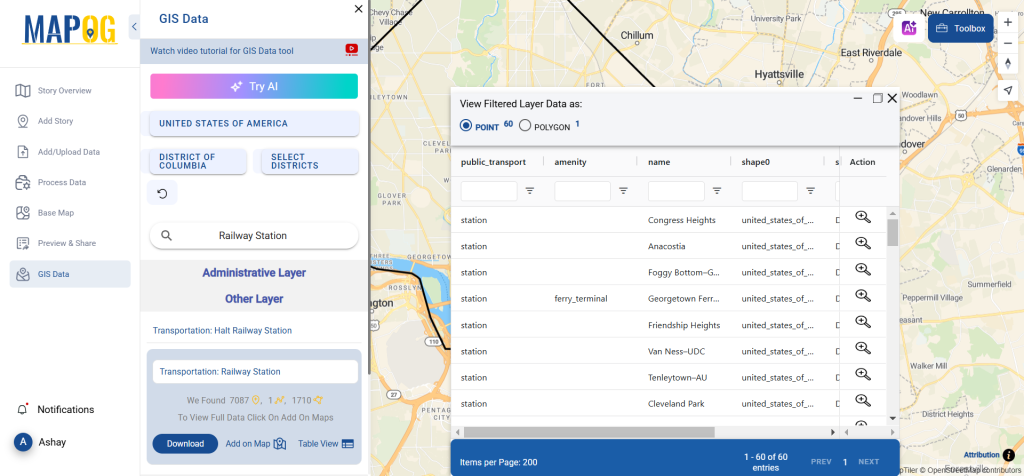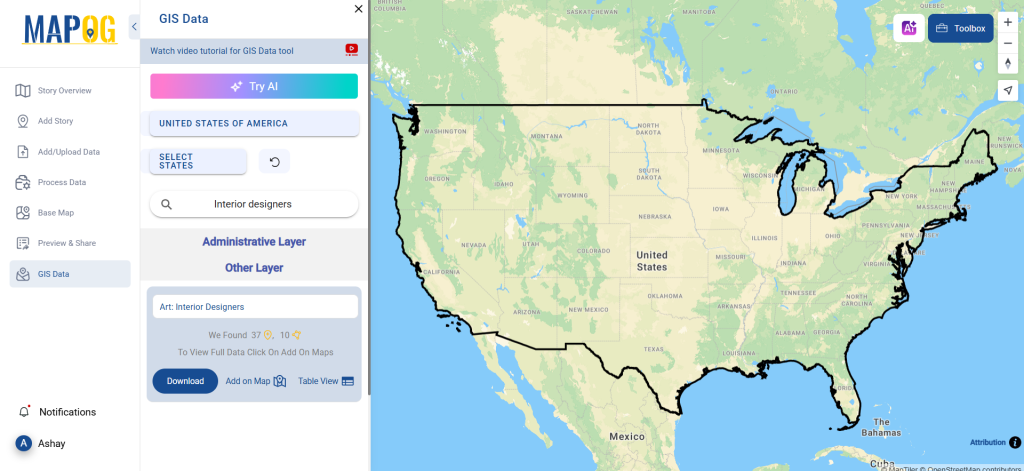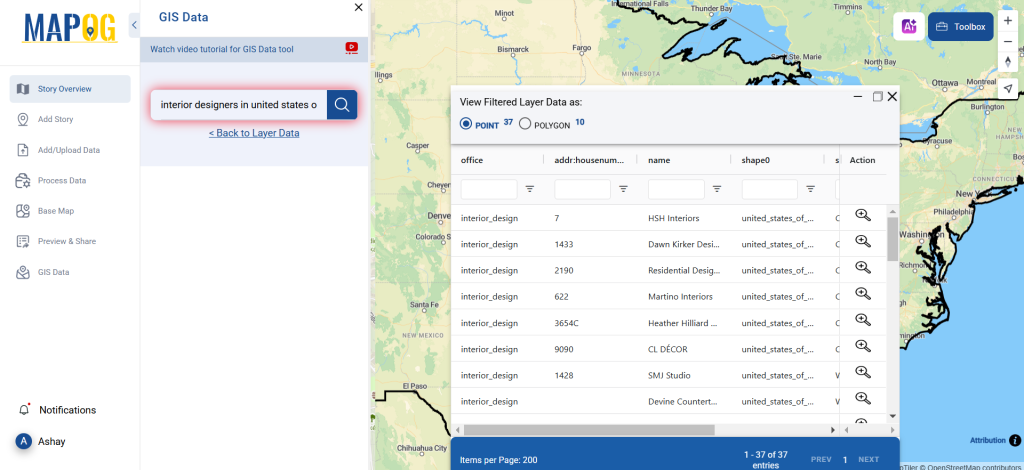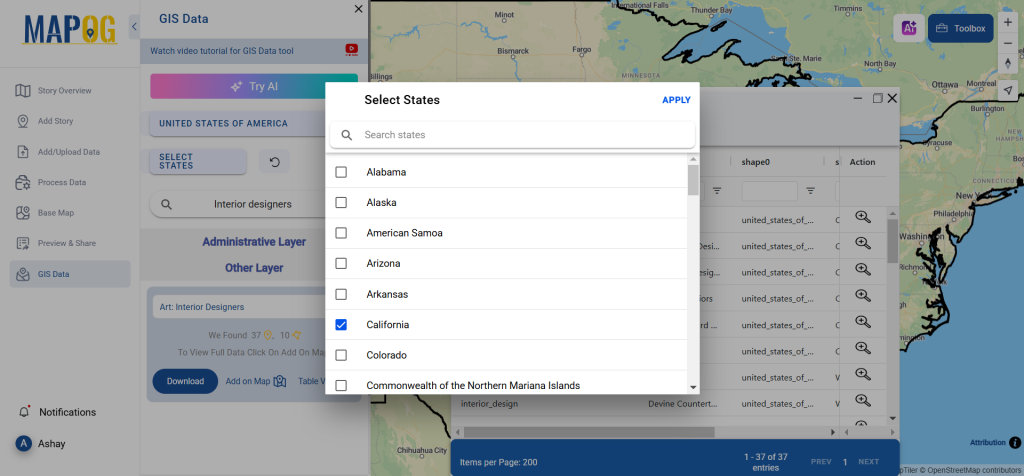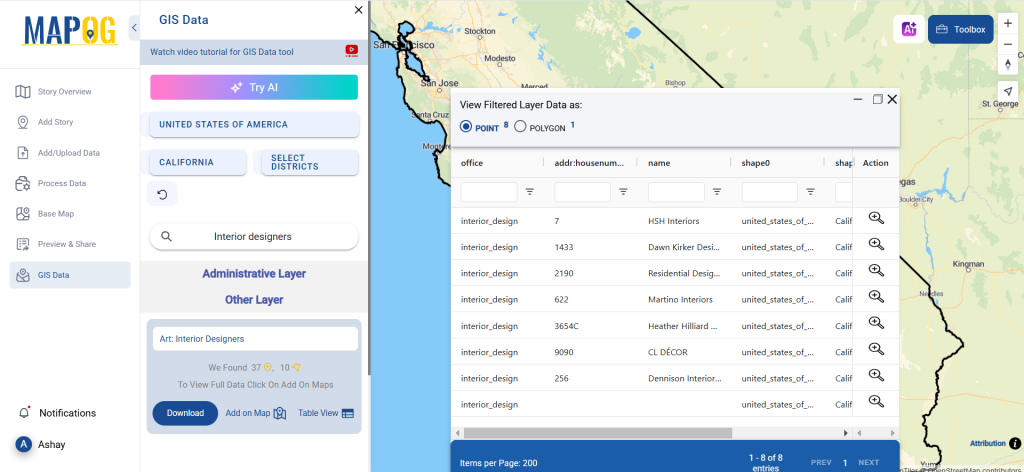

Geographic Information System is a system intends to capture, Store, manage, manipulate, analyze the data. GIS system integrate data and convert it into maps. And as we know visuals are more powerful than words so it makes our understanding of data fast.
What is GIS ?
GIS is a tool to acquire geographic data and produce Geographic information. And generally those information are stored in tabular form. GIS can be defined as a “computer information system that can input, store, manipulate, analyze, and display geographically referenced (spatial) data to support decision making processes”.
Simply GIS visualize your data as a map. And these visualization makes the study interesting with interactive maps. It saves the time and make the system decisiveness that is main requirement.
In this guide, we’ll walk you through how to efficiently convert your GeoJSON files to KMZ using the powerful Converter Tool in MAPOG. Whether you’re a beginner or an experienced user, Converting GeoJSON to KMZ with MAPOG, this tutorial will help you understand the process in easy steps.
Key Concept to Converting files
The Converter Tool is a feature in MAPOG that helps you change your data from one format to another. It’s like magic! You give it your data in one form, and it transforms it into another form that you need for your analysis. Additionally, with GIS Data, you can download data in any format, making it versatile and adaptable for various applications.
Online GeoJSON to KMZ GIS Converter
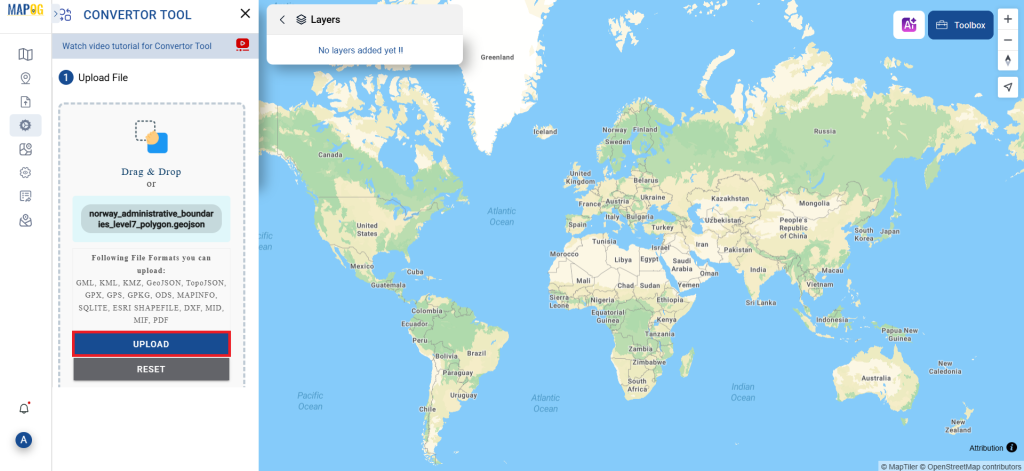
Step 1: Upload the Data
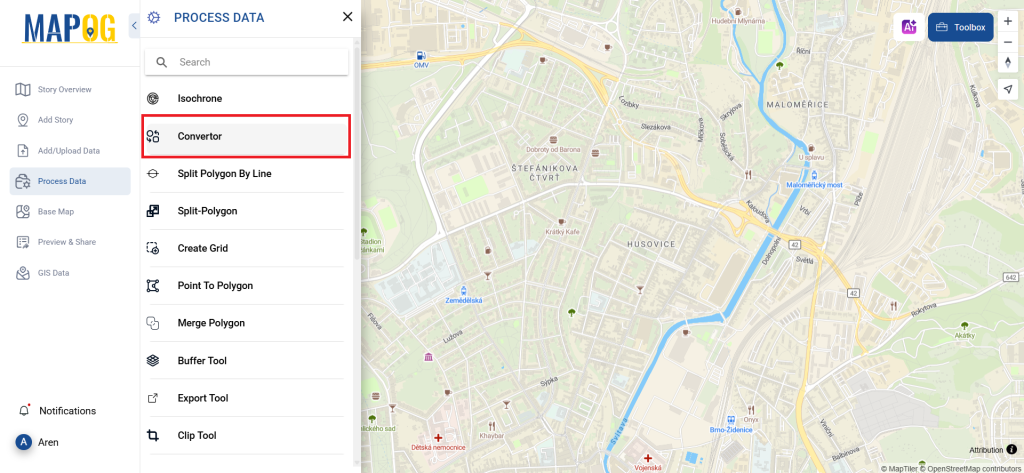
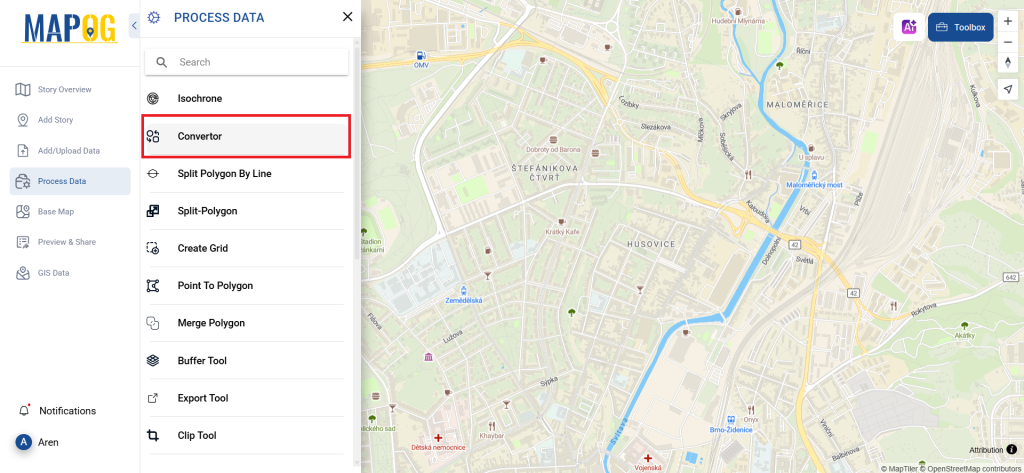
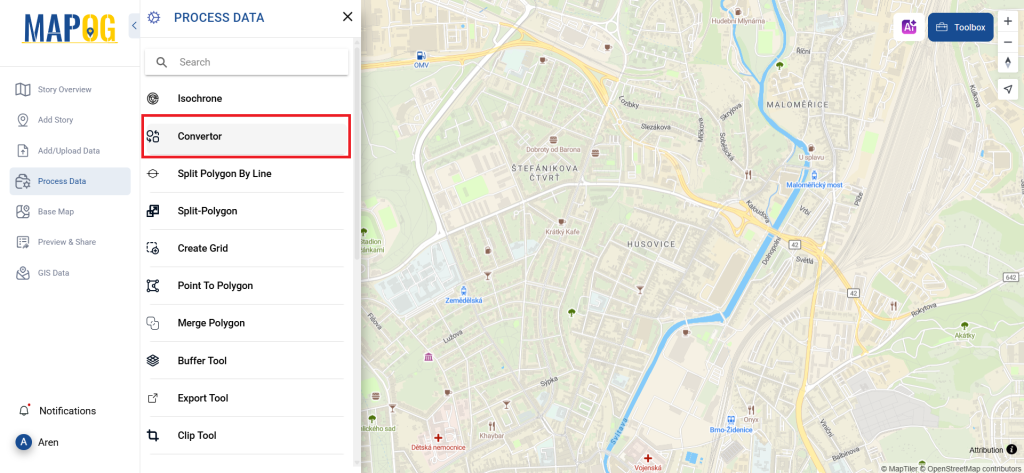
1. Click on the “Process Data” menu and choose the “Converter Tool” option.
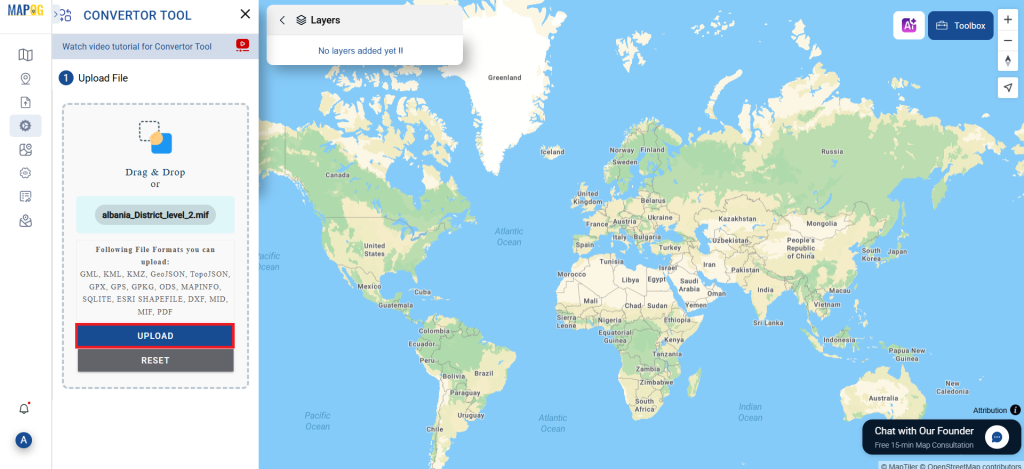
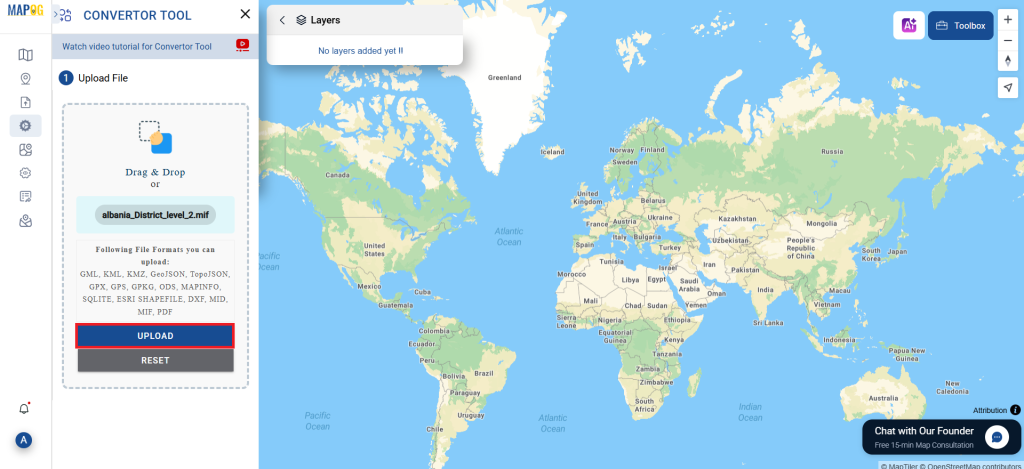
2. Upload your GeoJSON file. This is your starting point where you provide the data that needs conversion.
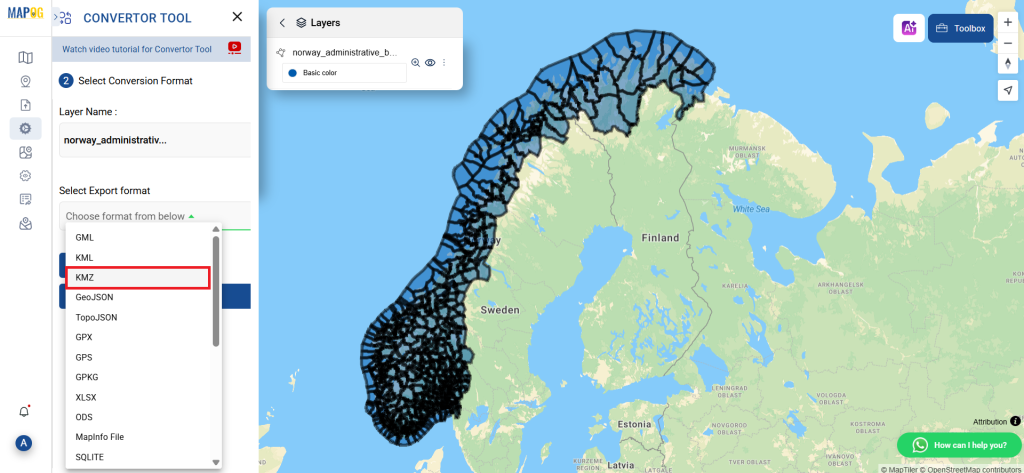
Step 2: Select the Format for Conversion
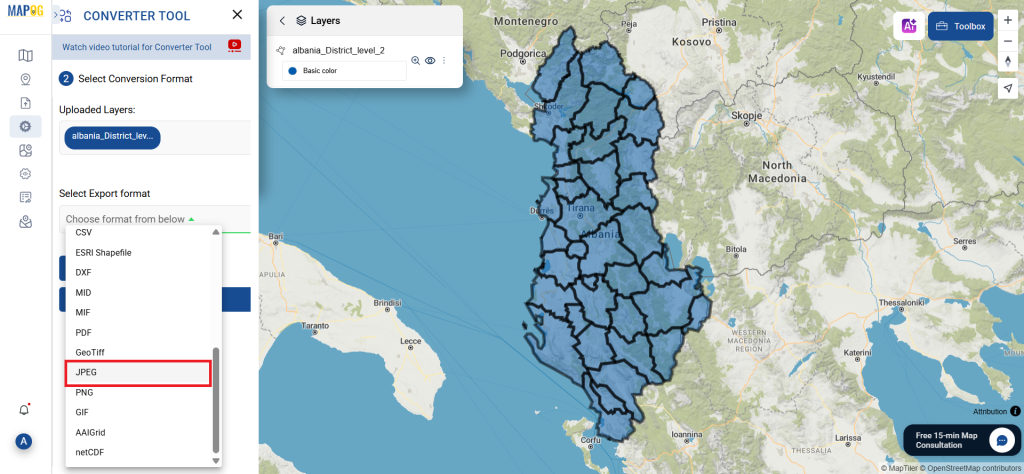
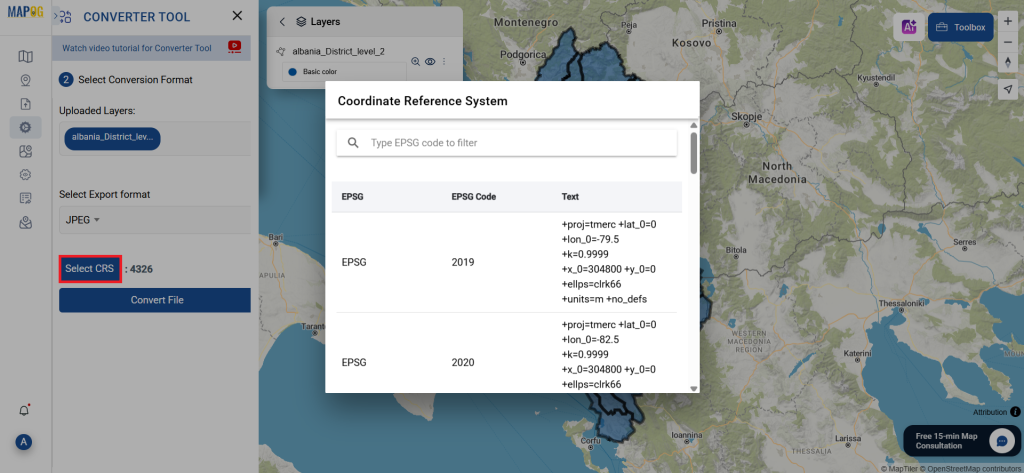
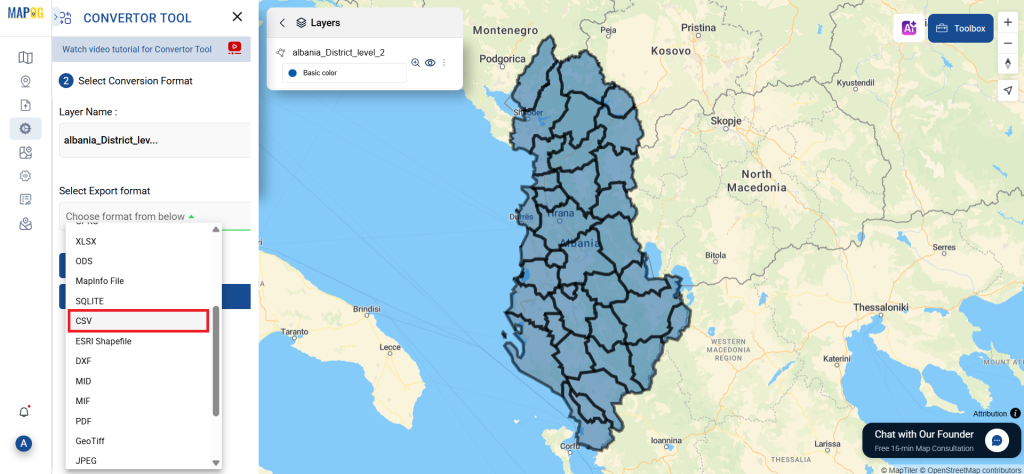
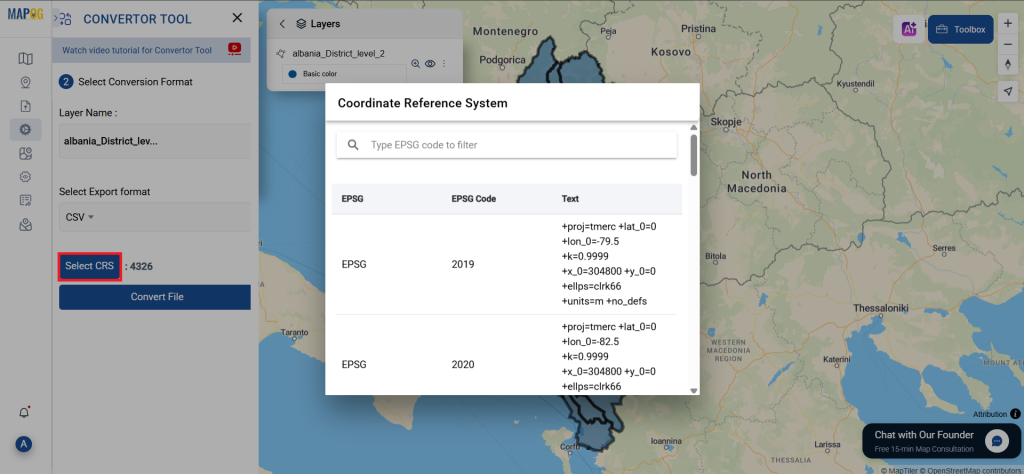
1. Choose the output file format as KMZ. The tool offers various formats, but for this guide, we are focusing on converting to KMZ.
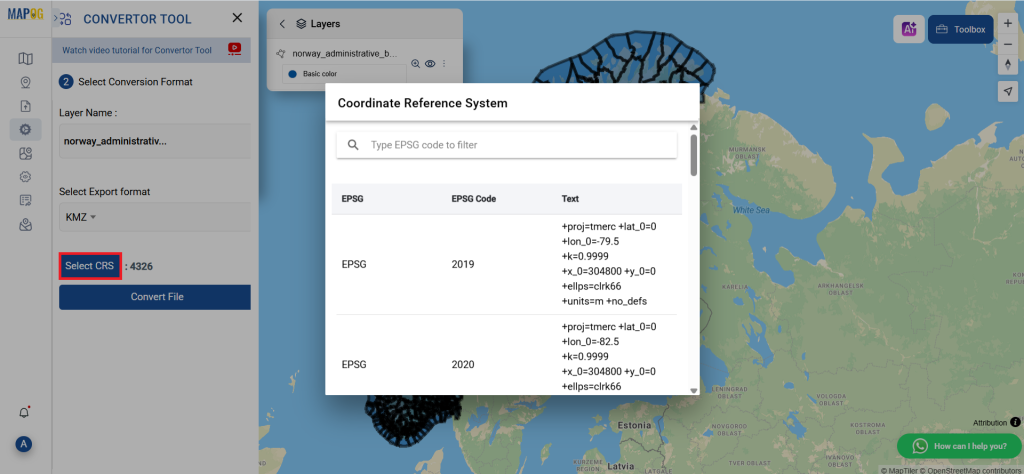
2.You can also set the CRS at this stage.
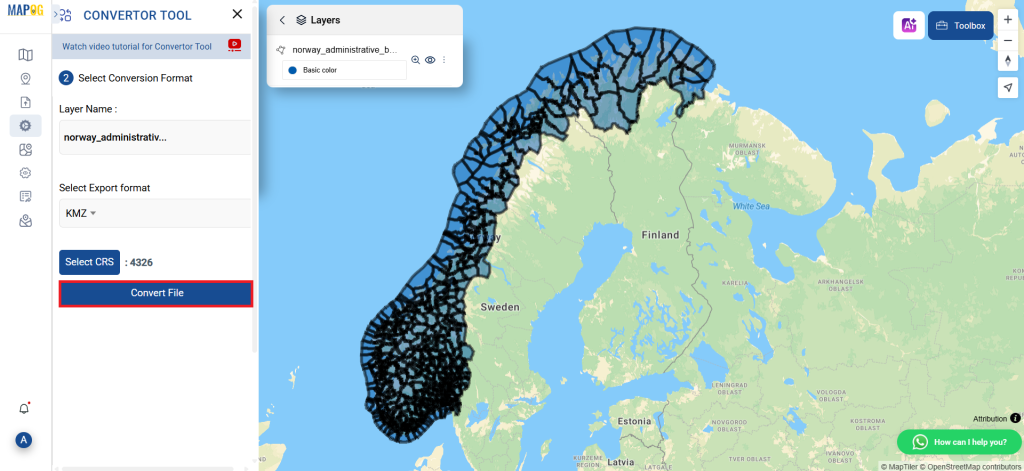
Step 3: Run the Conversion
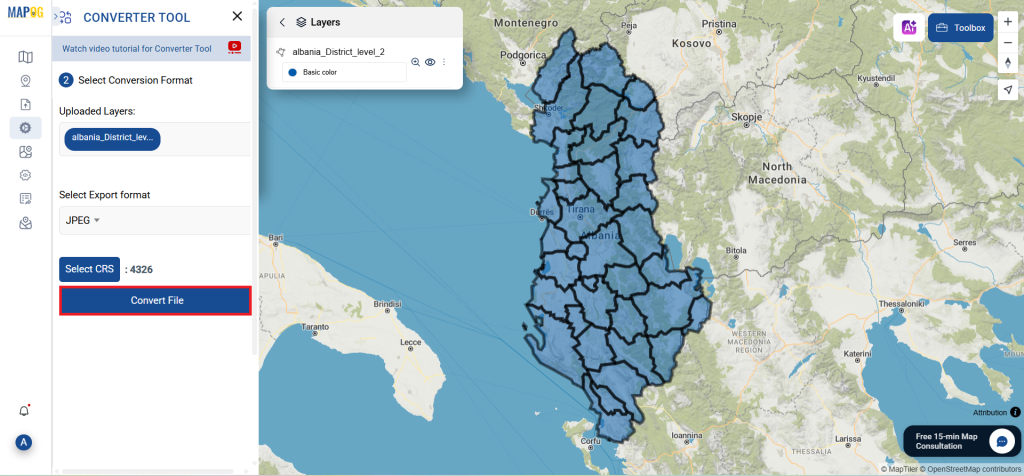
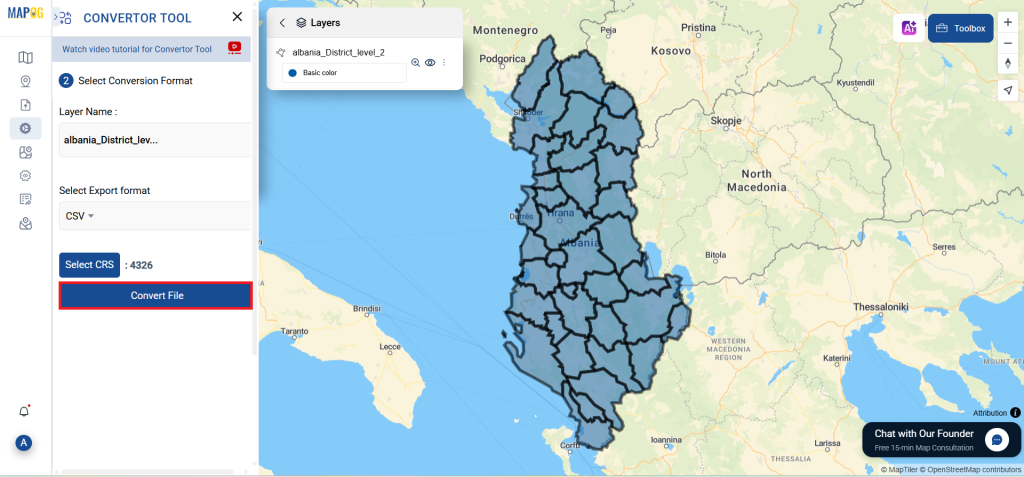
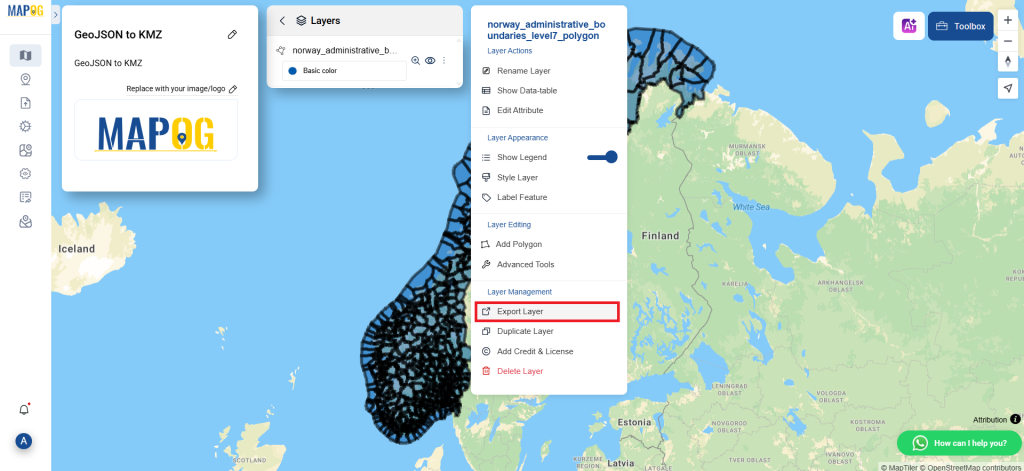
Click ‘Convert Files’ and let the tool work its magic. The Converter Tool processes your data, transforming it from GeoJSON to KMZ format.
Step 4: Review and Download
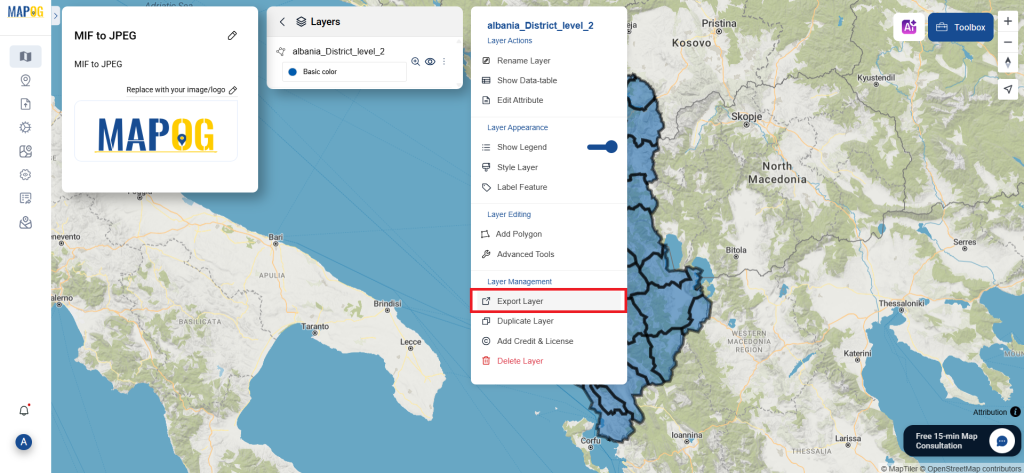
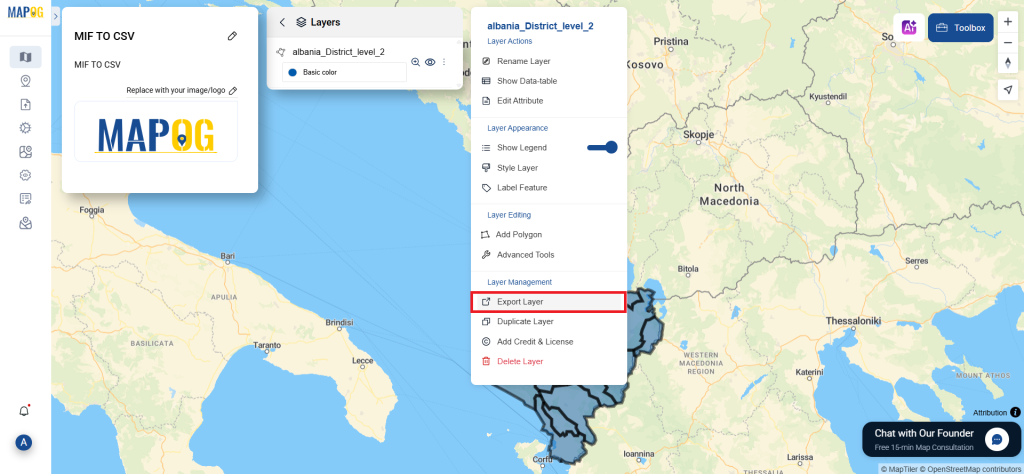
Finally, review your converted KMZ data to ensure it looks right. Once satisfied, download the converted file. This step is crucial to verify that the conversion has been successful and the data integrity is maintained.
And there you have it! You’ve successfully used the Converter Tool in MAPOG to convert your GeoJSON files to KMZ. Now you can easily convert your data for all your analysis needs. This feature simplifies the process of handling different data formats, making your workflow more efficient and effective.
GIS Data by MAPOG is a user-friendly platform designed for effortless GIS data access. Users can Download Stadium Data in multiple formats like Shapefile, KML, and GeoJSON. With a seamless interface, it allows downloading administrative and geographic datasets. This makes stadium mapping and analysis more efficient and detailed across the globe.
Understanding the Process
MAPOG simplifies downloading stadium data by providing a clear step-by-step guide. With over 200 countries and 900+ layers, users can access stadium data in various formats like Shapefile, KML, MID, and many others. The platform supports diverse GIS formats, ensuring smooth integration into any project.
All data is provided in GCS datum EPSG:4326 WGS84 CRS (Coordinate Reference System).
Users need to log in to access and download their preferred data formats.
Step-by-Step Guide to Download Stadium Data
Step 1: Search for ‘Stadium Data’
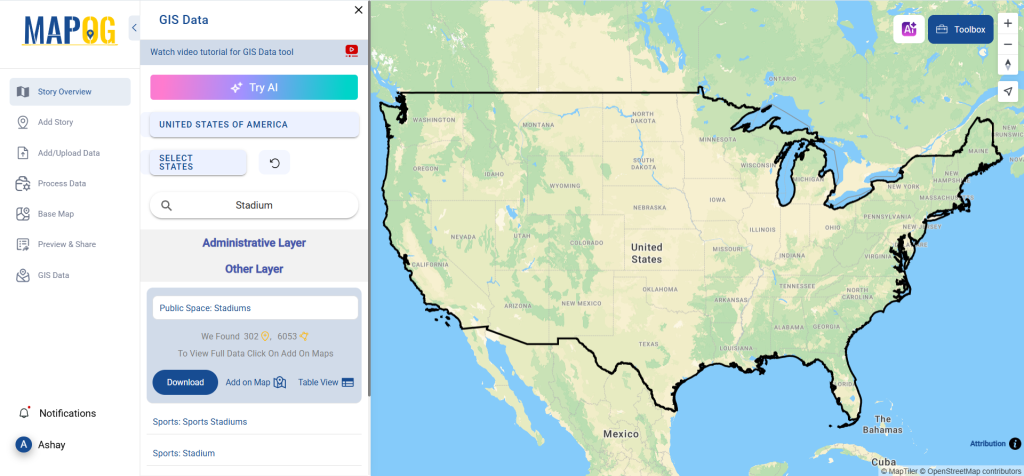
Log in to GIS Data by MAPOG and select the desired country. Use the search layer option to locate Stadium Data. Users can view data attributes such as location, and area type.
Try the “Try AI” feature in the upper left corner for an advanced search experience. Enter the specific stadium data you need along with the region, and the AI tool will fetch accurate results quickly.
Step 3: Apply Filters
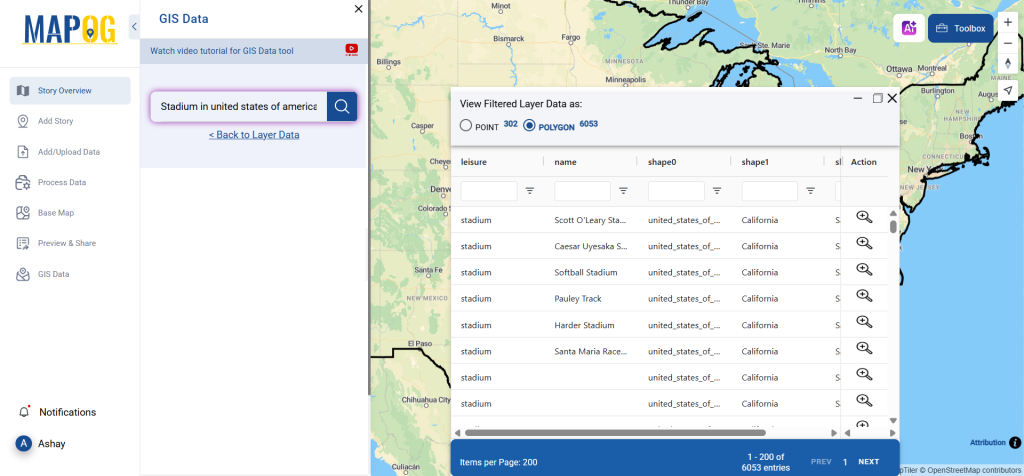
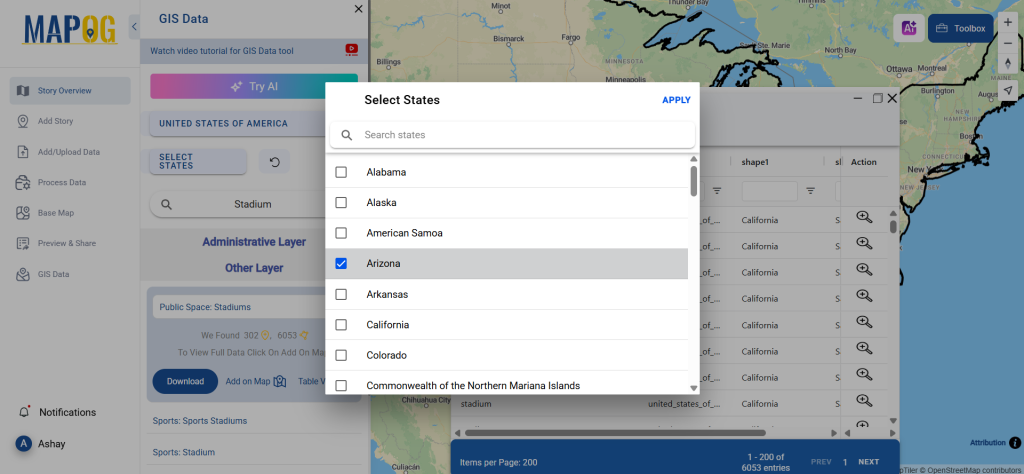
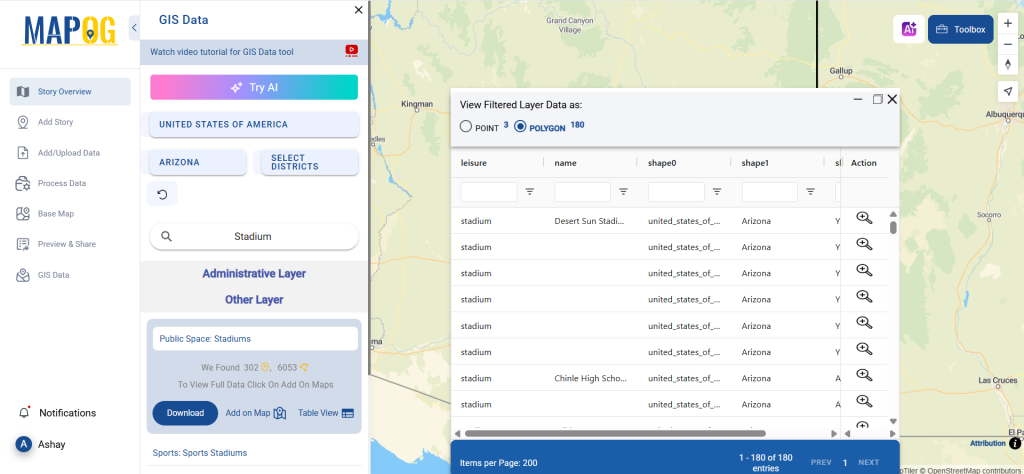
Use the filter data option to narrow your search based on specific cities, districts, or stadium types. This feature improves data precision, making it easier to focus on a particular region or stadium category.
Step 4: Visualize on Map
With the “Add on Map” feature, users can overlay stadium data onto the map analysis interface. This enhances visualization, spatial analysis, and decision-making for GIS projects.
Step 5: Download Stadium Data
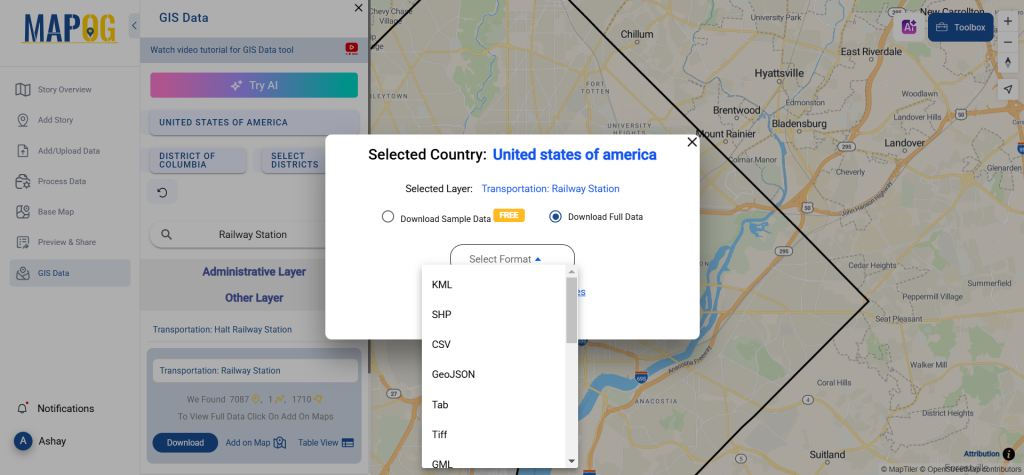
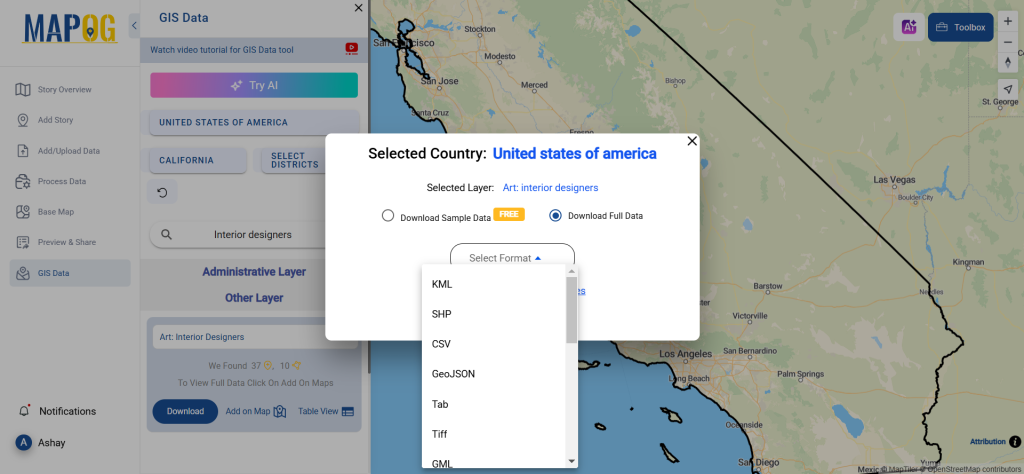
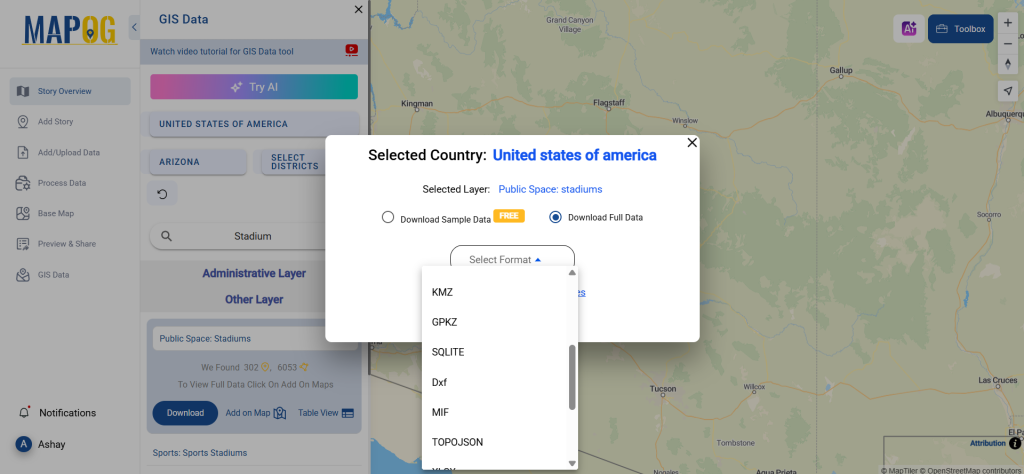
Click the “Download Data” button. Choose between sample data or the full dataset. Select the required format (Shapefile, KML, GeoJSON, or others) from the available options. Agree to the terms and conditions, then proceed with the download.
Conclusion
GIS Data by MAPOG makes it easy to Download Stadium Data in multiple GIS formats. Whether for sports planning, research, or mapping, users can access detailed stadium datasets with just a few clicks. The platform’s extensive data coverage and format variety make it an essential tool for GIS professionals, urban planners, and sports analysts.
Disclaimer : The GIS data provided for download in this article was initially sourced from OpenStreetMap (OSM) and further modified to enhance its usability. Please note that the original data is licensed under the Open Database License (ODbL) by the OpenStreetMap contributors. While modifications have been made to improve the data, any use, redistribution, or modification of this data must comply with the ODbL license terms. For more information on the ODbL, please visit OpenStreetMap’s License Page.
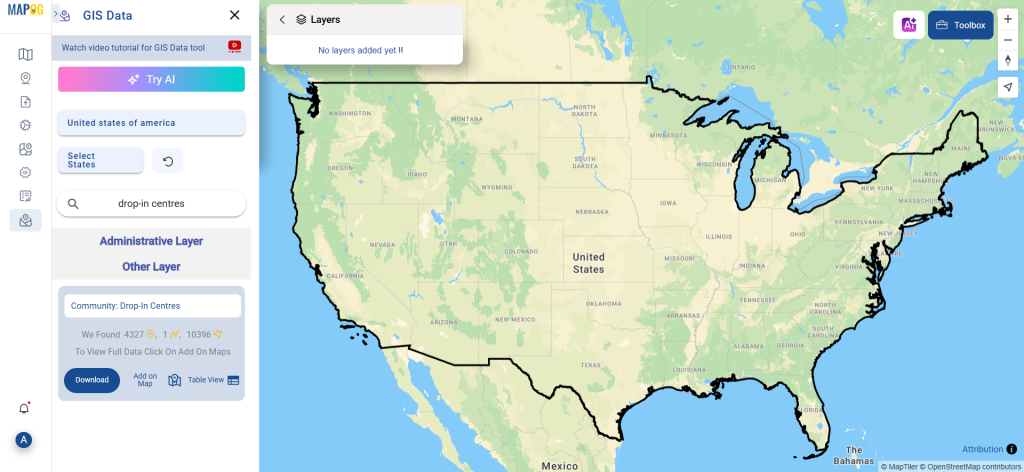
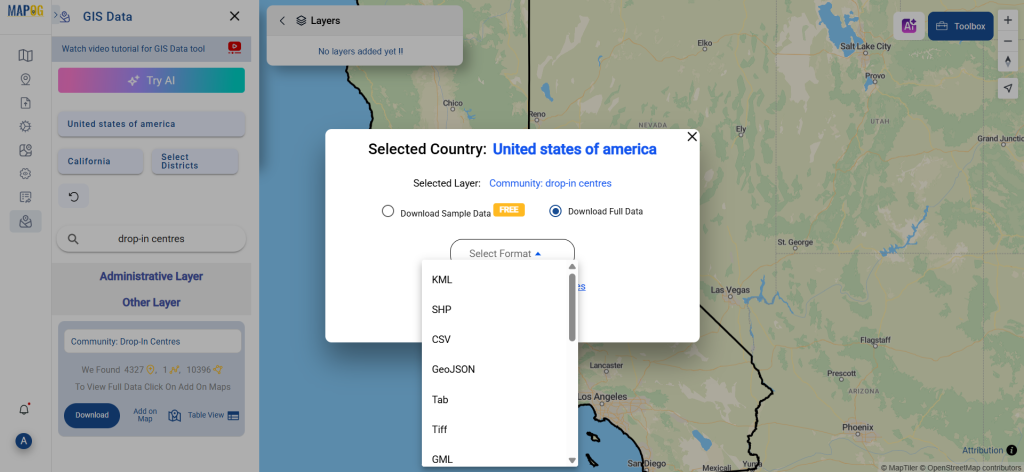
Looking to Download Drop-in Centers Data for your next GIS project or planning initiative? With GIS Data by MAPOG, accessing reliable, up-to-date geographic datasets is simple and efficient. Whether you’re working in the fields of social welfare, community health outreach, or urban resource mapping, this platform supports over 15 GIS formats including Shapefile, KML, MID, and GeoJSON—ensuring smooth compatibility with major GIS tools and software.
How GIS Data by MAPOG Works?
MAPOG’s intuitive system simplifies the process of discovering, visualizing, and downloading location-based datasets. It supports users with advanced tools like AI-assisted search, layer visualization, and customizable format options. Whether you’re analyzing accessibility or planning expansion, you can easily download Drop-in Centers Data for more informed spatial analysis.
All data is provided in GCS datum EPSG:4326 WGS84 CRS (Coordinate Reference System).
Users need to log in to access and download their preferred data formats.
Step-by-Step Guide to Download Drop-in Centers Data
Step 1: Search for Drop-in Centers Data
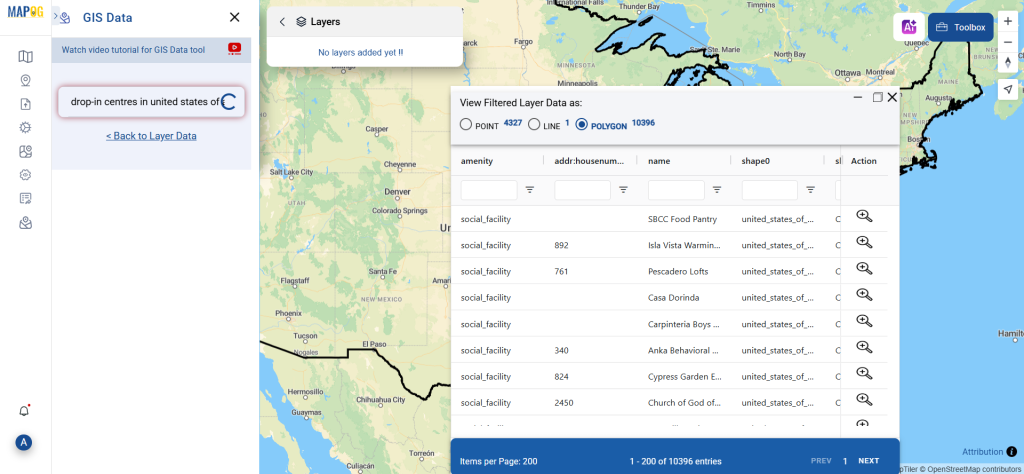
Begin by logging into the GIS Data by MAPOG portal. Use the search layer function and type in “Drop-in Centers Data.” Review the attributes available—data may appear as points or polygons, depending on how it has been collected and categorized.
Use MAPOG’s built-in “Try AI” feature to quickly find relevant datasets. Enter phrases like “Drop-in centers near me” or “Community shelters,” and the tool will auto-suggest matching layers, saving you time and effort.
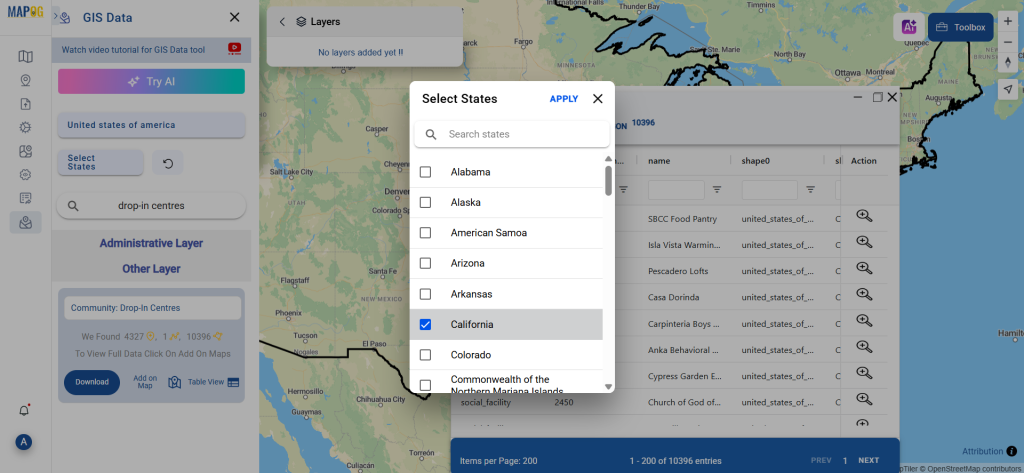
Step 3: Apply Filters for Targeted Results
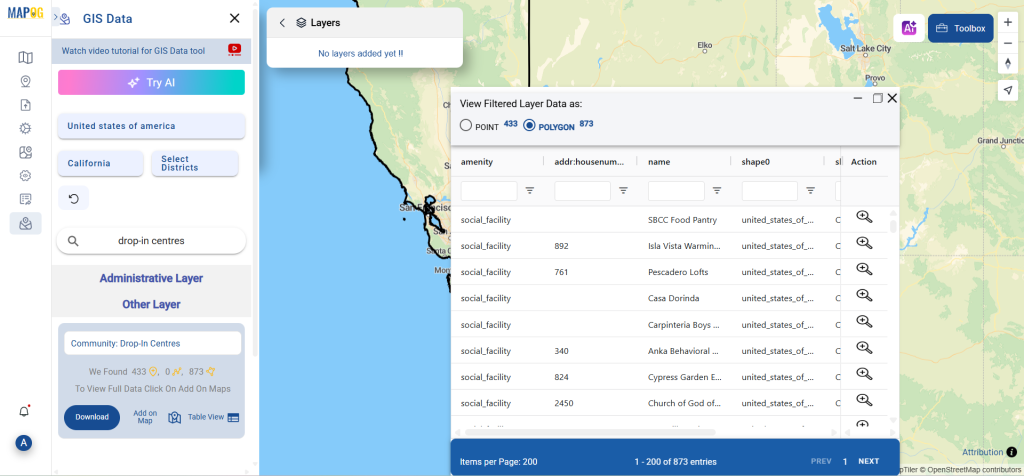
Narrow your results using the Filter Data option. This allows users to search by state or district, enabling deeper exploration within a region. Whether you’re working locally or across multiple jurisdictions, this feature ensures data accuracy and relevance.
Step 4: Visualize with “Add on Map”
Click on “Add on Map” to view your selected data on MAPOG’s interactive GIS interface. This lets you analyze spatial distribution, evaluate service gaps, and understand proximity to other key facilities—all in real time.
Step 5: Download Drop-in Centers Data
Once you’re satisfied with your selection, click on “Download Data.” Choose from sample or full datasets and select from formats like Shapefile, KML, MID, CSV, GeoJSON, DXF, or SQL, among others.
Final Thoughts
With powerful tools, smart filters, and diverse format options, GIS Data by MAPOG makes it seamless to download Drop-in Centers Data for any kind of mapping, analysis, or planning task. Whether you’re a researcher, urban planner, social worker, or GIS professional, this platform equips you with the spatial intelligence needed to make meaningful, data-driven decisions.
Disclaimer : The GIS data provided for download in this article was initially sourced from OpenStreetMap (OSM) and further modified to enhance its usability. Please note that the original data is licensed under the Open Database License (ODbL) by the OpenStreetMap contributors. While modifications have been made to improve the data, any use, redistribution, or modification of this data must comply with the ODbL license terms. For more information on the ODbL, please visit OpenStreetMap’s License Page.
Looking to explore or map culturally significant sites? Download Historical Monuments Data quickly and accurately using GIS Data by MAPOG. This intuitive platform offers data in over 15 GIS formats—including Shapefile, KML, GeoJSON, and MID—ensuring compatibility with major GIS tools. Whether you’re engaged in heritage conservation, academic research, urban planning, or tourism development, this tool provides well-structured, ready-to-use datasets that support detailed spatial analysis and visualization.
How to Download Historical Monuments Data
GIS Data by MAPOG offers a robust way to explore and download monument data from hundreds of geographic layers. The system supports a wide variety of file formats—such as KML, SHP, CSV, GeoJSON, SQL, DXF, MIF, TOPOJSON, and GPX—making it a preferred choice for GIS professionals, developers, and researchers alike.
All data is provided in GCS datum EPSG:4326 WGS84 CRS (Coordinate Reference System).
Users need to log in to access and download their preferred data formats.
Step-by-Step Guide to Download Historical Monuments Data
Step 1: Search for Historical Monuments Data
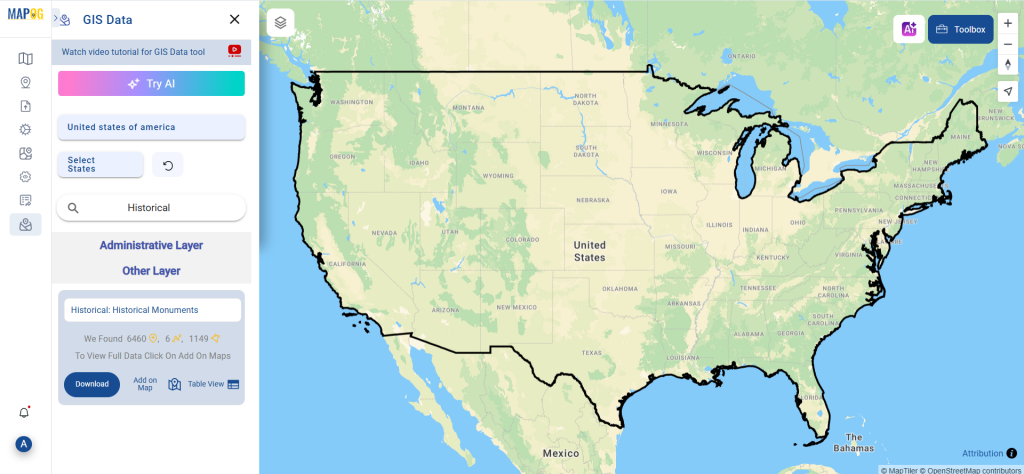
Begin by selecting the region of interest within the MAPOG interface. Use the “Search Layer” function and look for “Historical Monuments Data.” Depending on the dataset, the information may appear as points or polygons, representing locations or boundaries.
Let MAPOG’s “Try AI” assist you. Simply input keywords like “Monuments near me” or “Heritage sites,” and the AI tool will present the most relevant layers. This feature not only saves time but also enhances search accuracy.
Step 3: Apply Data Filters
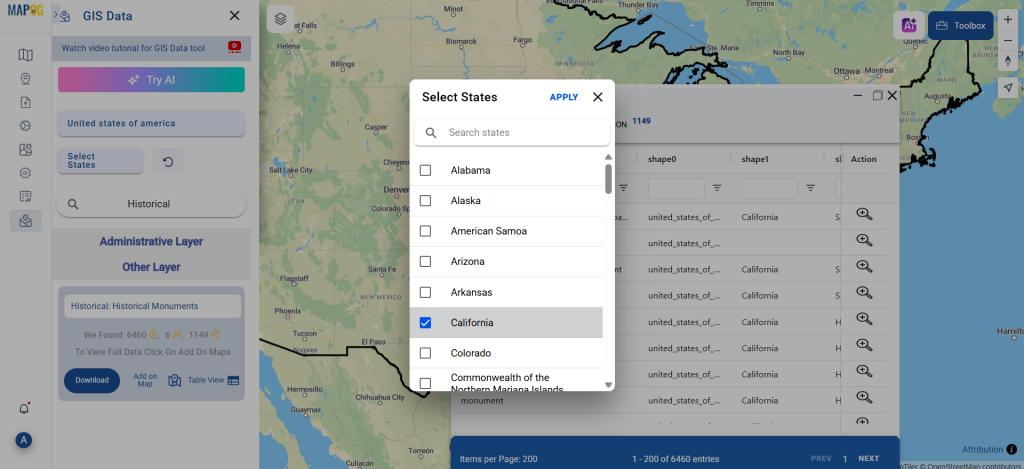
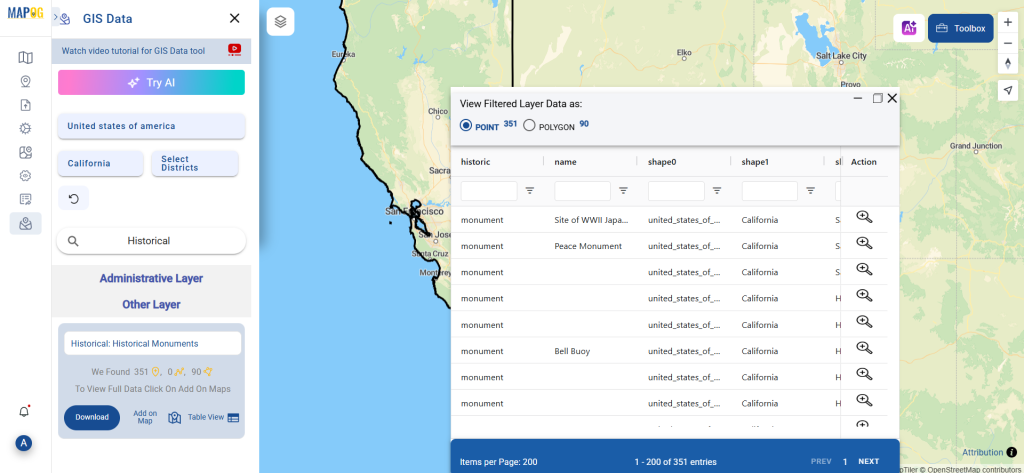
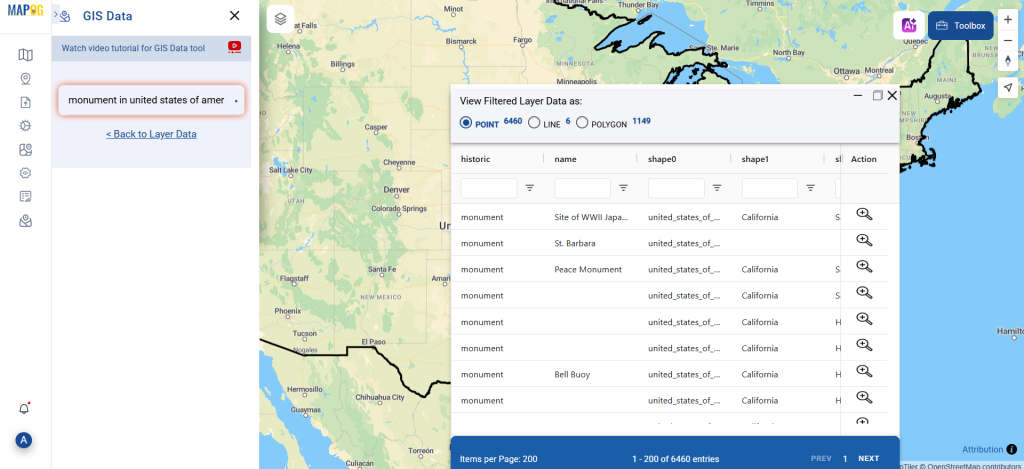
Fine-tune your search using the Filter Data option. You can narrow the dataset by selecting specific states and districts. For nationwide datasets, this feature enables deep-level filtering—making it easier to locate and analyze monuments based on administrative boundaries.
Step 4: Visualize with ‘Add on Map’
Click the Add on Map option to overlay the selected layer onto the GIS map analysis interface. This allows for better visualization and spatial examination of monument locations, clustering, accessibility, and relation to nearby landmarks or infrastructure.
Step 5: Download Historical Monuments Data
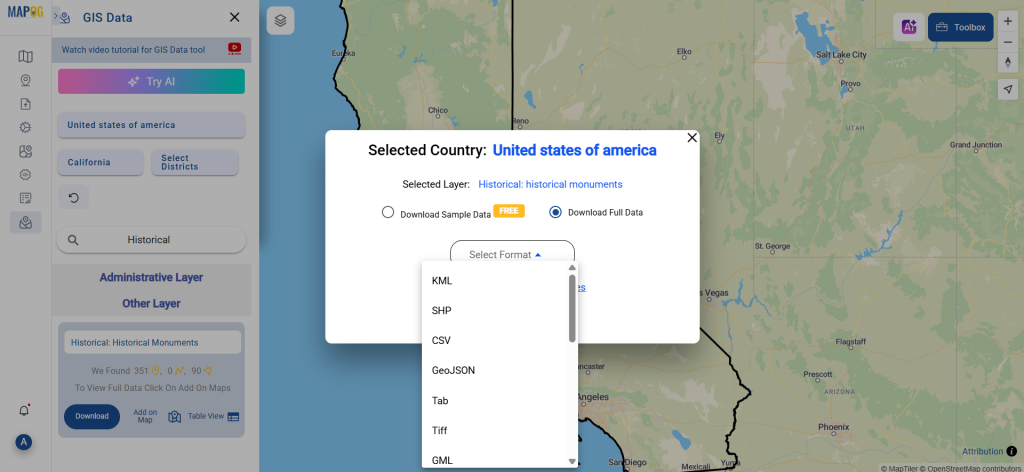
Once you’ve finalized your dataset, click “Download Data.” Choose whether to download a sample or the full dataset. Select your desired format—Shapefile, KML, GeoJSON, MID, or others—accept the usage terms, and download your data for offline or project use.
Final Thoughts
With MAPOG’s powerful GIS platform, the ability to download Historical Monuments Data becomes efficient and user-friendly. The platform caters to diverse GIS applications, offering detailed insights and flexibility in how data is accessed and applied. Whether you’re a cultural researcher, urban planner, or GIS enthusiast, MAPOG ensures that heritage-focused spatial data is always within reach.
Disclaimer : The GIS data provided for download in this article was initially sourced from OpenStreetMap (OSM) and further modified to enhance its usability. Please note that the original data is licensed under the Open Database License (ODbL) by the OpenStreetMap contributors. While modifications have been made to improve the data, any use, redistribution, or modification of this data must comply with the ODbL license terms. For more information on the ODbL, please visit OpenStreetMap’s License Page.
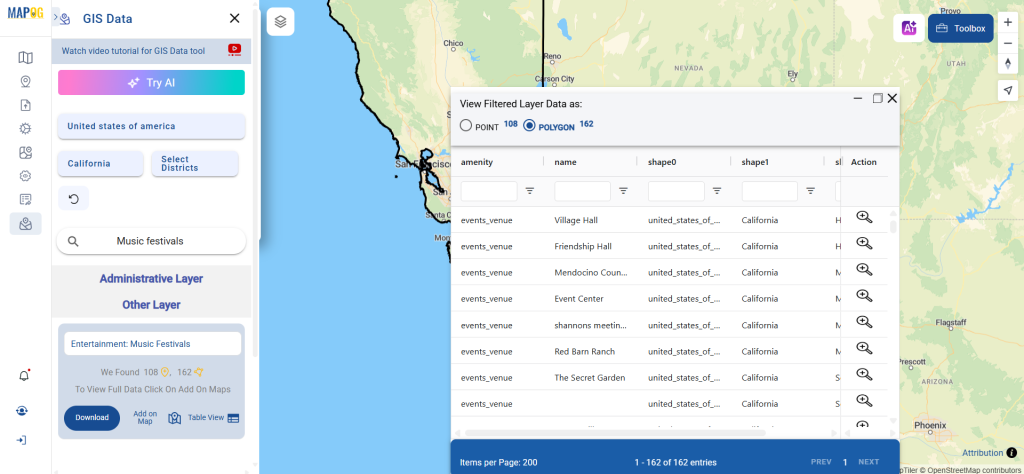
Searching for vibrant cultural event data? Now you can easily Download Music Festivals Data using GIS Data by MAPOG. This intuitive platform offers a wide range of GIS formats—including Shapefile, KML, GeoJSON, MID, and many others—making it simple to integrate with various GIS tools. Whether for tourism planning, event management, cultural studies, or mapping global entertainment hubs, MAPOG provides structured, regularly updated music festival datasets, perfect for seamless analysis and mapping.
How to Download Music Festivals Data
GIS Data by MAPOG streamlines the entire process, offering quick access to music festivals data across thousands of locations and hundreds of curated layers. Supporting formats like KML, SHP, CSV, GeoJSON, SQL, DXF, MIF, TOPOJSON, and GPX, it’s an excellent choice for planners, researchers, and GIS enthusiasts alike.
All data is provided in GCS datum EPSG:4326 WGS84 CRS (Coordinate Reference System).
Users need to log in to access and download their preferred data formats.
Step-by-Step Guide to Download Music Festivals Data
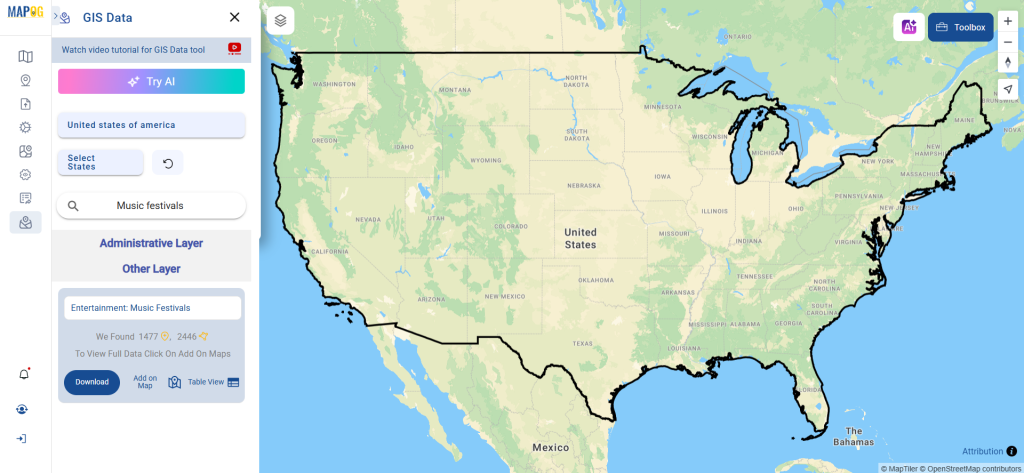
Step 1: Search for Music Festivals Data
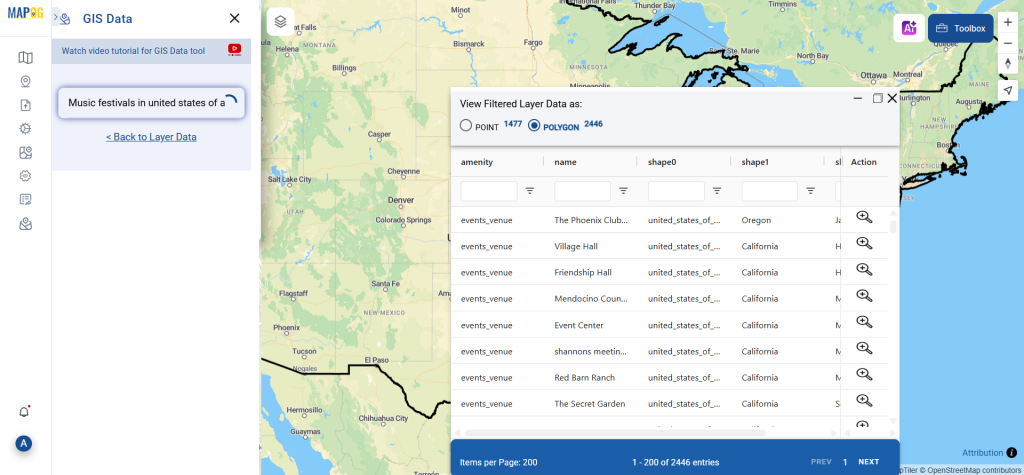
Begin by navigating the GIS Data by MAPOG interface. Use the search layer option and type in “Music Festivals Data.” Check the dataset attributes to understand if the data is available in point, line, or polygon formats.
Leverage the smart “Try AI” feature to make your search faster and more accurate. Simply type a keyword like “Music festivals nearby,” and the AI engine will fetch the most relevant data layers within seconds, eliminating the need for manual browsing.
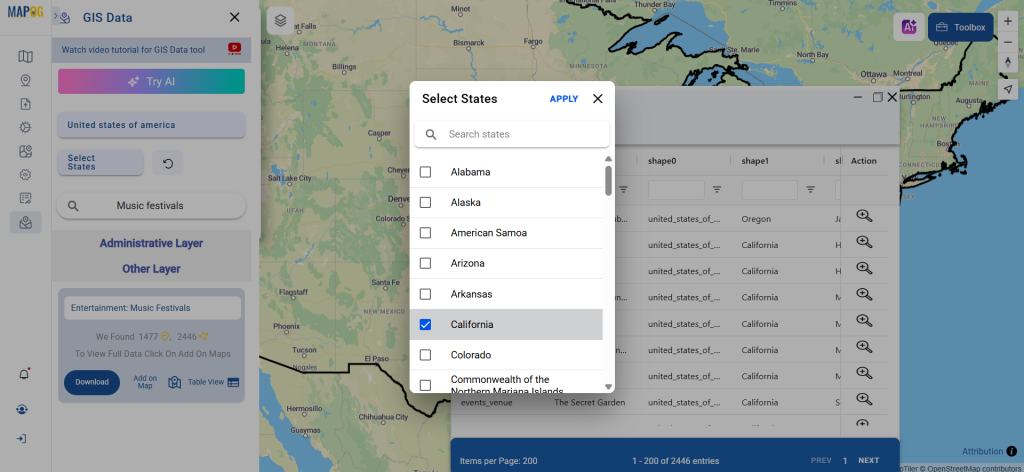
Step 3: Apply Data Filters
Refine your search effortlessly with the Filter Data option. Drill down into the data by selecting specific states and districts, allowing you to access highly targeted and location-specific music festival information for deeper insights.
Step 4: Visualize with “Add on Map”
Click on the “Add on Map” feature to overlay your selected music festival data onto the interactive map interface. This visualization allows for better analysis of event distributions, accessibility patterns, and regional clustering—all crucial for informed planning and strategic mapping.
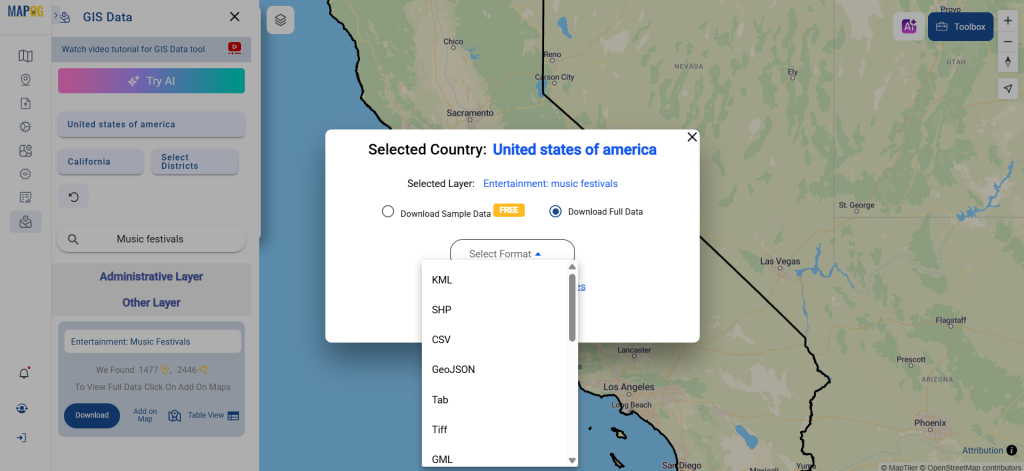
Step 5: Download Music Festivals Data
Finally, after confirming the dataset fits your needs, hit the “Download Data” button. You can choose between downloading a sample or the complete dataset. Select your desired format—whether it’s Shapefile, KML, GeoJSON, MID, or any other supported format—accept the terms, and proceed to download.
Final Thoughts
With GIS Data by MAPOG, the ability to download Music Festivals Data across diverse formats has never been simpler or more accessible. The platform ensures flexibility and depth for any GIS project, whether it’s for cultural research, travel planning, or event mapping. Tap into a world of music festivals and let your GIS analysis sing with rich, dynamic data!
Disclaimer : The GIS data provided for download in this article was initially sourced from OpenStreetMap (OSM) and further modified to enhance its usability. Please note that the original data is licensed under the Open Database License (ODbL) by the OpenStreetMap contributors. While modifications have been made to improve the data, any use, redistribution, or modification of this data must comply with the ODbL license terms. For more information on the ODbL, please visit OpenStreetMap’s License Page.
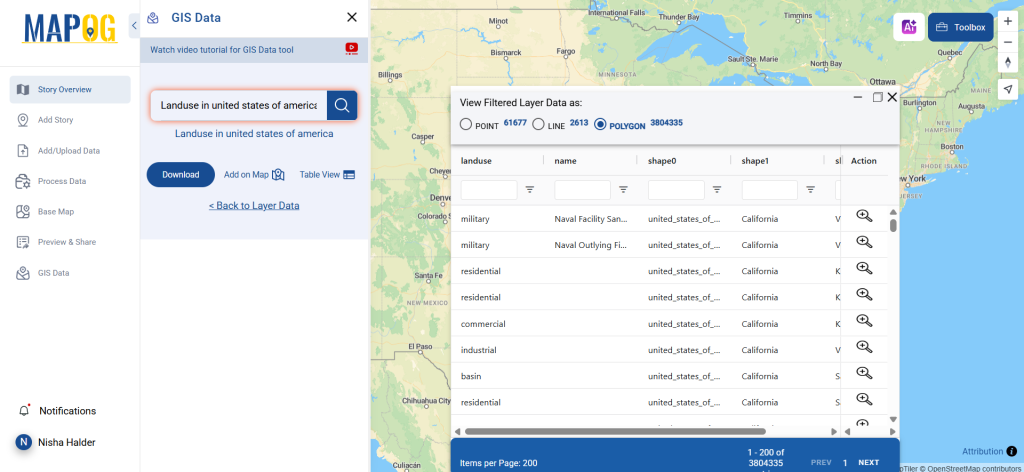
Looking to download Land use Data for mapping, environmental planning, or spatial analysis? GIS Data by MAPOG offers a reliable and intuitive platform to access land use datasets in over 15+ GIS formats including Shapefile, KML, GeoJSON, MID, and more. Land use data provides crucial insights into how land is utilized—covering agriculture, urban zones, forests, water bodies, and industrial areas—making it essential for planners, researchers, and developers seeking informed, data-driven decisions.
How to Download Land use Data
With thousands of layers available, GIS Data by MAPOG simplifies access to landuse information from diverse locations. Whether you’re working on zoning analysis, environmental impact studies, or infrastructure planning, the platform supports an extensive range of export formats like KML, SHP, CSV, DXF, SQL, GPX, TOPOJSON, MIF, and others—ensuring compatibility with almost all GIS applications.
All data is provided in GCS datum EPSG:4326 WGS84 CRS (Coordinate Reference System).
Users need to log in to access and download their preferred data formats.
Step-by-Step Guide to Download Land use Data
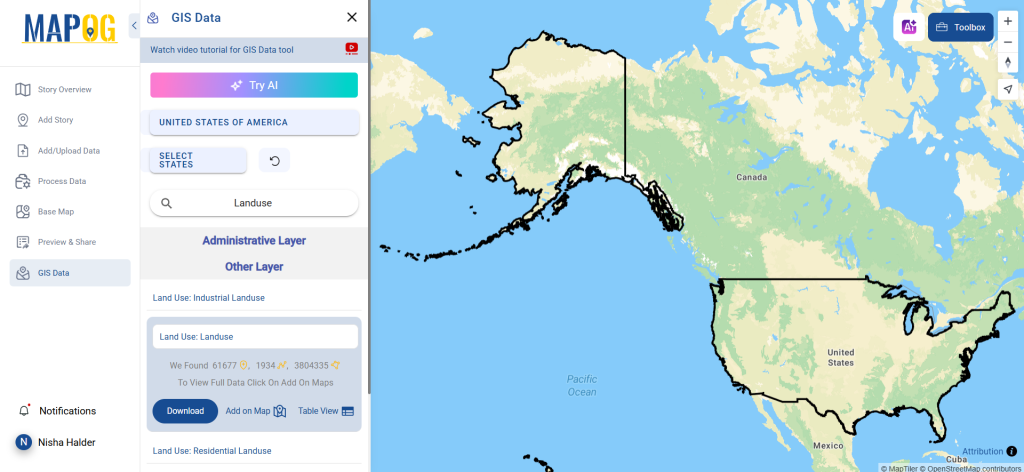
Step 1: Search for Land use Data
Begin by typing “Land use Data” in the search bar within the MAPOG interface. You can explore detailed attributes that classify areas into various land categories. Layers may be available in polygon format, ideal for representing zonal data visually.
Speed up your search using MAPOG’s “Try AI” feature. Just enter terms like “Land use in area” and the system smartly identifies the most relevant layers. This AI-powered assistance makes data discovery smooth and less time-consuming.
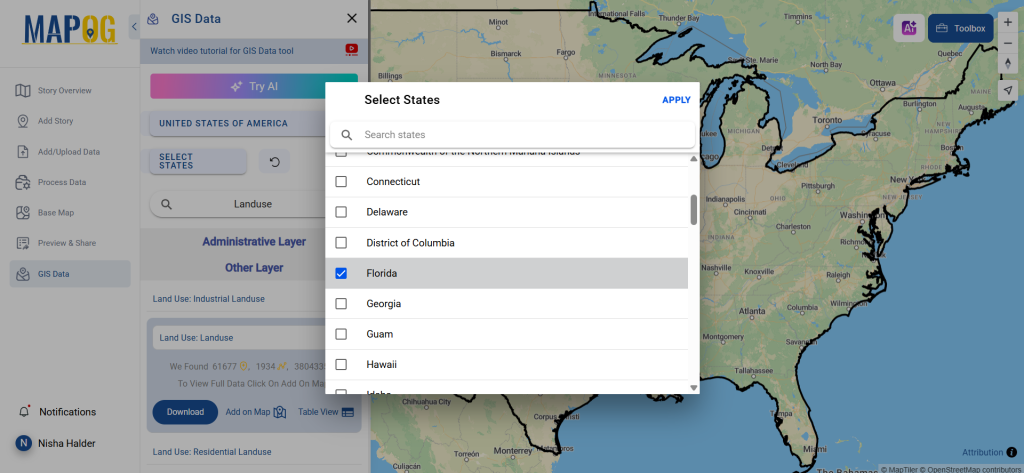
Step 3: Apply State and District Filters
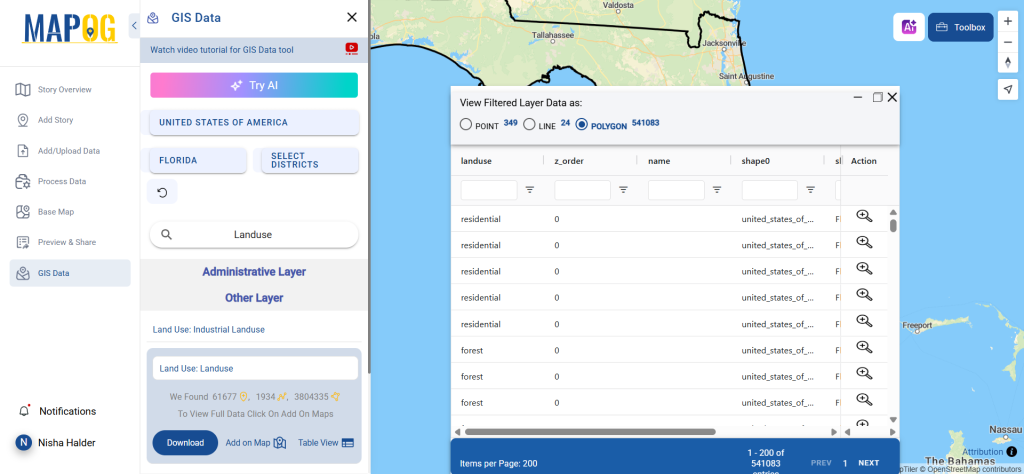
Want to narrow down your search? Use the Filter Data option to drill into specific states and districts. This allows for high-precision data extraction, especially useful when working on localized land management or development plans.
Step 4: Visualize with “Add on Map”
With the Add on Map option, users can directly overlay selected landuse layers onto the map analysis panel. This feature enhances spatial understanding and allows for better decision-making through real-time visualization and comparison.
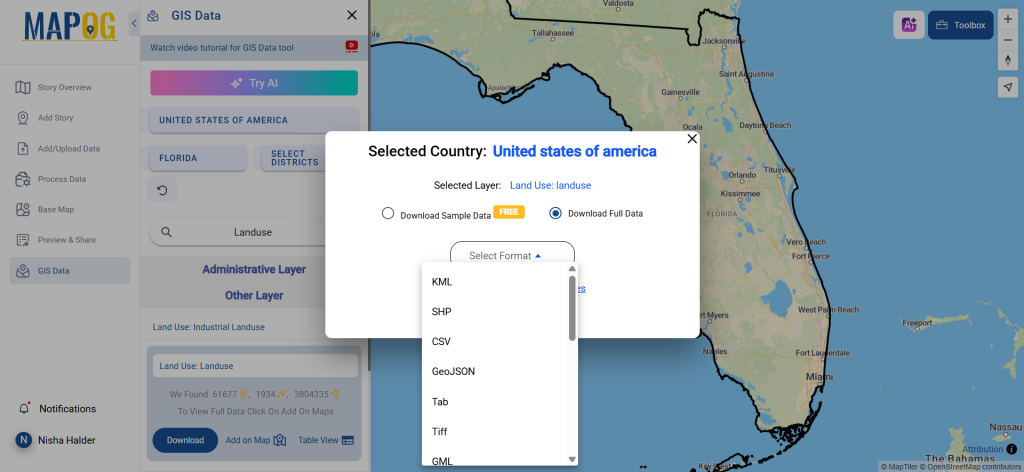
Step 5: Download Land use Data
After reviewing the map and dataset, click “Download Data.” You can select a sample version or the complete dataset, then choose from various GIS-compatible formats like SHP, KML, GeoJSON, MID, and others. Once you accept the terms, your file is ready for download.
Final Thoughts
To sum up, download Land use Data using GIS Data by MAPOG offers a flexible and user-friendly experience tailored for professionals across planning, GIS research, and environmental analysis. With powerful tools like AI search, advanced filtering, and multi-format export, MAPOG empowers users to retrieve detailed land use information effortlessly and efficiently. Whether you’re analyzing rural development trends or urban expansion, MAPOG makes your GIS journey seamless.
Disclaimer : The GIS data provided for download in this article was initially sourced from OpenStreetMap (OSM) and further modified to enhance its usability. Please note that the original data is licensed under the Open Database License (ODbL) by the OpenStreetMap contributors. While modifications have been made to improve the data, any use, redistribution, or modification of this data must comply with the ODbL license terms. For more information on the ODbL, please visit OpenStreetMap’s License Page.
Searching for well-structured and reliable Bus Station data? Now, you can download Bus Station Data easily using the intuitive and powerful GIS Data by MAPOG platform. Designed for planners, researchers, and GIS professionals, this platform offers a wide range of GIS formats—including Shapefile, KML, GeoJSON, MID, and more—ensuring seamless integration with various GIS tools. Whether you’re working on transport planning, urban infrastructure development, or location-based services, MAPOG delivers curated and up-to-date Bus Station datasets ready for visualization and analysis.
Why Bus Station Data Matters
Bus Station data provides essential insights into public transportation networks, accessibility, and urban mobility patterns. With detailed attributes like station names, capacity, types, and operational status, this data becomes crucial for traffic flow optimization, infrastructure upgrades, and strategic planning in both urban and rural contexts.
All data is provided in GCS datum EPSG:4326 WGS84 CRS (Coordinate Reference System).
Users need to log in to access and download their preferred data formats.
Step-by-Step Guide to Download Bus Station Data
Step 1: Search for Bus Station Data
Begin by navigating to the MAPOG interface and entering “Bus Station Data” in the search layer field. Verify whether the dataset is available as points or polygons, depending on your mapping needs.
Speed up your search using MAPOG’s “Try AI” tool. Just type a query like “Bus Stations in region,” and the AI will instantly pull relevant datasets, making data discovery more efficient and less time-consuming.
Step 3: Apply Data Filters
Use the “Filter Data” option to refine results by state or district. This is particularly useful when drilling down into specific regions, ensuring you get hyper-local and relevant Bus Station information for targeted analysis.
Step 4: Visualize with “Add on Map”
The “Add on Map” feature allows you to overlay the dataset onto the GIS map viewer instantly. This helps you analyze distribution patterns, station density, and proximity to urban areas, supporting smarter decision-making.
Step 5: Download the Dataset
Once you’ve previewed and finalized your selection, hit “Download Data.” Choose between downloading a sample or full dataset. Select your required format—be it Shapefile, KML, MID, or any of the 15+ supported GIS types—agree to the terms, and your data will be ready in moments.
Final Thoughts
With GIS Data by MAPOG, the ability to download Bus Station data is now faster, smarter, and more accessible than ever before. The platform empowers users to explore, filter, visualize, and export transport datasets across a variety of formats—all in just a few clicks. Whether you’re enhancing urban mobility strategies, conducting accessibility studies, or mapping transit systems, this tool ensures that your Download Bus Station Data journey is seamless and insightful.
Disclaimer : The GIS data provided for download in this article was initially sourced from OpenStreetMap (OSM) and further modified to enhance its usability. Please note that the original data is licensed under the Open Database License (ODbL) by the OpenStreetMap contributors. While modifications have been made to improve the data, any use, redistribution, or modification of this data must comply with the ODbL license terms. For more information on the ODbL, please visit OpenStreetMap’s License Page.
Looking to map the spread of fast food chains or analyze urban food landscapes? Download Fast Food Restaurant Data easily and efficiently using GIS Data by MAPOG. This powerful and intuitive platform supports multiple GIS formats such as Shapefile, KML, GeoJSON, MID, and more—making it compatible with various GIS tools for both beginners and experts. Whether you’re studying urban sprawl, planning zoning policies, or exploring consumer patterns, MAPOG delivers accurate, location-based datasets to meet your analytical needs.
How to Download Fast Food Restaurant Data
GIS Data by MAPOG has simplified the entire process of acquiring restaurant datasets from across the globe. With over 900+ thematic layers and coverage in more than 200 regions, the platform allows you to download data in formats like SHP, KML, CSV, SQL, DXF, MIF, GPX, TOPOJSON, and more. This versatility makes it ideal for use in ArcGIS, QGIS, Google Earth, and other GIS software.
All data is provided in GCS datum EPSG:4326 WGS84 CRS (Coordinate Reference System).
Users need to log in to access and download their preferred data formats.
Step-by-Step Guide to Download Fast Food Restaurant Data
Step 1: Search for Fast Food Restaurant Data
Begin by entering the platform and selecting your area of interest. Use the “Search Layer” option and type “Fast Food Restaurant Data” to locate relevant datasets. Preview the data type—most will be in point format with essential attributes like name, location, and category.
Save time by using MAPOG’s “Try AI” feature. Just type something like “Fast food outlets near city center” and let the AI assist you in finding accurate and contextual datasets without manual filtering.
Step 3: Apply State and District Filters
Need more refined data? Use the Filter Data option to narrow results by specific states or districts. This is especially useful for those who want to focus on micro-level planning or regional market research.
Step 4: Visualize with “Add on Map”
With the Add on Map feature, you can view the selected fast food restaurant data directly on the GIS interface. This enables deeper spatial analysis—like identifying clusters, gaps in service areas, or proximity to residential zones.
Step 5: Download Fast Food Restaurant Data
Finally, click “Download Data” once your dataset looks good. You’ll have the option to choose a sample or full version, select your preferred format (such as Shapefile, KML, MID, GeoJSON, etc.), and proceed with the download after agreeing to the terms.
Final Thoughts
Using GIS Data by MAPOG, you can download Fast Food Restaurant Data quickly and in a format that suits your GIS workflow. From urban researchers and business analysts to geography enthusiasts, everyone can benefit from this rich, location-based resource. Thanks to MAPOG’s clean interface, advanced search tools, and diverse export options, gathering food infrastructure data for analysis has never been this seamless.
Disclaimer : The GIS data provided for download in this article was initially sourced from OpenStreetMap (OSM) and further modified to enhance its usability. Please note that the original data is licensed under the Open Database License (ODbL) by the OpenStreetMap contributors. While modifications have been made to improve the data, any use, redistribution, or modification of this data must comply with the ODbL license terms. For more information on the ODbL, please visit OpenStreetMap’s License Page.
This tutorial will walk you through the process of using MAPOG‘s Converter Tool to rapidly and simply convert GeoJSON files to GPKG format. Therefore, the complete procedure of Converting GeoJSON to GPKG with MAPOG will be presented to you in easy steps, regardless of whether you are a first-time user or not.
Key Concept to Converting files
One tool in the MAPOG is the Converter Tool, which is used to change the type of information you have. It resembles magic! It accepts data supplied in one format and outputs it in another that you can use for analysis. Additionally, GIS data may be downloaded in any format, meaning it can be used for a variety of purposes.
Upload your GeoJSON file. This is your entry point where you feed in the information that needs conversion.
Step 2: Select the Format for Conversion
If you wish to export just the data, choose GPKG or Geopackage as the output format. Although the tool offers other ways to get the desired outcome, we are selecting the option to convert the file to GPKG for the purposes of this guide.
You can also set the Output CRS at this stage.
Step 3: Run the Conversion
Go to ‘Convert Files’ and watch the tool at work. Working with the Converter Tool you input your data and then the tool converts it from the GeoJSON format to the GPKG format.
Step 4: Review and Download
Check that everything seems correct by taking a moment to go over your converted GPKG data. You can download the file now that you’re satisfied. To make sure the conversion went well and that all of your data is intact, this step is crucial.
Step 5: Add Bubble Style
We can add the style on this map using the Bubble style feature in the map analysis interface. First, We need to go to the action button of the newly converted layer. Then select the bubble style from style editor option. From the panel in left side of the screen provide layer and desired attribute. Here you can change the parts, bubble color, size etc. When satisfied, click on save style to save the style.
And that’s it! You now know how to convert your GeoJSON data into GPKGs using the Converter Tool in MAPOG. It’s now simpler than ever to modify your data and get it ready for whatever analysis you require. This useful tool makes handling different data types easier, which improves the efficiency and productivity of your work.
Need access to reliable and structured data on educational infrastructure? Download Public Lecture Halls Data effortlessly using GIS Data by MAPOG. This intuitive platform supports over 15 GIS-compatible formats—including Shapefile, KML, MID, and GeoJSON—making it an ideal choice for professionals, researchers, and planners. Whether you’re working on academic infrastructure mapping, urban planning, or accessibility analysis, MAPOG empowers you with updated and spatially accurate datasets. With just a few clicks, users can Download Public Lecture Halls Data and begin their GIS-based projects seamlessly.
How to Download Public Lecture Halls Data
GIS Data by MAPOG simplifies the process of accessing this valuable data layer. With a database spanning thousands of layers and formats, users can easily find and download what they need. From standard SHP and KML files to advanced formats like MID, CSV, SQL, MIF, TOPOJSON, and GPX—the options are extensive and flexible.
All data is provided in GCS datum EPSG:4326 WGS84 CRS (Coordinate Reference System).
Users need to log in to access and download their preferred data formats.
Step-by-Step Guide to Download Public Lecture Halls Data
Step 1: Search for Public Lecture Halls Data
Start by navigating to the MAPOG GIS Data interface. Use the search bar to look up “Public Lecture Halls Data.” Review the dataset’s attributes to verify if it’s in point or polygon form, depending on your use case.
Utilize the “Try AI” feature for faster, smarter results. Simply type in terms like “public lecture halls near city center” or “lecture spaces in universities,” and the AI tool will surface the most relevant datasets.
Step 3: Apply State and District Filters
Refining your search is easy with the Filter Data option. Select specific states or districts to narrow down your results. This feature is particularly useful when analyzing data at a local or institutional level, enabling more focused GIS work.
Step 4: Use the “Add on Map” Feature
Want to visualize before downloading? The Add on Map option allows users to overlay the selected data onto MAPOG’s interactive map interface. This step supports spatial analysis and helps identify patterns or infrastructure gaps visually.
Step 5: Download the Data
After reviewing and confirming the dataset, click on the “Download Data” button. Choose between a sample file or the full dataset, then select the desired format—whether it’s Shapefile, KML, MID, or another supported format. Agree to the terms and proceed to download.
Final Thoughts
To support academic infrastructure planning or educational accessibility studies, it’s essential to work with reliable spatial data. Thanks to MAPOG, users can now download Public Lecture Halls Data in multiple GIS formats with ease and confidence. Whether for educational research, policy development, or spatial visualization, MAPOG offers a robust solution for accessing public lecture hall information tailored to your GIS needs.
Disclaimer : The GIS data provided for download in this article was initially sourced from OpenStreetMap (OSM) and further modified to enhance its usability. Please note that the original data is licensed under the Open Database License (ODbL) by the OpenStreetMap contributors. While modifications have been made to improve the data, any use, redistribution, or modification of this data must comply with the ODbL license terms. For more information on the ODbL, please visit OpenStreetMap’s License Page.
We use cookies to ensure that we give you the best experience on our website. If you continue to use this site we will assume that you are happy with it.