Download Address Interpolation Data (SHP, KML, GeoJSON) – Accurate Geocoding & Mapping

Looking to Download Address Interpolation Data for mapping, navigation, or spatial analytics? GIS Data by MAPOG makes this process smooth and efficient by offering multiple export formats such as Shapefile, KML, GeoJSON, MID, and more. Address Interpolation data helps estimate house numbers or address points along road segments, enabling accurate geocoding, routing, and urban planning workflows. With MAPOG, users can access structured, ready-to-use datasets that support various professional GIS applications.

Key Features & Supported Formats

MAPOG provides access to a vast collection of GIS layers, offering formats like SHP, KML, GeoJSON, MID/MIF, CSV, SQL, DXF, GPX, and TOPOJSON. The interface is designed so that professionals and beginners alike can easily browse, preview, filter, and Download Address Interpolation Data for their mapping needs.

Download Address Interpolation Data of any countries

Note:
  • All datasets are provided in GCS datum EPSG:4326 – WGS84 CRS.
  • Login is required before downloading any dataset.

Step-by-Step Guide to Download Address Interpolation Data

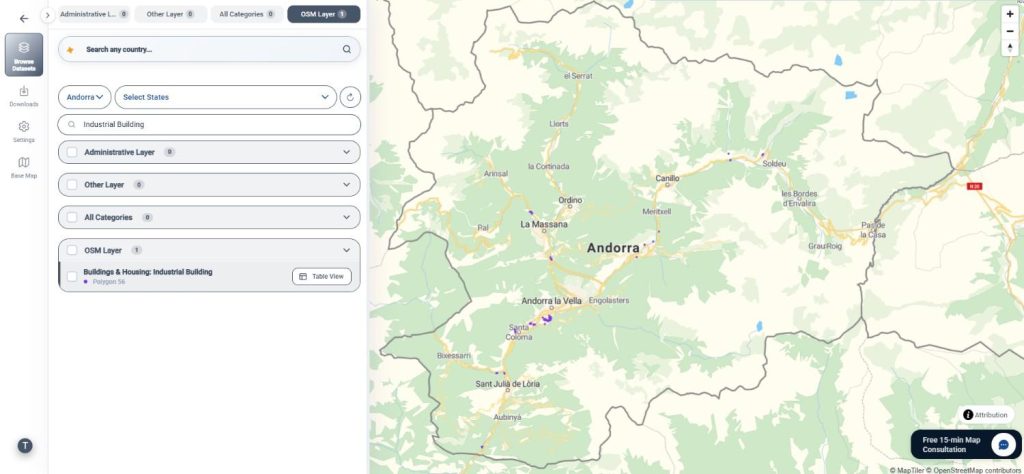
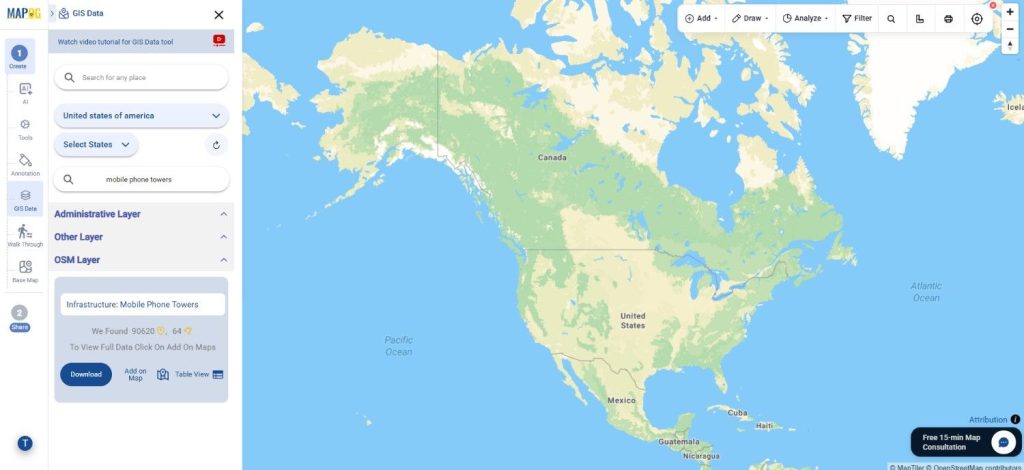
Step 1: Search for Address Interpolation Layer

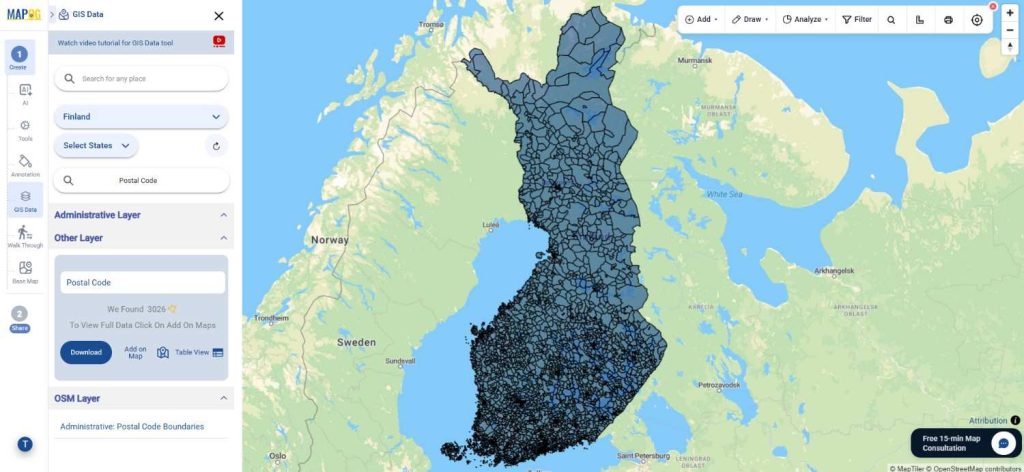
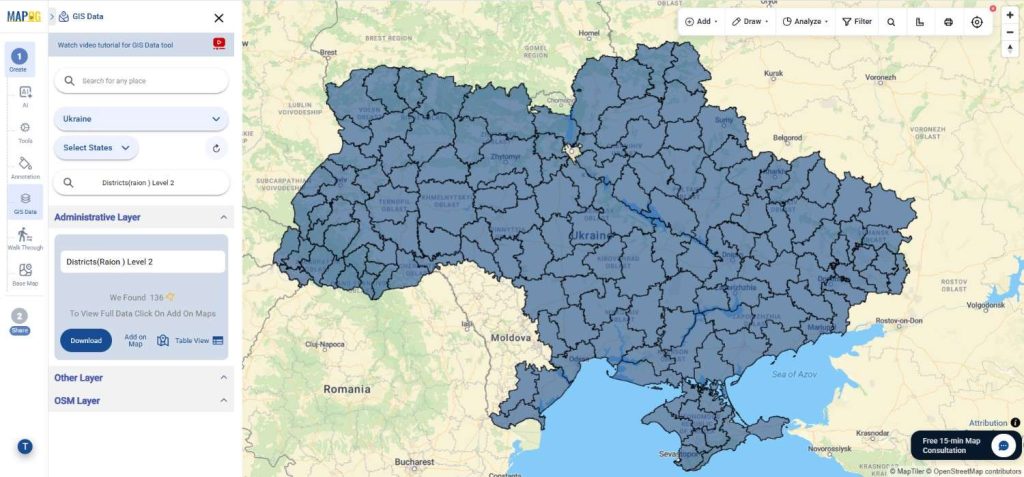
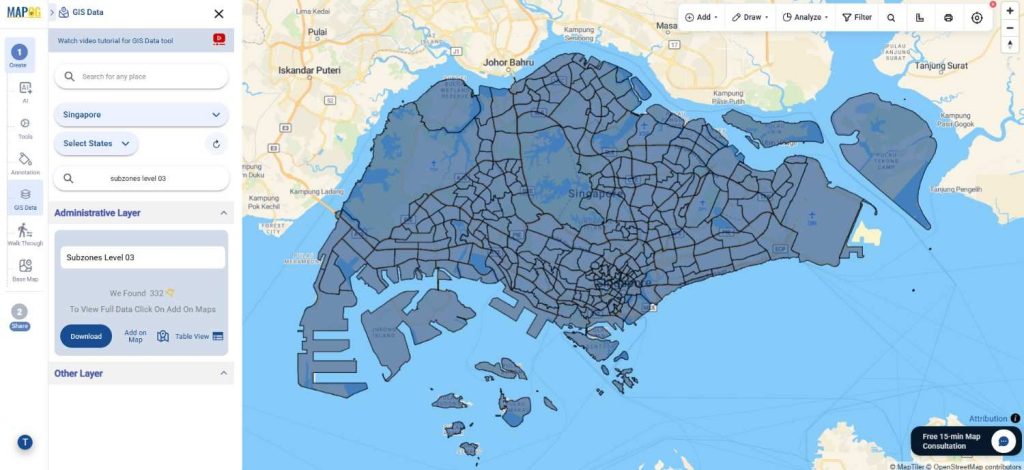
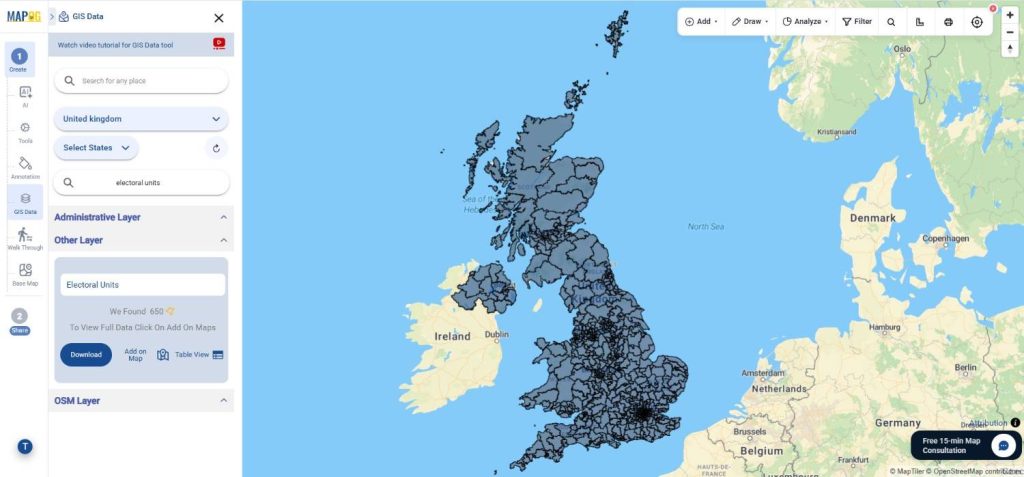
Begin by navigating to the GIS Data by MAPOG platform. Use the search layer function and type Address Interpolation Data.” Review the dataset details to understand its structure, attributes, and geometry type—usually line-based data representing address ranges along streets.

Download Address Interpolation Data

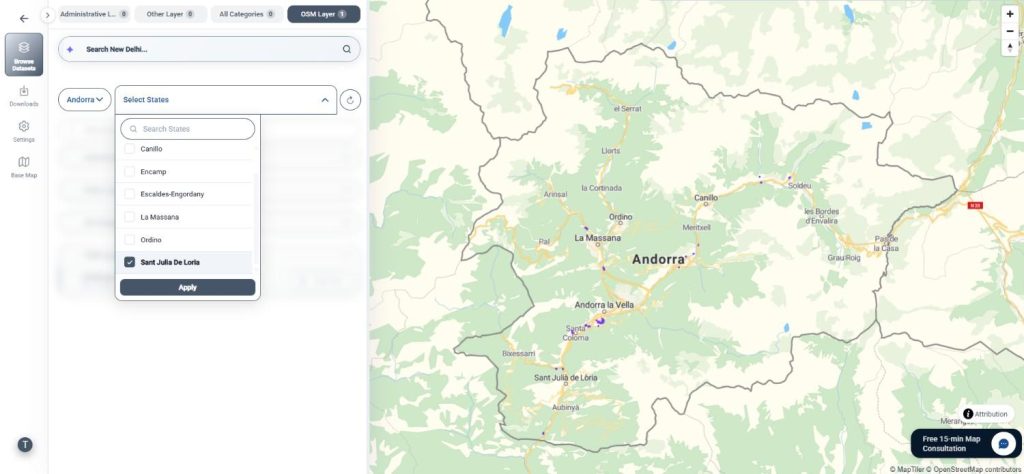
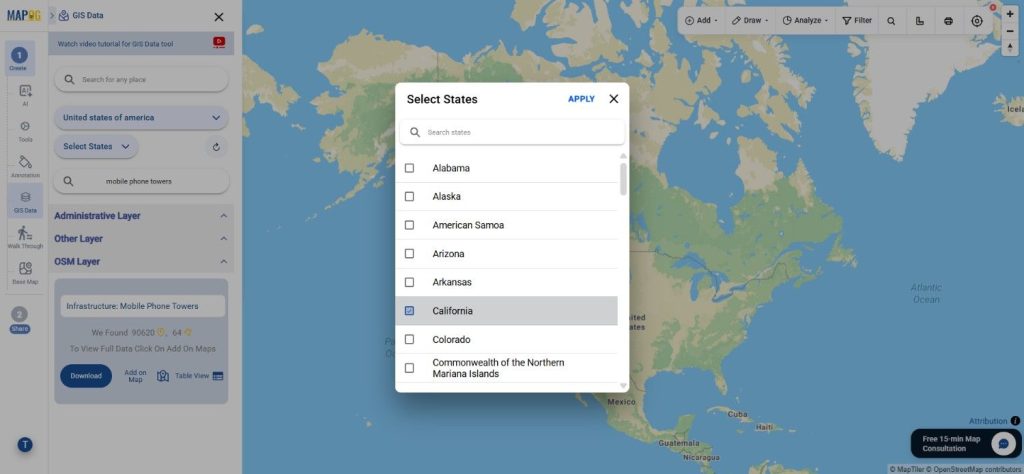
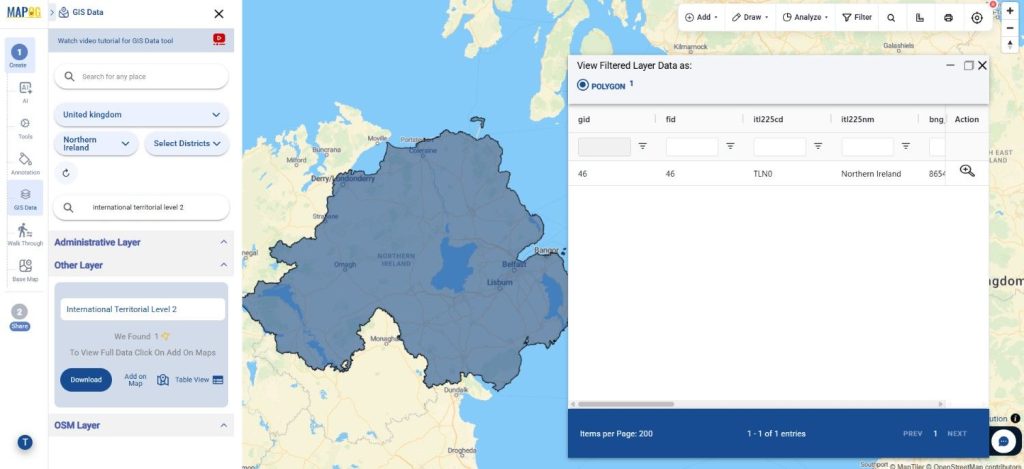
Step 2: Apply Data Filters for Precise Results

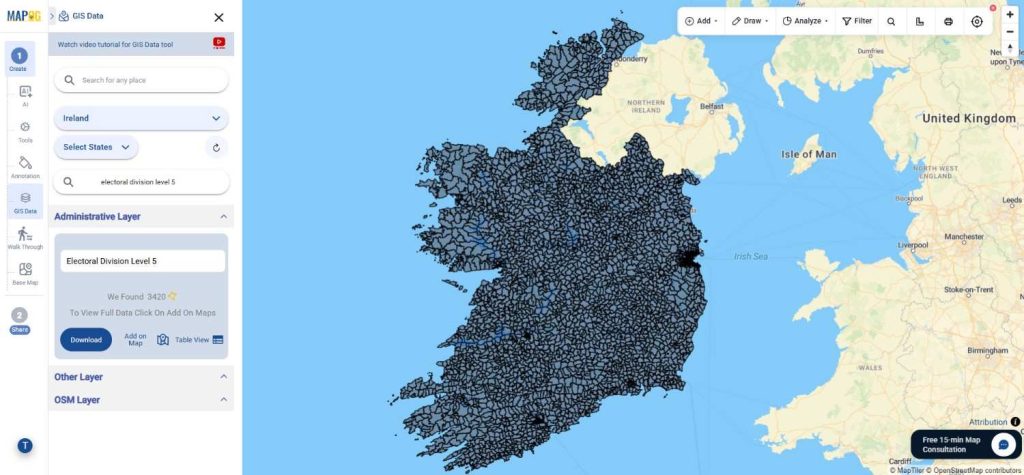
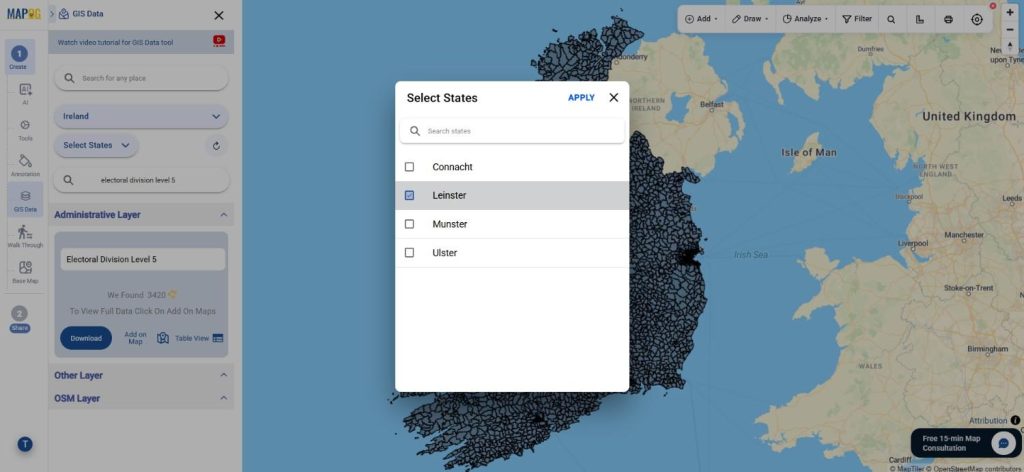
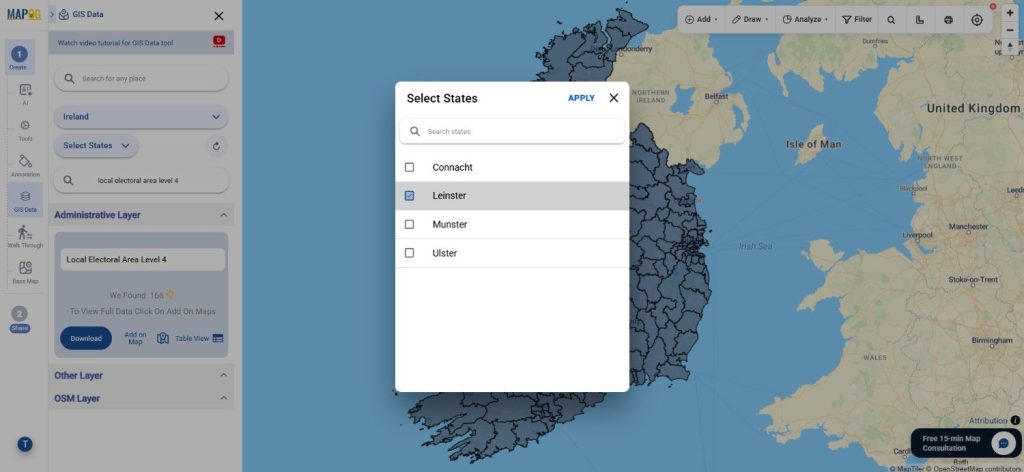
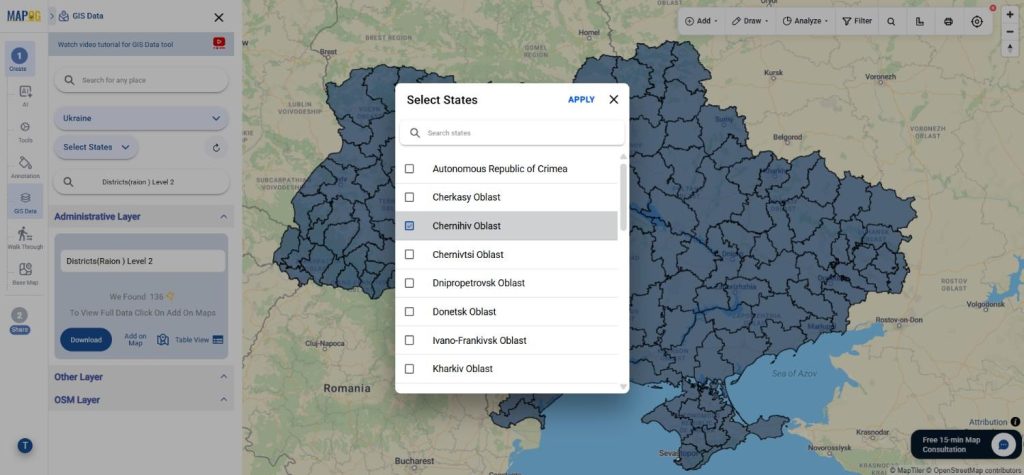
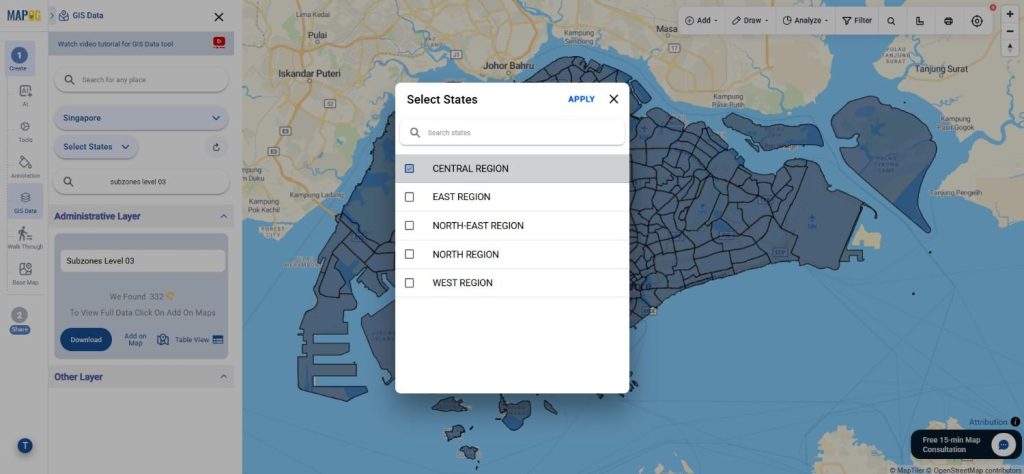
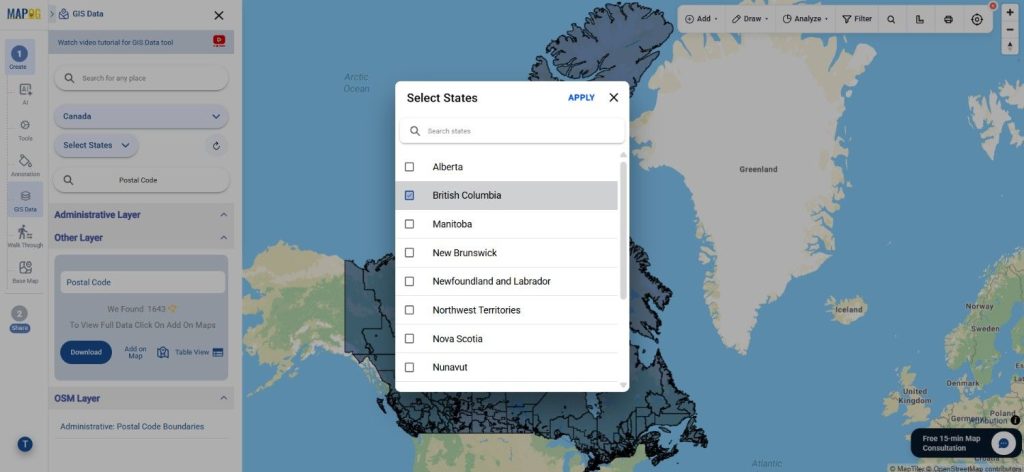
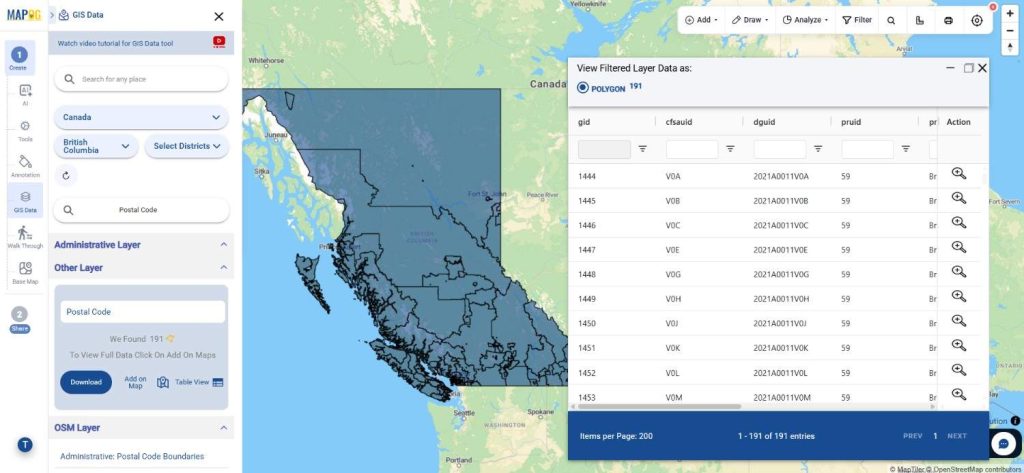
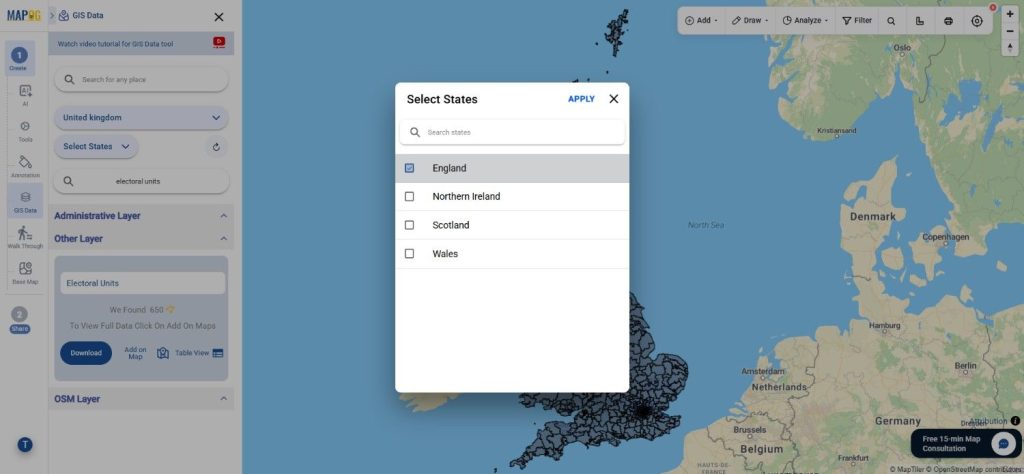
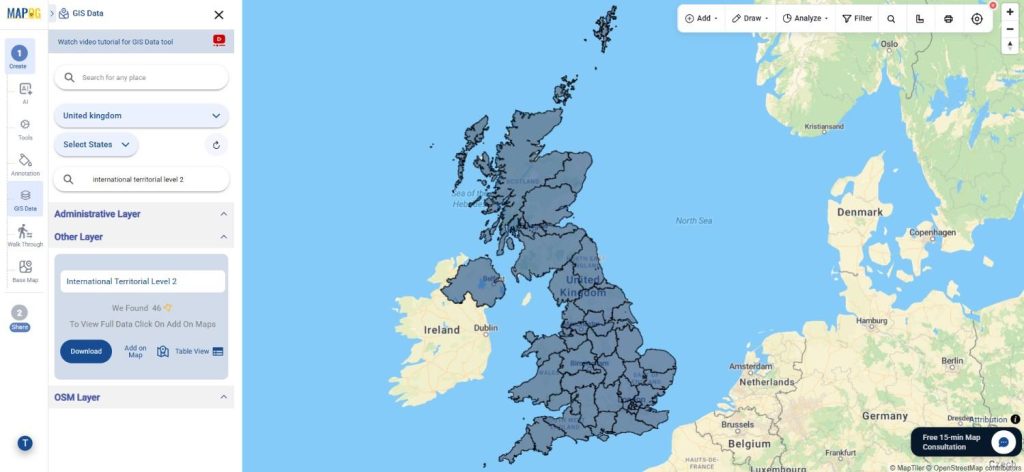
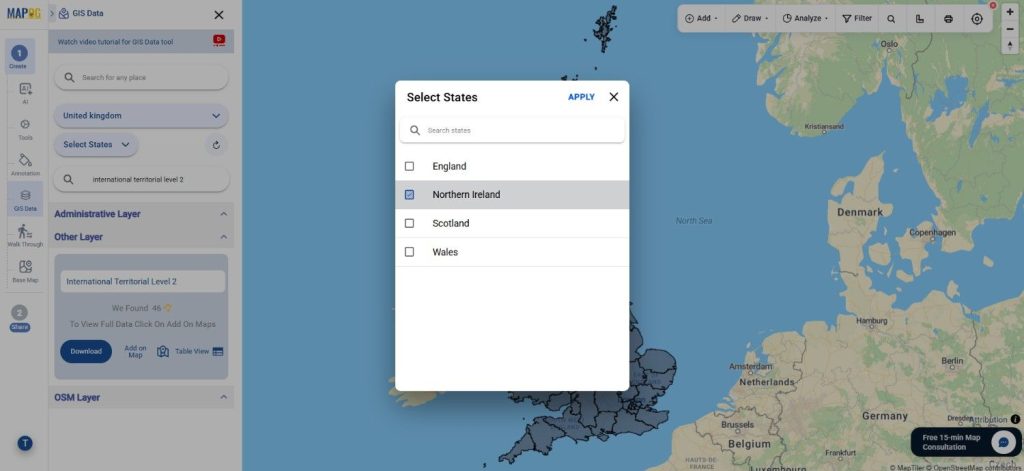
MAPOG’s Filter Data option allows you to refine the dataset by selecting specific states or districts. This helps in isolating the exact areas you need. For deeper datasets, you can progressively narrow the results from broader to more localized regions, making the final output highly relevant.

Download Address Interpolation Data

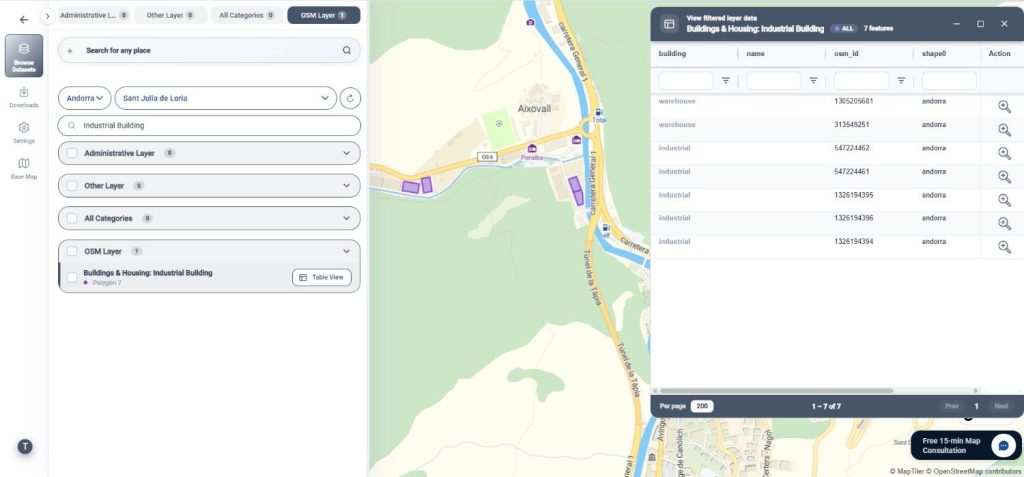
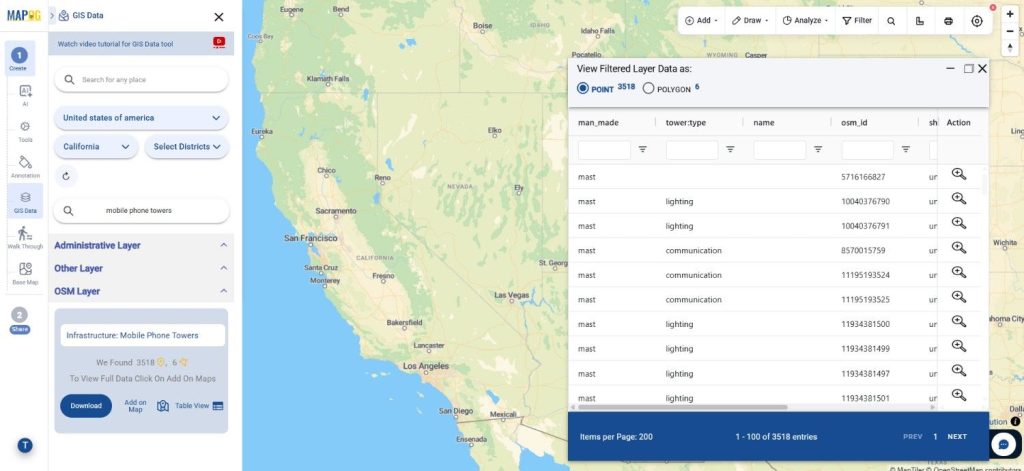
Step 3: Visualize Using “Add on Map”

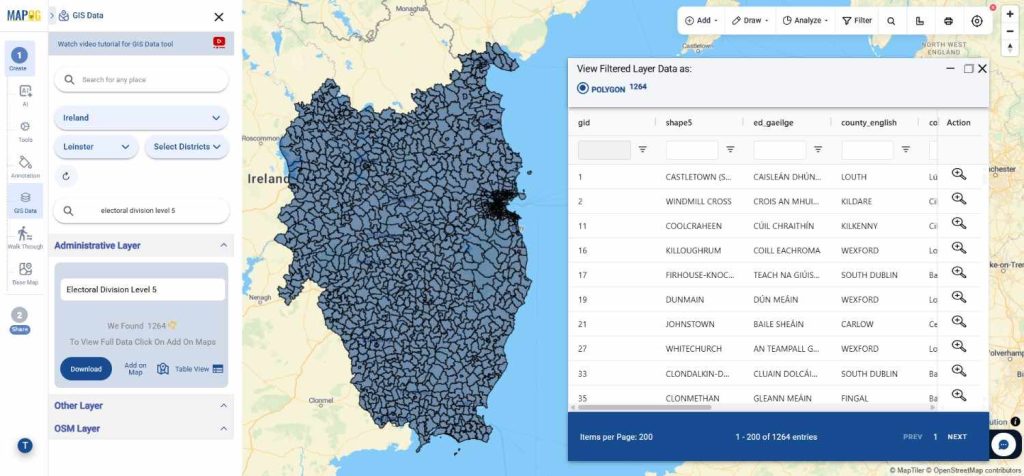
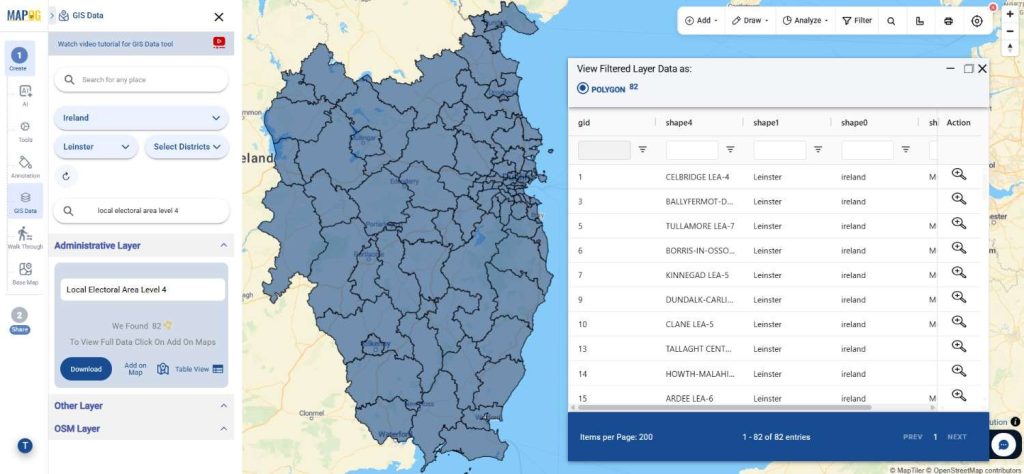
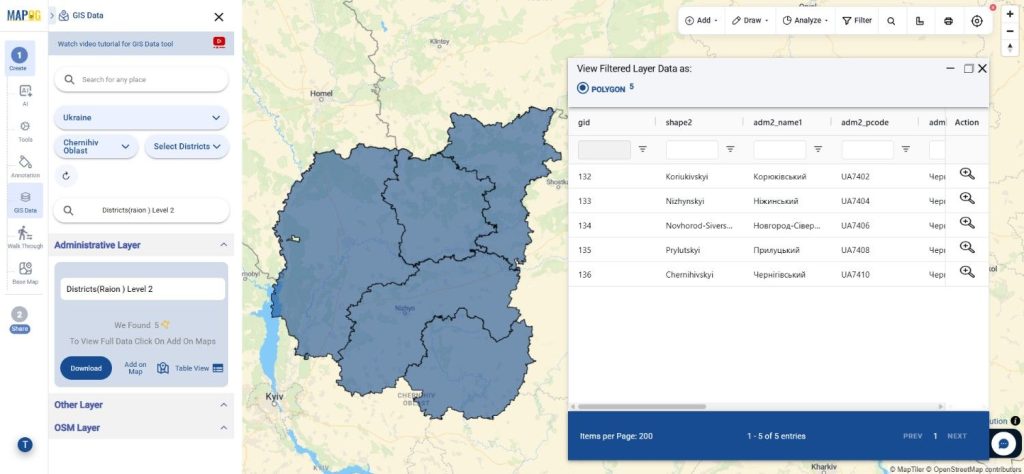
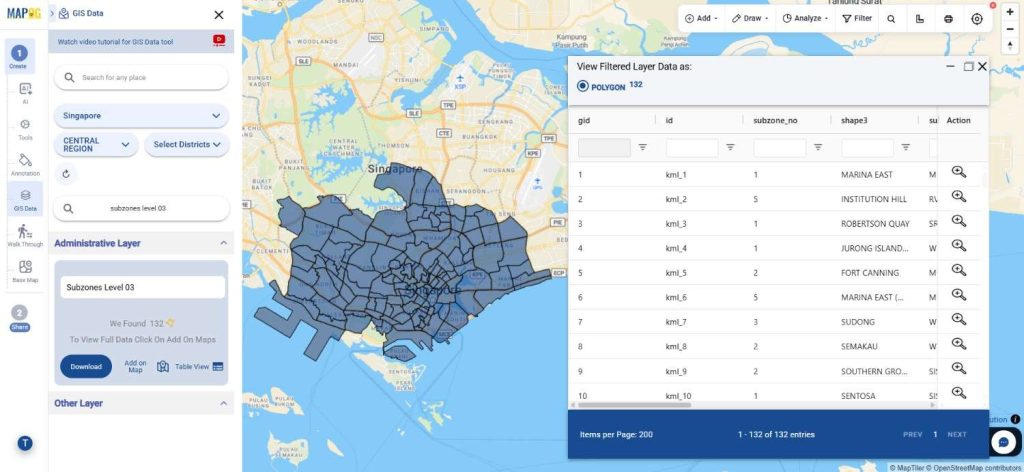
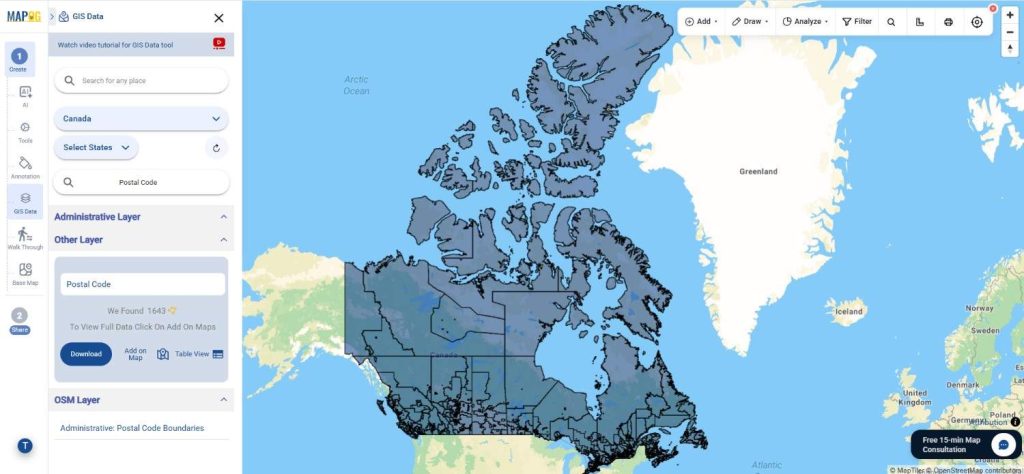
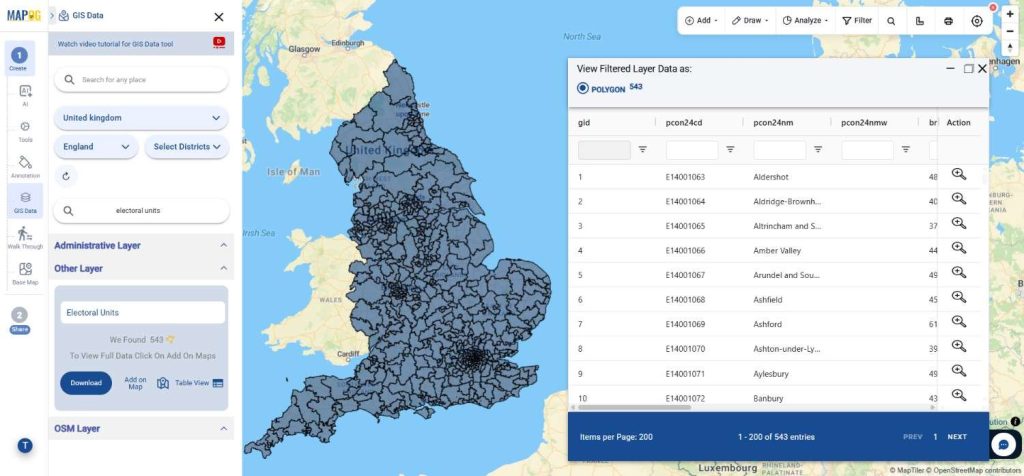
With the Add on Map feature, users can instantly view the Address Interpolation layer on the interactive map interface. This visualization helps you analyze road segments, address ranges, density clusters, and positional accuracy before downloading.

Download Address Interpolation Data

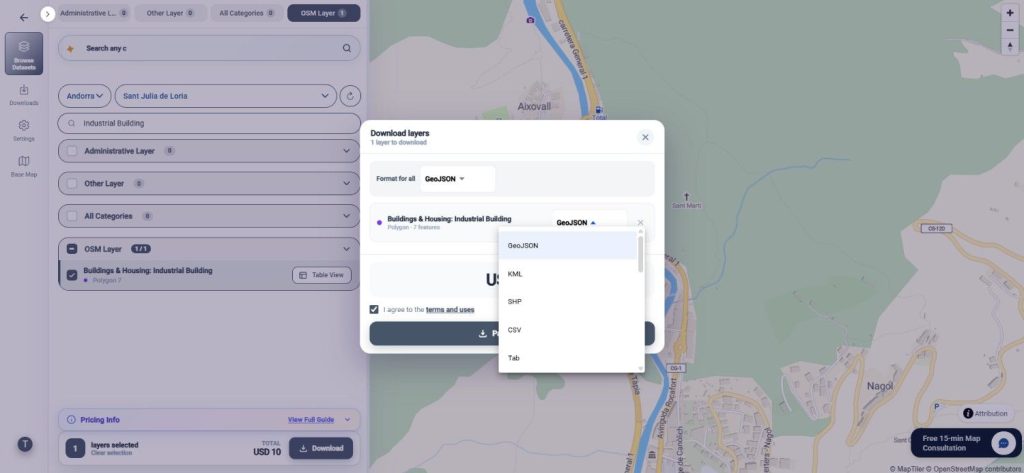
Step 4: Download Address Interpolation Data

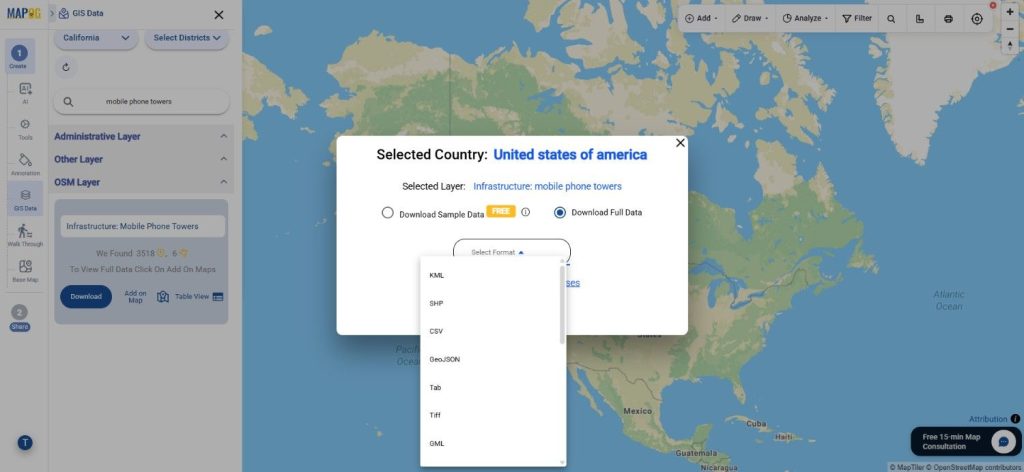
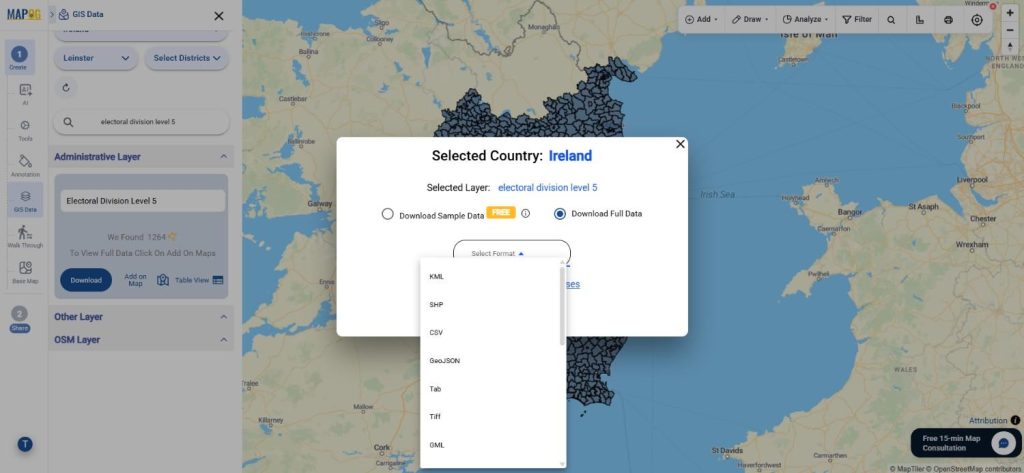
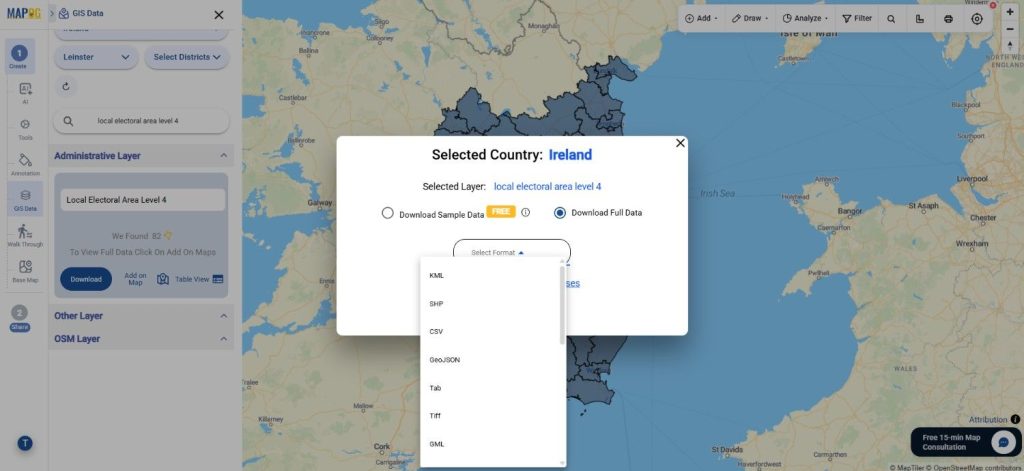
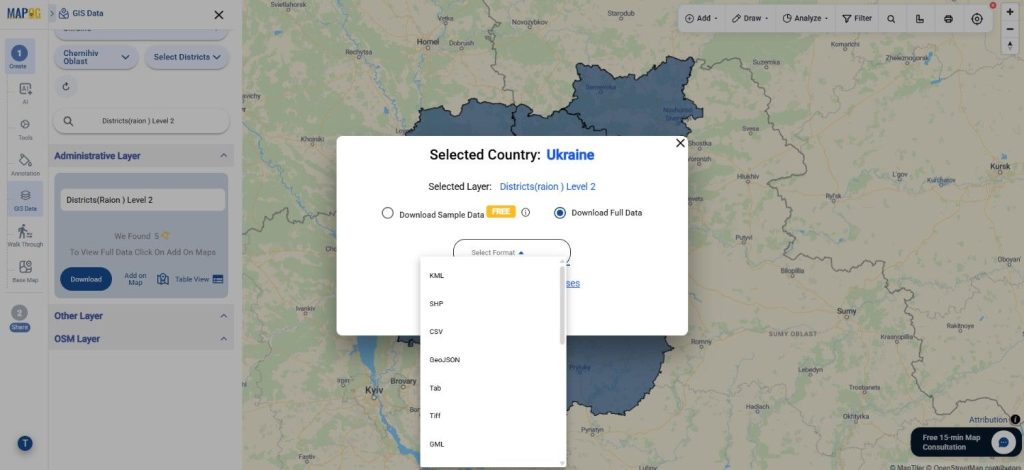
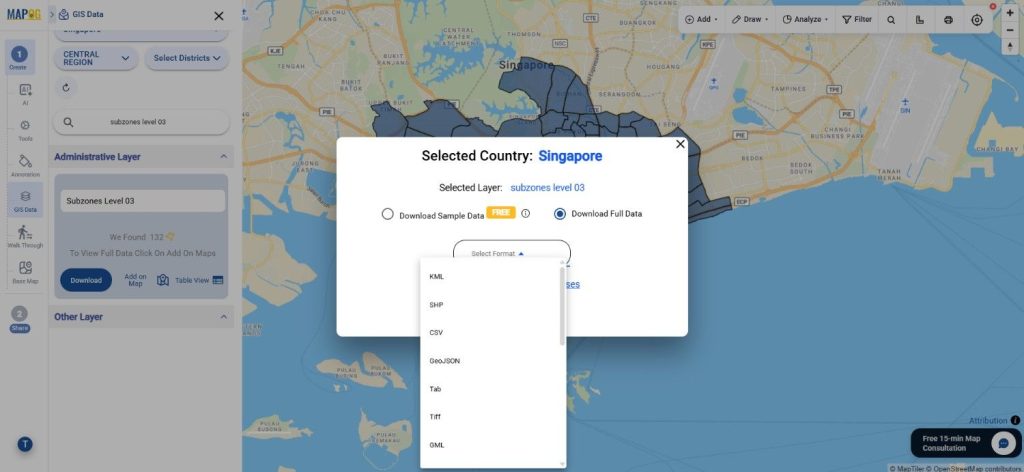
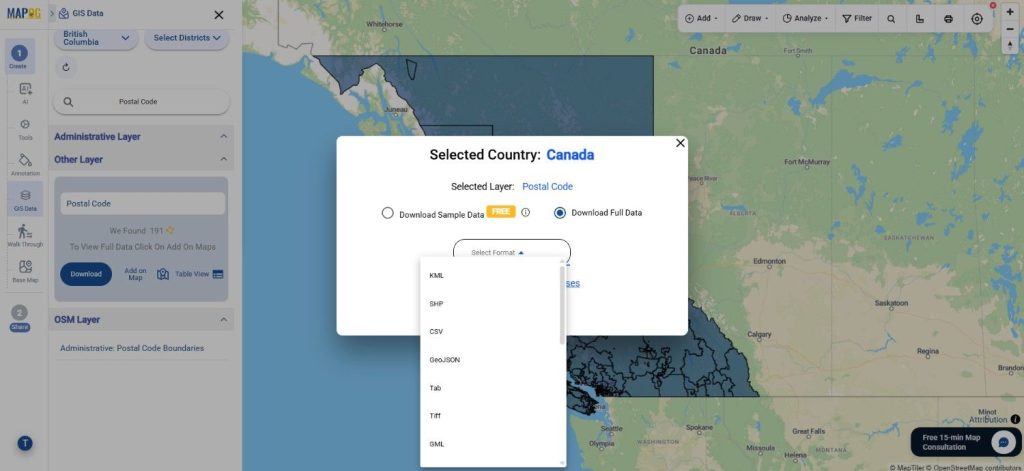
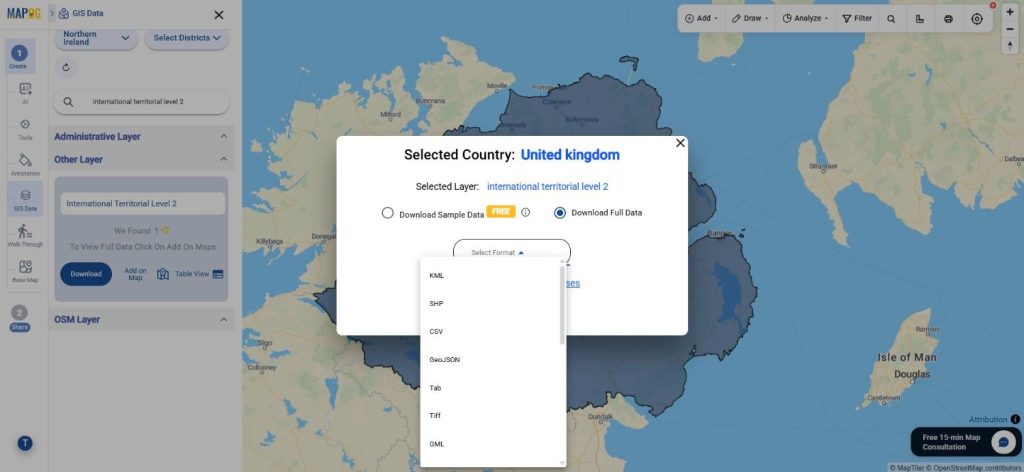
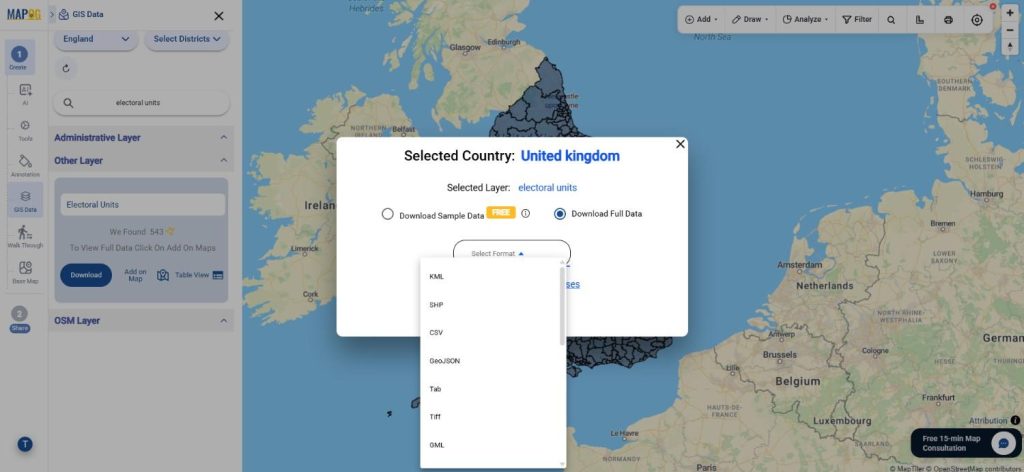
Once everything looks correct, click Download Data. Choose between a sample or complete dataset. Select your preferred format—Shapefile, KML, GeoJSON, MID, or others—agree to the terms, and proceed to download. The exported data can be seamlessly used in software like QGIS, ArcGIS, or any GIS workflow.

Download Address Interpolation Data

Final Thoughts

With MAPOG’s rich GIS Data library, the process to Download Address Interpolation Data becomes significantly easier and more efficient. The platform provides a blend of flexibility, accuracy, and user-friendly features suited for geocoding, planning, analytics, and research. Whether you’re handling urban development projects or location-based services, MAPOG empowers you with reliable datasets ready for immediate integration into your GIS environment.
With MAPOG’s versatile toolkit, you can effortlessly upload vector and upload Excel or CSV data, incorporate existing layers, perform Split polygon by line, use the converter for various formats, calculate isochrones, and utilize the Export Tool.
For any questions or further assistance, feel free to reach out to us at support@mapog.com. We’re here to help you make the most of your GIS data.

Download Shapefile for the following:

  1. World Countries Shapefile
  2. Australia
  3. Argentina
  4. Austria
  5. Belgium
  6. Brazil
  7. Canada
  8. Denmark
  9. Fiji
  10. Finland
  11. Germany
  12. Greece
  13. India
  14. Indonesia
  15. Ireland
  16. Italy
  17. Japan
  18. Kenya
  19. Lebanon
  20. Madagascar
  21. Malaysia
  22. Mexico
  23. Mongolia
  24. Netherlands
  25. New Zealand
  26. Nigeria
  27. Papua New Guinea
  28. Philippines
  29. Poland
  30. Russia
  31. Singapore
  32. South Africa
  33. South Korea
  34. Spain
  35. Switzerland
  36. Tunisia
  37. United Kingdom Shapefile
  38. United States of America
  39. Vietnam
  40. Croatia
  41. Chile
  42. Norway
  43. Maldives
  44. Bhutan
  45. Colombia
  46. Libya
  47. Comoros
  48. Hungary
  49. Laos
  50. Estonia
  51. Iraq
  52. Portugal
  53. Azerbaijan
  54. Macedonia
  55. Romania
  56. Peru
  57. Marshall Islands
  58. Slovenia
  59. Nauru
  60. Guatemala
  61. El Salvador
  62. Afghanistan
  63. Cyprus
  64. Syria
  65. Slovakia
  66. Luxembourg
  67. Jordan
  68. Armenia
  69. Haiti And Dominican Republic
  70. Malta
  71. Djibouti
  72. East Timor
  73. Micronesia
  74. Morocco
  75. Liberia
  76. Kosovo
  77. Isle Of Man
  78. Paraguay
  79. Tokelau
  80. Palau
  81. Ile De Clipperton
  82. Mauritius
  83. Equatorial Guinea
  84. Tonga
  85. Myanmar
  86. Thailand
  87. New Caledonia
  88. Niger
  89. Nicaragua
  90. Pakistan
  91. Nepal
  92. Seychelles
  93. Democratic Republic of the Congo
  94. China
  95. Kenya
  96. Kyrgyzstan
  97. Bosnia Herzegovina
  98. Burkina Faso
  99. Canary Island
  100. Togo
  101. Israel And Palestine
  102. Algeria
  103. Suriname
  104. Angola
  105. Cape Verde
  106. Liechtenstein
  107. Taiwan
  108. Turkmenistan
  109. Tuvalu
  110. Ivory Coast
  111. Moldova
  112. Somalia
  113. Belize
  114. Swaziland
  115. Solomon Islands
  116. North Korea
  117. Sao Tome And Principe
  118. Guyana
  119. Serbia
  120. Senegal And Gambia
  121. Faroe Islands
  122. Guernsey Jersey
  123. Monaco
  124. Tajikistan
  125. Pitcairn

Disclaimer : The GIS data provided for download in this article was initially sourced from OpenStreetMap (OSM) and further modified to enhance its usability. Please note that the original data is licensed under the Open Database License (ODbL) by the OpenStreetMap contributors. While modifications have been made to improve the data, any use, redistribution, or modification of this data must comply with the ODbL license terms. For more information on the ODbL, please visit OpenStreetMap’s License Page.

Here are some blogs you might be interested in:

How to Convert SHP to KMZ Easily: Complete Step-by-Step Guide for GIS Users

A crucial part of the GIS process involves file conversion, which ensures that information flows smoothly across different platforms. To make this process effortless, the MAPOG Converter Tool comes into play—it allows users to quickly and efficiently convert data between multiple formats.

What is SHP File?

In GIS, one of the most commonly used geographic vector data formats is the SHP file (Shapefile). It stores both the attribute data, which describes the features, and the geometry, which includes points, lines, and polygons. Additionally, SHP files work seamlessly with applications like ArcGIS and QGIS, making them ideal for mapping locations, boundaries, and other spatial data. Moreover, these files often come with additional supporting files that store related information.

Online GIS Data Conversion

Key Concept for Conversion SHP to KMZ:

To make the conversion process even smoother, MAPOG’s Converter Tool provides a simple and intuitive platform. With its user-friendly interface, users can move through each step without any hassle. Whether you want to convert SHP to KMZ or any other format, MAPOG ensures that the process is both fast and accurate.

Step-by-Step Guide to Converting SHP to KMZ

Step 1: Upload the Data

Start by selecting the “Process Data” section in MAPOG Map Analysis. From there, choose the “Converter Tool” option.

SHP to KMZ

Before uploading your SHP file, make sure it is ready for conversion.

SHP to KMZ
Step 2: Select the Format for Conversion

Next, select KMZ as the output format. KMZ is widely used for displaying geographic data in Google Earth and other web-based mapping platforms, making it a versatile format for visualization and sharing.

SHP to KMZ
Step 3: Execute the Conversion

Once you’ve chosen the KMZ format and set the CRS, proceed with the conversion process.

SHP to KMZ

The MAPOG tool will efficiently convert your SHP file into KMZ format, allowing for easy integration into Google Earth and similar tools.

SHP to KMZ
Step 4: Review and Download

After the conversion is complete, review the output to ensure the data was accurately converted. Finally, download the KMZ file.

SHP to KMZ

Conclusion:

The MAPOG Converter Tool simplifies the process of converting data between different formats, making it an essential resource for GIS professionals. By following these simple steps, you can easily convert SHP files to KMZ format, ensuring your data is ready for use in web mapping applications and interactive visualizations.

Additional Tools for Further Analysis:

With MAPOG’s versatile toolkit, you can effortlessly upload vectors and upload Excel or CSV data, incorporate existing layers, perform polygon splitting, use the converter for various formats, calculate isochrones, and utilize the Export Tool.

Learn About MAPOG:

MAPOG is perfect for people who want to use visually striking and interactive maps to make their data come to life. It lets you build engaging narratives by connecting maps with visuals like text and images. Producing shareable content is made easy with MAPOG, whether you’re marketing a project, giving a tour or presenting research.

Here are some other blogs you might be interested in:

Download Guest Farms Data in 15+ GIS Formats – Complete Guide for Tourism & Mapping Projects

Looking to Download Guest Farms Data for your mapping or tourism analysis project? GIS Data by MAPOG makes it effortless to access detailed and structured guest farm location data across multiple GIS formats, including Shapefile, KML, MID, GeoJSON, and more. Whether you’re analyzing rural tourism patterns, planning agricultural retreats, or studying eco-lodging distribution, MAPOG provides an intuitive platform packed with reliable and up-to-date datasets ready for visualization and analysis.

How to Download Guest Farms Data

MAPOG streamlines the data collection process, helping users access guest farm information through a clean interface and powerful tools. With access to 900+ thematic layers, the platform supports formats such as KML, SHP, CSV, GeoJSON, SQL, DXF, MIF, TOPOJSON, and GPX — ideal for researchers, planners, and GIS professionals.

Download Guest Farms Data of any countries

Note:
  • All data is provided in GCS datum EPSG:4326 WGS84 CRS (Coordinate Reference System).
  • Users need to log in to access and download their preferred data formats.

Step-by-Step Guide to Download Guest Farms Data

Step 1: Search for Guest Farms Data

Begin by opening the GIS Data by MAPOG interface and using the search layer option to locate “Guest Farms Data.” Review dataset attributes to check whether the data is available in point or polygon format before proceeding.

Download Guest Farms Data
Step 2: Use the AI Search Tool

MAPOG’s “Try AI” feature makes it even easier to Download Guest Farms Data. Simply type phrases like “Guest Farms near area” or “Guest Farms distribution,” and the AI tool will instantly fetch the most relevant datasets, minimizing manual effort and improving accuracy.

Download Guest Farms Data
Step 3: Apply Data Filters

With the Filter Data option, users can refine their search based on specific states or districts. This helps in pinpointing particular guest farm clusters, offering deeper insights into tourism density and regional patterns.

Download Guest Farms Data
Step 4: Visualize with “Add on Map”

The “Add on Map” function allows users to overlay the selected guest farm data directly on an interactive GIS map. This enables visual exploration, pattern identification, and accessibility analysis — all essential for tourism management, marketing, or infrastructure planning.

Download Guest Farms Data
Step 5: Download Guest Farms Data

After reviewing and analyzing the dataset, click on the Download Data option. You can choose between a sample or full dataset and select your preferred format — Shapefile, KML, MID, or any of the supported 15+ GIS file types. Accept the terms and download instantly for your project use.

Download Guest Farms Data

Final Thoughts

With GIS Data by MAPOG, it’s simple and efficient to Download Guest Farms Data across multiple formats for detailed spatial analysis. The platform bridges the gap between data accessibility and geospatial intelligence, empowering professionals, researchers, and tourism developers with accurate, ready-to-use information. Whether for planning rural stays, analyzing eco-tourism zones, or visualizing agricultural hospitality trends, MAPOG ensures that every dataset helps you map your insights with clarity and confidence.

With MAPOG’s versatile toolkit, you can effortlessly upload vector and upload Excel or CSV data, incorporate existing layers, perform Split polygon by line, use the converter for various formats, calculate isochrones, and utilize the Export Tool.

For any questions or further assistance, feel free to reach out to us at support@mapog.com. We’re here to help you make the most of your GIS data.

Download Shapefile for the following:

  1. World Countries Shapefile
  2. Australia
  3. Argentina
  4. Austria
  5. Belgium
  6. Brazil
  7. Canada
  8. Denmark
  9. Fiji
  10. Finland
  11. Germany
  12. Greece
  13. India
  14. Indonesia
  15. Ireland
  16. Italy
  17. Japan
  18. Kenya
  19. Lebanon
  20. Madagascar
  21. Malaysia
  22. Mexico
  23. Mongolia
  24. Netherlands
  25. New Zealand
  26. Nigeria
  27. Papua New Guinea
  28. Philippines
  29. Poland
  30. Russia
  31. Singapore
  32. South Africa
  33. South Korea
  34. Spain
  35. Switzerland
  36. Tunisia
  37. United Kingdom Shapefile
  38. United States of America
  39. Vietnam
  40. Croatia
  41. Chile
  42. Norway
  43. Maldives
  44. Bhutan
  45. Colombia
  46. Libya
  47. Comoros
  48. Hungary
  49. Laos
  50. Estonia
  51. Iraq
  52. Portugal
  53. Azerbaijan
  54. Macedonia
  55. Romania
  56. Peru
  57. Marshall Islands
  58. Slovenia
  59. Nauru
  60. Guatemala
  61. El Salvador
  62. Afghanistan
  63. Cyprus
  64. Syria
  65. Slovakia
  66. Luxembourg
  67. Jordan
  68. Armenia
  69. Haiti And Dominican Republic
  70. Malta
  71. Djibouti
  72. East Timor
  73. Micronesia
  74. Morocco
  75. Liberia
  76. Kosovo
  77. Isle Of Man
  78. Paraguay
  79. Tokelau
  80. Palau
  81. Ile De Clipperton
  82. Mauritius
  83. Equatorial Guinea
  84. Tonga
  85. Myanmar
  86. Thailand
  87. New Caledonia
  88. Niger
  89. Nicaragua
  90. Pakistan
  91. Nepal
  92. Seychelles
  93. Democratic Republic of the Congo
  94. China
  95. Kenya
  96. Kyrgyzstan
  97. Bosnia Herzegovina
  98. Burkina Faso
  99. Canary Island
  100. Togo
  101. Israel And Palestine
  102. Algeria
  103. Suriname
  104. Angola
  105. Cape Verde
  106. Liechtenstein
  107. Taiwan
  108. Turkmenistan
  109. Tuvalu
  110. Ivory Coast
  111. Moldova
  112. Somalia
  113. Belize
  114. Swaziland
  115. Solomon Islands
  116. North Korea
  117. Sao Tome And Principe
  118. Guyana
  119. Serbia
  120. Senegal And Gambia
  121. Faroe Islands
  122. Guernsey Jersey
  123. Monaco
  124. Tajikistan
  125. Pitcairn

Disclaimer : The GIS data provided for download in this article was initially sourced from OpenStreetMap (OSM) and further modified to enhance its usability. Please note that the original data is licensed under the Open Database License (ODbL) by the OpenStreetMap contributors. While modifications have been made to improve the data, any use, redistribution, or modification of this data must comply with the ODbL license terms. For more information on the ODbL, please visit OpenStreetMap’s License Page.

Here are some blogs you might be interested in:

Download Vacation Rentals GIS Data: Complete Guide for Tourism & Location Analysis

Looking to explore or analyze the best vacation rental spots? Download Vacation Rentals Data effortlessly using GIS Data by MAPOG. This smart, easy-to-use platform provides multiple GIS formats such as Shapefile, KML, GeoJSON, and MID—ensuring compatibility with various mapping tools. Whether you’re working on tourism planning, hospitality research, or regional development, MAPOG offers structured and updated datasets that make it simple to visualize, compare, and map vacation rental distributions for your project.

How to Download Vacation Rentals Data

GIS Data by MAPOG makes it easy for users to access location-based vacation rental data from different regions across the world. With support for 15+ formats including KML, SHP, CSV, GeoJSON, SQL, DXF, MIF, TOPOJSON, and GPX, the platform ensures flexibility for both professional and academic GIS applications.

Download Vacation Rentals Data of any countries

Note:
  • All data is provided in GCS datum EPSG:4326 WGS84 CRS (Coordinate Reference System).
  • Users must log in to access and download their preferred datasets.

Step-by-Step Guide to Download Vacation Rentals Data

Step 1: Search for Vacation Rentals Data

Begin by opening GIS Data by MAPOG and entering “Vacation Rentals Data” in the search layer bar. Select the dataset that matches your interest, whether it’s in point or polygon format, and review its metadata for details like coverage, attributes, and category.

Download Vacation Rentals Data
Step 3: Apply Data Filters

Narrow your results using the Filter Data option. You can refine the data by selecting specific states or districts, allowing you to focus on particular regions with high vacation rental density. For broader datasets, this feature helps you dig deeper and extract only what’s most relevant.

Download Vacation Rentals Data
Step 4: Visualize with “Add on Map”

Once you’ve identified the right dataset, click “Add on Map” to overlay it on MAPOG’s interactive analysis interface. This step lets you visualize vacation rental clusters, explore local accessibility, and assess spatial distribution patterns for better tourism analysis.

Download Vacation Rentals Data
Step 5: Download Vacation Rentals Data

After reviewing your selections, click “Download Data.” Choose between sample or full datasets and select your preferred format—Shapefile, KML, GeoJSON, MID, or any of the 15+ available GIS formats. Confirm your terms and proceed with the download for immediate use in tools like QGIS, ArcGIS, or Google Earth.

Download Vacation Rentals Data

Final Thoughts

With GIS Data by MAPOG, obtaining and visualizing Vacation Rentals Data is both efficient and insightful. The platform empowers users to analyze travel hotspots, evaluate property density, and plan tourism strategies with ease. Whether you’re a researcher, urban planner, or GIS enthusiast, MAPOG’s data flexibility ensures you always have accurate, ready-to-use information at your fingertips.

With MAPOG’s versatile toolkit, you can effortlessly upload vector and upload Excel or CSV data, incorporate existing layers, perform Split polygon by line, use the converter for various formats, calculate isochrones, and utilize the Export Tool.

For any questions or further assistance, feel free to reach out to us at support@mapog.com. We’re here to help you make the most of your GIS data.

Download Shapefile for the following:

  1. World Countries Shapefile
  2. Australia
  3. Argentina
  4. Austria
  5. Belgium
  6. Brazil
  7. Canada
  8. Denmark
  9. Fiji
  10. Finland
  11. Germany
  12. Greece
  13. India
  14. Indonesia
  15. Ireland
  16. Italy
  17. Japan
  18. Kenya
  19. Lebanon
  20. Madagascar
  21. Malaysia
  22. Mexico
  23. Mongolia
  24. Netherlands
  25. New Zealand
  26. Nigeria
  27. Papua New Guinea
  28. Philippines
  29. Poland
  30. Russia
  31. Singapore
  32. South Africa
  33. South Korea
  34. Spain
  35. Switzerland
  36. Tunisia
  37. United Kingdom Shapefile
  38. United States of America
  39. Vietnam
  40. Croatia
  41. Chile
  42. Norway
  43. Maldives
  44. Bhutan
  45. Colombia
  46. Libya
  47. Comoros
  48. Hungary
  49. Laos
  50. Estonia
  51. Iraq
  52. Portugal
  53. Azerbaijan
  54. Macedonia
  55. Romania
  56. Peru
  57. Marshall Islands
  58. Slovenia
  59. Nauru
  60. Guatemala
  61. El Salvador
  62. Afghanistan
  63. Cyprus
  64. Syria
  65. Slovakia
  66. Luxembourg
  67. Jordan
  68. Armenia
  69. Haiti And Dominican Republic
  70. Malta
  71. Djibouti
  72. East Timor
  73. Micronesia
  74. Morocco
  75. Liberia
  76. Kosovo
  77. Isle Of Man
  78. Paraguay
  79. Tokelau
  80. Palau
  81. Ile De Clipperton
  82. Mauritius
  83. Equatorial Guinea
  84. Tonga
  85. Myanmar
  86. Thailand
  87. New Caledonia
  88. Niger
  89. Nicaragua
  90. Pakistan
  91. Nepal
  92. Seychelles
  93. Democratic Republic of the Congo
  94. China
  95. Kenya
  96. Kyrgyzstan
  97. Bosnia Herzegovina
  98. Burkina Faso
  99. Canary Island
  100. Togo
  101. Israel And Palestine
  102. Algeria
  103. Suriname
  104. Angola
  105. Cape Verde
  106. Liechtenstein
  107. Taiwan
  108. Turkmenistan
  109. Tuvalu
  110. Ivory Coast
  111. Moldova
  112. Somalia
  113. Belize
  114. Swaziland
  115. Solomon Islands
  116. North Korea
  117. Sao Tome And Principe
  118. Guyana
  119. Serbia
  120. Senegal And Gambia
  121. Faroe Islands
  122. Guernsey Jersey
  123. Monaco
  124. Tajikistan
  125. Pitcairn

Disclaimer : The GIS data provided for download in this article was initially sourced from OpenStreetMap (OSM) and further modified to enhance its usability. Please note that the original data is licensed under the Open Database License (ODbL) by the OpenStreetMap contributors. While modifications have been made to improve the data, any use, redistribution, or modification of this data must comply with the ODbL license terms. For more information on the ODbL, please visit OpenStreetMap’s License Page.

Here are some blogs you might be interested in:

Convert SQLITE to DXF: A Step-by-Step Guide

This tutorial provides a clear and detailed walkthrough for converting a SQLITE file into DXF format using the Converter Tool in MAPOG. Whether you’re a beginner or have some experience with MAPOG, this guide will help you smoothly convert your SQLITE files to DXF.

What is SQLITE Data Format:

A file with .sqlite extension is a lightweight SQL database file created with the SQLITE software. It is a database in a file itself and implements a self-contained, full-featured, highly-reliable SQL database engine. SQLITE database files can be used to share rich contents between systems by simple exchanging these files over the network. Almost all mobiles and computers use SQLITE for storing and sharing of data, and is the choice of file format for cross-platform applications. Due to its compact use and easy usability, it comes bundled inside other applications. SQLITE bindings exist for programming languages such as C, C#, C++, Java, PHP, and many others.

Online GIS Data Conversion

Converting SQLITE Data into DXF Format:

Converter Tool in MAPOG enables users to seamlessly convert data between different formats based on their specific needs. This tool simplifies the data transformation process for a variety of GIS applications, ensuring both flexibility and efficiency when working with multiple file types. For instance, MAPOG’s Converter Tool can convert SQLITE data into DXF format, reducing file size while preserving essential geographic information. This conversion improves the data’s compatibility with online mapping and interactive platforms, ultimately enhancing workflows and significantly increasing GIS data usability.

                      Steps to Convert SQLITE to DXF:

Step 1: Upload the Data:

Navigate to the header menu, click on “Process Data,” and then choose the “Converter Tool” option to begin.

SQLITE to DXF

2.To start the conversion, upload your SQLITE file by selecting the data you want to convert.

SQLITE to DXF
Step 2: Choose the Output Format

1.Set DXF as the desired output format for your data export. While the Converter Tool provides various format options, this guide is specifically dedicated to converting your file into the DXF format.

SQLITE to DXF

2. You can also Choose the Output Coordinate Reference System (CRS) according to your spatial analysis requirement.

SQLITE to DXF
Step 3: Execute the Conversion:

Head over to the ‘Convert Files’ section, and allow the tool to handle the conversion process for you. Just upload your SQLITE file, and the Converter Tool will seamlessly transform it into DXF format, making the conversion quick and easy.

SQLITE to DXF
Step 4: Review and Download:

Review your converted DXF file to confirm its accuracy. After ensuring that the conversion is correct and meets your requirements, proceed to download the file. This step is crucial to validate that the conversion was successful and that your data has been accurately preserved.

SQLITE to DXF
Additional Tools for Further Analysis:

With MAPOG’s versatile toolkit, you can effortlessly upload vectors and upload Excel or CSV data, incorporate existing layers, perform polygon splitting, use the converter for various formats, calculate isochrones, and utilize the Export Tool.

These blogs may also be useful for you:

Download Maritime Boundary Data in Shapefile, KML, MID +15 GIS Formats

Need accurate coastal and marine boundary information? Now you can Download Maritime Boundary Data with ease using GIS Data by MAPOG. This intuitive platform supports over 15 GIS formats, including Shapefile, KML, GeoJSON, and MID, making it suitable for a wide range of geospatial tools. Whether you’re involved in marine conservation, coastal planning, or international boundary studies, MAPOG provides structured, ready-to-use datasets for seamless visualization and spatial analysis.

How to Download Maritime Boundary Data with MAPOG

The process is efficient and user-focused, offering access to maritime datasets across global water bodies. With over 900+ GIS layers and 200+ data themes, MAPOG ensures accessibility in formats like SHP, KML, MIF, DXF, CSV, GeoJSON, SQL, TOPOJSON, and GPX. This flexibility empowers professionals, researchers, and students alike.

Download Maritime Boundary Data of any countries

Note:
  • All data is provided in GCS datum EPSG:4326 WGS84 CRS (Coordinate Reference System).
  • Users need to log in to access and download their preferred data formats.

Step-by-Step Guide to Download Maritime Boundary Data

Step 1: Search Maritime Boundary Layer

Begin by navigating through the MAPOG interface and using the search function to find “Maritime Boundary Data.” Each layer includes detailed metadata and geometry type—whether it’s a line representing maritime zones or a polygon for exclusive zones.

Download Maritime Boundary Data

Speed up your search using MAPOG’s “Try AI” feature. Just type queries like “Exclusive zones” or “Maritime boundaries near coastlines,” and the system instantly fetches relevant datasets. This feature is particularly helpful for new users or those exploring specific marine areas.

Download Maritime Boundary Data
Step 3: Filter by Region

Use the Filter Data option to narrow your dataset by region, state, or district-level boundaries when applicable. This makes it easier to retrieve precise data, especially for local marine management, coastal development, or spatial policy-making.

Download Maritime Boundary Data
Step 4: Add Layers to Map for Visualization

Click on the “Add on Map” option to view your selected maritime boundary layers in the analysis interface. This helps in examining overlaps, nearby zones, and distances—crucial for maritime planning and dispute resolution.

Download Maritime Boundary Data
Step 5: Download Maritime Boundary Data

Once the layer is finalized, select the “Download” button. Choose from a sample or full dataset, select the preferred format (such as Shapefile, KML, MID, GeoJSON, etc.), agree to the terms, and complete the download process. The data can then be imported into platforms like QGIS, ArcGIS, or AutoCAD for further use.

Download Maritime Boundary Data

Final Thoughts

With a few clicks, you can now Download Maritime Boundary Data in the format that best suits your GIS workflow. MAPOG’s rich repository, AI-powered search, and map-based tools make it a powerful resource for accessing high-quality geographic data. Whether you’re analyzing coastal zones or mapping maritime jurisdiction, this platform offers everything you need to make informed, data-driven decisions.

With MAPOG’s versatile toolkit, you can effortlessly upload vector and upload Excel or CSV data, incorporate existing layers, perform Split polygon by line, use the converter for various formats, calculate isochrones, and utilize the Export Tool.

For any questions or further assistance, feel free to reach out to us at support@mapog.com. We’re here to help you make the most of your GIS data.

Download Shapefile for the following:

  1. World Countries Shapefile
  2. Australia
  3. Argentina
  4. Austria
  5. Belgium
  6. Brazil
  7. Canada
  8. Denmark
  9. Fiji
  10. Finland
  11. Germany
  12. Greece
  13. India
  14. Indonesia
  15. Ireland
  16. Italy
  17. Japan
  18. Kenya
  19. Lebanon
  20. Madagascar
  21. Malaysia
  22. Mexico
  23. Mongolia
  24. Netherlands
  25. New Zealand
  26. Nigeria
  27. Papua New Guinea
  28. Philippines
  29. Poland
  30. Russia
  31. Singapore
  32. South Africa
  33. South Korea
  34. Spain
  35. Switzerland
  36. Tunisia
  37. United Kingdom Shapefile
  38. United States of America
  39. Vietnam
  40. Croatia
  41. Chile
  42. Norway
  43. Maldives
  44. Bhutan
  45. Colombia
  46. Libya
  47. Comoros
  48. Hungary
  49. Laos
  50. Estonia
  51. Iraq
  52. Portugal
  53. Azerbaijan
  54. Macedonia
  55. Romania
  56. Peru
  57. Marshall Islands
  58. Slovenia
  59. Nauru
  60. Guatemala
  61. El Salvador
  62. Afghanistan
  63. Cyprus
  64. Syria
  65. Slovakia
  66. Luxembourg
  67. Jordan
  68. Armenia
  69. Haiti And Dominican Republic
  70. Malta
  71. Djibouti
  72. East Timor
  73. Micronesia
  74. Morocco
  75. Liberia
  76. Kosovo
  77. Isle Of Man
  78. Paraguay
  79. Tokelau
  80. Palau
  81. Ile De Clipperton
  82. Mauritius
  83. Equatorial Guinea
  84. Tonga
  85. Myanmar
  86. Thailand
  87. New Caledonia
  88. Niger
  89. Nicaragua
  90. Pakistan
  91. Nepal
  92. Seychelles
  93. Democratic Republic of the Congo
  94. China
  95. Kenya
  96. Kyrgyzstan
  97. Bosnia Herzegovina
  98. Burkina Faso
  99. Canary Island
  100. Togo
  101. Israel And Palestine
  102. Algeria
  103. Suriname
  104. Angola
  105. Cape Verde
  106. Liechtenstein
  107. Taiwan
  108. Turkmenistan
  109. Tuvalu
  110. Ivory Coast
  111. Moldova
  112. Somalia
  113. Belize
  114. Swaziland
  115. Solomon Islands
  116. North Korea
  117. Sao Tome And Principe
  118. Guyana
  119. Serbia
  120. Senegal And Gambia
  121. Faroe Islands
  122. Guernsey Jersey
  123. Monaco
  124. Tajikistan
  125. Pitcairn

Disclaimer : The GIS data provided for download in this article was initially sourced from OpenStreetMap (OSM) and further modified to enhance its usability. Please note that the original data is licensed under the Open Database License (ODbL) by the OpenStreetMap contributors. While modifications have been made to improve the data, any use, redistribution, or modification of this data must comply with the ODbL license terms. For more information on the ODbL, please visit OpenStreetMap’s License Page.

Here are some blogs you might be interested in:

Download Settlements Polygon Data in Shapefile, KML, MID +15 GIS Formats

Looking to map residential patterns or study human settlements with precision? Download Settlements Polygon Data easily using GIS Data by MAPOG—a robust platform that offers access to well-structured spatial datasets in over 15 GIS-supported formats such as Shapefile, KML, MID, GeoJSON, and more. Whether you’re planning urban infrastructure, conducting demographic analysis, or working on environmental studies, MAPOG’s detailed settlement polygons allow you to explore populated areas with accuracy and clarity.

How It Works – A Smart, Streamlined Process

GIS Data by MAPOG is designed with user experience in mind, offering a quick and intelligent way to access settlement boundaries from a massive database covering 900+ layers. You can Download Settlements Polygon Data in multiple formats including KML, SHP, CSV, SQL, DXF, MIF, and GPX. Whether you’re a professional, student, or policy planner, the platform ensures that you get high-quality data ready for integration into any GIS software.

Download Settlements Polygon Data of any countries

Note:
  • All data is provided in GCS datum EPSG:4326 WGS84 CRS (Coordinate Reference System).
  • Users need to log in to access and download their preferred data formats.

Step-by-Step Guide to Download Settlements Polygon Data

Step 1: Search for Settlement Layers

Begin by selecting your area of interest within the MAPOG interface. Use the search bar to locate “Settlements Polygon” layers. You’ll be able to check attributes such as population details, area, and density coverage.

Download Settlements Polygon Data

The built-in “Try AI” feature can instantly fetch the most relevant datasets. Just type phrases like “Residential areas polygon” or “Settlements in a region,” and let the AI deliver accurate results without the hassle of manual browsing.

Download Settlements Polygon Data
Step 3: Filter the Data for Precision

Narrow down your results using the Filter Data option. Whether you’re looking for settlement data in a specific district or state, this feature ensures you’re only working with the most relevant polygons.

Download Settlements Polygon Data
Step 4: Add Data to Map for Live Visualization

Click on the “Add on Map” button to overlay your selected dataset onto the analysis interface. This allows you to visualize the shape and spread of settlements in real time, compare multiple layers, or assess accessibility and proximity to other features.

Download Settlements Polygon Data
Step 5: Download in Your Preferred Format

Once satisfied with the dataset, proceed to download. Choose a sample or full version, select your required format—whether it’s Shapefile, KML, MID, or any of the supported 15+ options—agree to the terms, and initiate your download.

Download Settlements Polygon Data

Final Thoughts

MAPOG makes it remarkably simple to Download Settlements Polygon Data for a wide range of GIS applications. The combination of smart search tools, flexible download formats, and interactive mapping ensures that your workflow remains efficient and insightful. Whether you’re building a city model, conducting a field study, or managing a development project, MAPOG gives you access to settlement polygons that are accurate, reliable, and ready to use.

With MAPOG’s versatile toolkit, you can effortlessly upload vector and upload Excel or CSV data, incorporate existing layers, perform Split polygon by line, use the converter for various formats, calculate isochrones, and utilize the Export Tool.

For any questions or further assistance, feel free to reach out to us at support@mapog.com. We’re here to help you make the most of your GIS data.

Download Shapefile for the following:

  1. World Countries Shapefile
  2. Australia
  3. Argentina
  4. Austria
  5. Belgium
  6. Brazil
  7. Canada
  8. Denmark
  9. Fiji
  10. Finland
  11. Germany
  12. Greece
  13. India
  14. Indonesia
  15. Ireland
  16. Italy
  17. Japan
  18. Kenya
  19. Lebanon
  20. Madagascar
  21. Malaysia
  22. Mexico
  23. Mongolia
  24. Netherlands
  25. New Zealand
  26. Nigeria
  27. Papua New Guinea
  28. Philippines
  29. Poland
  30. Russia
  31. Singapore
  32. South Africa
  33. South Korea
  34. Spain
  35. Switzerland
  36. Tunisia
  37. United Kingdom Shapefile
  38. United States of America
  39. Vietnam
  40. Croatia
  41. Chile
  42. Norway
  43. Maldives
  44. Bhutan
  45. Colombia
  46. Libya
  47. Comoros
  48. Hungary
  49. Laos
  50. Estonia
  51. Iraq
  52. Portugal
  53. Azerbaijan
  54. Macedonia
  55. Romania
  56. Peru
  57. Marshall Islands
  58. Slovenia
  59. Nauru
  60. Guatemala
  61. El Salvador
  62. Afghanistan
  63. Cyprus
  64. Syria
  65. Slovakia
  66. Luxembourg
  67. Jordan
  68. Armenia
  69. Haiti And Dominican Republic
  70. Malta
  71. Djibouti
  72. East Timor
  73. Micronesia
  74. Morocco
  75. Liberia
  76. Kosovo
  77. Isle Of Man
  78. Paraguay
  79. Tokelau
  80. Palau
  81. Ile De Clipperton
  82. Mauritius
  83. Equatorial Guinea
  84. Tonga
  85. Myanmar
  86. Thailand
  87. New Caledonia
  88. Niger
  89. Nicaragua
  90. Pakistan
  91. Nepal
  92. Seychelles
  93. Democratic Republic of the Congo
  94. China
  95. Kenya
  96. Kyrgyzstan
  97. Bosnia Herzegovina
  98. Burkina Faso
  99. Canary Island
  100. Togo
  101. Israel And Palestine
  102. Algeria
  103. Suriname
  104. Angola
  105. Cape Verde
  106. Liechtenstein
  107. Taiwan
  108. Turkmenistan
  109. Tuvalu
  110. Ivory Coast
  111. Moldova
  112. Somalia
  113. Belize
  114. Swaziland
  115. Solomon Islands
  116. North Korea
  117. Sao Tome And Principe
  118. Guyana
  119. Serbia
  120. Senegal And Gambia
  121. Faroe Islands
  122. Guernsey Jersey
  123. Monaco
  124. Tajikistan
  125. Pitcairn

Disclaimer : The GIS data provided for download in this article was initially sourced from OpenStreetMap (OSM) and further modified to enhance its usability. Please note that the original data is licensed under the Open Database License (ODbL) by the OpenStreetMap contributors. While modifications have been made to improve the data, any use, redistribution, or modification of this data must comply with the ODbL license terms. For more information on the ODbL, please visit OpenStreetMap’s License Page.

Here are some blogs you might be interested in:

Download Townhall Data in Shapefile, KML, GeoJSON & More for Urban Planning and Governance

Need accurate and structured data for administrative infrastructure? Download Townhall Data easily using GIS Data by MAPOG — a robust platform designed to support urban planning, governance, and civic infrastructure analysis. Townhalls, as administrative buildings for local governments, play a crucial role in managing civic services, hosting council meetings, and engaging with citizens. With MAPOG, accessing geospatial datasets of townhall locations becomes smooth, reliable, and highly customizable, thanks to its support for over 15 GIS formats including Shapefile, KML, GeoJSON, and MID.

Why Use MAPOG to Download Townhall Data?

GIS Data by MAPOG is built to simplify geospatial data collection. It caters to planners, researchers, civic authorities, and GIS professionals by offering downloadable datasets that align with various GIS software. Whether you’re working on a local governance project, spatial urban study, or service accessibility model, you can download Townhall Data from MAPOG in your preferred format with ease.

Download Townhall Data of any countries

Note:
  • All data is provided in GCS datum EPSG:4326 WGS84 CRS (Coordinate Reference System).
  • Users need to log in to access and download their preferred data formats.

Step-by-Step Guide to Download Townhall Data

Step 1: Search for Townhall Data

To get started, navigate to GIS Data by MAPOG and use the search feature to locate “Townhall Data.” Each layer comes with rich metadata — you can quickly identify if the data is in point, polygon, or multipoint format based on the available attributes.

Download Townhall Data

Not sure where to look? MAPOG offers an AI-assisted search feature called “Try AI.” Just type queries like “Townhall locations” or “Townhall data for selected area” and let the AI engine retrieve the most relevant datasets. This reduces search time and increases accuracy in dataset discovery.

Download Townhall Data
Step 3: Filter by Region

The Filter Data option helps users refine their search further. You can narrow datasets down by selecting specific states, districts, or city levels. For instance, if the main dataset covers an entire country or region, this tool allows you to extract more localized information relevant to your analysis.

Download Townhall Data
Step 4: Visualize Using “Add on Map”

The “Add on Map” button lets you overlay selected townhall datasets directly on the GIS interface. This helps you visualize their geographic distribution and spatial relationships instantly. It’s a crucial step for those who want to examine patterns, density, or service coverage zones before downloading the files.

Download Townhall Data
Step 5: Download Townhall Data

Once the appropriate dataset is selected and verified on the map, proceed to download. You can choose between a sample version or full dataset. Then, pick the file format you need — such as Shapefile, KML, GeoJSON, MID, or others — agree to the usage terms, and download with a single click. The files are instantly ready for integration into your GIS workflow.

Download Townhall Data

Final Thoughts

Whether you’re an urban planner, public policy researcher, GIS analyst, or a civic tech innovator, having access to structured, multi-format administrative location data is vital. Thanks to GIS Data by MAPOG, the process to download Townhall Data is both accessible and intuitive. Its smart search tools, data filters, and visualization options make it a go-to resource for high-quality, location-based datasets.

With MAPOG’s versatile toolkit, you can effortlessly upload vector and upload Excel or CSV data, incorporate existing layers, perform Split polygon by line, use the converter for various formats, calculate isochrones, and utilize the Export Tool.

For any questions or further assistance, feel free to reach out to us at support@mapog.com. We’re here to help you make the most of your GIS data.

Download Shapefile for the following:

  1. World Countries Shapefile
  2. Australia
  3. Argentina
  4. Austria
  5. Belgium
  6. Brazil
  7. Canada
  8. Denmark
  9. Fiji
  10. Finland
  11. Germany
  12. Greece
  13. India
  14. Indonesia
  15. Ireland
  16. Italy
  17. Japan
  18. Kenya
  19. Lebanon
  20. Madagascar
  21. Malaysia
  22. Mexico
  23. Mongolia
  24. Netherlands
  25. New Zealand
  26. Nigeria
  27. Papua New Guinea
  28. Philippines
  29. Poland
  30. Russia
  31. Singapore
  32. South Africa
  33. South Korea
  34. Spain
  35. Switzerland
  36. Tunisia
  37. United Kingdom Shapefile
  38. United States of America
  39. Vietnam
  40. Croatia
  41. Chile
  42. Norway
  43. Maldives
  44. Bhutan
  45. Colombia
  46. Libya
  47. Comoros
  48. Hungary
  49. Laos
  50. Estonia
  51. Iraq
  52. Portugal
  53. Azerbaijan
  54. Macedonia
  55. Romania
  56. Peru
  57. Marshall Islands
  58. Slovenia
  59. Nauru
  60. Guatemala
  61. El Salvador
  62. Afghanistan
  63. Cyprus
  64. Syria
  65. Slovakia
  66. Luxembourg
  67. Jordan
  68. Armenia
  69. Haiti And Dominican Republic
  70. Malta
  71. Djibouti
  72. East Timor
  73. Micronesia
  74. Morocco
  75. Liberia
  76. Kosovo
  77. Isle Of Man
  78. Paraguay
  79. Tokelau
  80. Palau
  81. Ile De Clipperton
  82. Mauritius
  83. Equatorial Guinea
  84. Tonga
  85. Myanmar
  86. Thailand
  87. New Caledonia
  88. Niger
  89. Nicaragua
  90. Pakistan
  91. Nepal
  92. Seychelles
  93. Democratic Republic of the Congo
  94. China
  95. Kenya
  96. Kyrgyzstan
  97. Bosnia Herzegovina
  98. Burkina Faso
  99. Canary Island
  100. Togo
  101. Israel And Palestine
  102. Algeria
  103. Suriname
  104. Angola
  105. Cape Verde
  106. Liechtenstein
  107. Taiwan
  108. Turkmenistan
  109. Tuvalu
  110. Ivory Coast
  111. Moldova
  112. Somalia
  113. Belize
  114. Swaziland
  115. Solomon Islands
  116. North Korea
  117. Sao Tome And Principe
  118. Guyana
  119. Serbia
  120. Senegal And Gambia
  121. Faroe Islands
  122. Guernsey Jersey
  123. Monaco
  124. Tajikistan
  125. Pitcairn

Disclaimer : The GIS data provided for download in this article was initially sourced from OpenStreetMap (OSM) and further modified to enhance its usability. Please note that the original data is licensed under the Open Database License (ODbL) by the OpenStreetMap contributors. While modifications have been made to improve the data, any use, redistribution, or modification of this data must comply with the ODbL license terms. For more information on the ODbL, please visit OpenStreetMap’s License Page.

Here are some blogs you might be interested in:

Converting GeoJSON to CSV with MAPOG

In this guide, it will provide step by step of how the GeoJSON files can be easily and quickly converted to CSV format with the help of Converter Tool in MAPOG. So, both if you are a first-time user and a regular one, Converting GeoJSON to CSV with MAPOG, the entire process will be explained in simple steps for you.

Key Concept to Converting files

Converter Tool is a tool in the MAPOG Map Analysis used for the purpose of converting the information you have from one type to another. It’s like magic! You input data into it in one form, and you get it output in another form that you could use in your analysis. Moreover, GIS Data has a download in any format that means it is shift able in any kind of uses.

Online GeoJSON to CSV GIS Converter

Step 1: Upload the Data

1. Select the data through the “Process Data” and go to the “Converter Tool”.

GeoJSON to CSV

2. Upload your GeoJSON file. This is your entry point where you feed in the information that needs conversion.

GeoJSON to CSV
Step 2: Select the Format for Conversion

Select the output format as CSV or Comma-Separated Values if you want to expatriate only the data. The tool provides several options in arriving at the result but for this guide, we are using the option to convert the file to CSV.

GeoJSON to CSV

2. You can also set the Output CRS at this stage.

GeoJSON to CSV
Step 3: Run the Conversion

Go to ‘Convert Files’ and watch the tool at work. Working with the Converter Tool you input your data and then the tool converts it from the GeoJSON format to the CSV format.

GeoJSON to CSV
Step 4: Review and Download

Take a moment to review your converted CSV data to make sure everything looks correct. Once you’re happy with it, go ahead and download the file. This step is really important to ensure that the conversion worked properly and that all your data is intact.

GeoJSON to CSV
Step 5: Add Label Feature

1. We can add the Lebel on this map using the Label Feature in the map analysis interface. First, We need to go to the action button of the newly converted layer. Then select the Label feature from the drop down section.

GeoJSON to CSV

2. Next, we need to provide the newly converted file in layer selection and the desired attribute in the feature name section. Label feature has the option to select the font size and color. When you are happy with it, Click the save button.

GeoJSON to CSV

3. Now here you can see the newly converted data with all boundaries name mentioned into it.

GeoJSON to CSV

That’s it! You’ve mastered the Converter Tool in MAPOG Map Analysis to turn your GeoJSON files into CSVs. Now, transforming your data is easier than ever, ready for any analysis you need. This handy feature streamlines dealing with various data formats, making your work smoother and more productive.

Here are some other blogs you might be interested in:

Mapping Healthcare Efficiency: GIS Buffer Analysis of Hospital Locations


In this article, my primary goal is to show you, from my perspective as a healthcare official, how I effectively use buffer analysis techniques with hospital point data specific to California. Throughout this article, I’ll walk you through the steps within MAPOG‘s GIS Buffer Analysis of hospital locations, a resource I personally consider indispensable in my role.

The core of this spatial analysis is about uncovering crucial insights into the geographic relationships and proximity of hospital locations within the state. By following the instructions provided here, you’ll gain a clear understanding of how I create buffers around these hospital points. These buffers, which are part of my responsibilities, reveal important spatial patterns and distribution insights regarding healthcare facilities in California. It’s a powerful tool that assists me in making informed decisions to enhance healthcare access and quality in our state.

Buffer Analysis

Buffer analysis is a spatial analysis technique used in geographic information systems (GIS) to create a zone or area of influence around a particular geographic feature, such as a point, line, or polygon. This zone, known as a buffer, is typically defined by a specified distance or radius and is used to analyze spatial relationships, proximity, and accessibility between features. Buffer analysis is valuable for various applications, including urban planning, environmental impact assessment, and determining service areas around facilities like hospitals, schools, or stores.

Below are the steps for Buffer Analysis of hospital locations

Step 1 – Select Buffer Tool

To initiate a buffer analysis using MAPOG, I begin by opening the application. Subsequently, I proceed to select the Buffer Tool, which is my preferred choice for adding data for in-depth spatial analysis.

Buffer Analysis Tool

Step 2 – Select Country

Once the Buffer Tool is selected, my next step involves choosing the specific geographical region for analysis. In this particular case, I opt to analyze the state of California, a region of paramount importance for healthcare planning and resource allocation.

Select Country
Select Country

Step 3 – Select the Data Set


After choosing California for analysis, the next vital step is to smoothly add the hospital points dataset to the project. This dataset is fundamental to our thorough buffer analysis, enabling us to understand how healthcare facilities are distributed and accessible throughout the state.

GIS Buffer Analysis of hospital locations
Hospital Points

Step 4 – Create the Buffer Zone

With the hospital points dataset in hand, my next task is to define the buffer zone around these critical locations. To create a buffer with a radius of 5000 meters, I simply input “5000m” into the designated box, precisely specifying the desired buffer distance for the analysis. This step is pivotal in examining the spatial relationships and accessibility of healthcare facilities within the state of California.

Buffer Zone 5000m
Buffer Zone 5000m

After the initial buffer creation, I proceed to provide a more comprehensive illustration of hospital accessibility. This involves adding a second buffer with a radius of 10,000 meters, showcasing the typical range within which hospitals should ideally be accessible, typically ranging from 5 to 10 kilometers. This step is instrumental in highlighting the areas where healthcare services should be readily available to ensure optimal coverage and accessibility for the residents of California.

Buffer Zone 10000m
Buffer Zone 10000m

Step 5 – Add Other Feature Layers

To achieve a more thorough analysis and better grasp hospital distribution in California, I strategically choose to include county and city/town data in the project. This additional dataset significantly improves our comprehension by offering valuable context and insights into how healthcare facilities are spread across various administrative regions in the state. By examining the spatial connection between hospitals and these administrative boundaries, I can develop a more nuanced understanding of healthcare accessibility and resource allocation.


To easily enhance my project with county and city/town data, I use the “Add/Upload” option found in the upper-left corner of MAPOG’s interface. This valuable feature allows me to smoothly integrate extra geographic datasets, adding depth and context to my spatial analysis. This helps me conduct a comprehensive and insightful examination of hospital distribution in California.

Add Data
Add Data

Result And Analysis

As I combine county borders, city/town data, and hospital buffer zones (5000m in blue and 10000m in red), my aim is to decipher the intricate patterns and factors affecting hospital distribution in California.

The different buffer colors, blue and red, act as important visual aids. They assist me in assessing how easily healthcare facilities can be reached within different administrative areas of the state.

GIS Buffer Analysis of hospital locations
Buffer Zones and Cities

As I analyze the image, a distinct pattern becomes evident: hospitals are notably concentrated within city regions, highlighted in green. This pattern resonates with my understanding of higher healthcare service demand in urban areas, owing to their greater population density and improved transportation access.

This observation underscores the critical importance of strategic healthcare planning and resource allocation. It highlights the imperative to address healthcare disparities, ensuring equitable access to medical services not only in thriving urban centers but also in the more remote or underserved regions across California.

GIS Buffer Analysis of hospital locations
Result and Analysis

When I examine the image, I clearly observe that hospitals do not have an even distribution across California’s counties. The reason for this uneven distribution is the varying population densities in different regions. It’s a reminder that when it comes to placing healthcare facilities, we must consider population and urbanization factors carefully. This understanding guides our healthcare planning and resource allocation efforts to ensure everyone in California gets the care they need, regardless of where they live.

As a healthcare officer, I find the results of this buffer analysis to be incredibly valuable for our strategic healthcare planning and resource allocation efforts. Here’s how we can put this information to good use:

Findings and Factors to Consider

  1. Identify High-Traffic Hospitals: The buffer analysis helps us pinpoint hospitals within the 5000m (blue) and 10000m (red) zones, revealing those with higher patient visitation rates. This insight helps us understand where healthcare services are in high demand.
  2. Capacity Assessment: We can assess the capacity and readiness of these hospitals to meet patient demand. This assessment may prompt decisions about expansions or improvements to ensure these high-traffic facilities can provide quality care efficiently.
  3. Identify Underserved Areas: The analysis highlights regions with limited hospital access, particularly outside the buffer zones. These areas represent potential locations for establishing new healthcare facilities, addressing gaps in service coverage.
  4. Emergency Response Planning: We can strategically position hospitals based on geographical distribution insights, ensuring efficient emergency response capabilities across the region.
  5. Resource Allocation: The data helps us allocate resources effectively, whether it involves redistributing medical personnel, investing in new infrastructure, or deploying mobile healthcare units to reach underserved regions and improve healthcare access.
  6. Community Health Promotion: We use insights from the analysis to inform our community health promotion and awareness programs, especially benefiting underserved communities with limited healthcare access.
  7. Transparency and Public Engagement: Sharing analysis results with the public and local stakeholders fosters transparency and encourages valuable input into healthcare planning decisions.

I’ve found that utilizing MAPOG’s buffer analysis tool has been pivotal in uncovering these spatial patterns and revealing essential insights for our research.

In this case, we’ve harnessed its capabilities to gain a deeper understanding of healthcare accessibility and distribution, emphasizing the role of urban areas in healthcare infrastructure. This article serves as a testament to the value of MAPOG’s GIS Buffer Analysis of hospital locations in spatial research and planning, offering a practical and clear path to unlocking geographic insights.

Here are some other blogs you might be interested in:
💬 Book a Meeting