This guide will walk you through a straightforward process to convert SQLITE to MapInfo file using the Converter Tool in MAPOG. Whether you’re just getting started or already familiar with the platform, these step-by-step instructions are designed to be clear, practical, and easy to follow. As you move through each step, you’ll see how simple it is to transform your SQLITE data into MapInfo format efficiently.
Key Concept to Converting Files:
To begin with, the Converter Tool in MAPOG acts as a powerful utility that allows you to seamlessly switch between data formats. Instead of manually handling complex file types, you just upload your file and let the tool take over. It quickly processes your input, delivering the converted output tailored for your geospatial analysis. Moreover, GIS Data can be downloaded in various formats, offering flexibility for a wide range of applications.
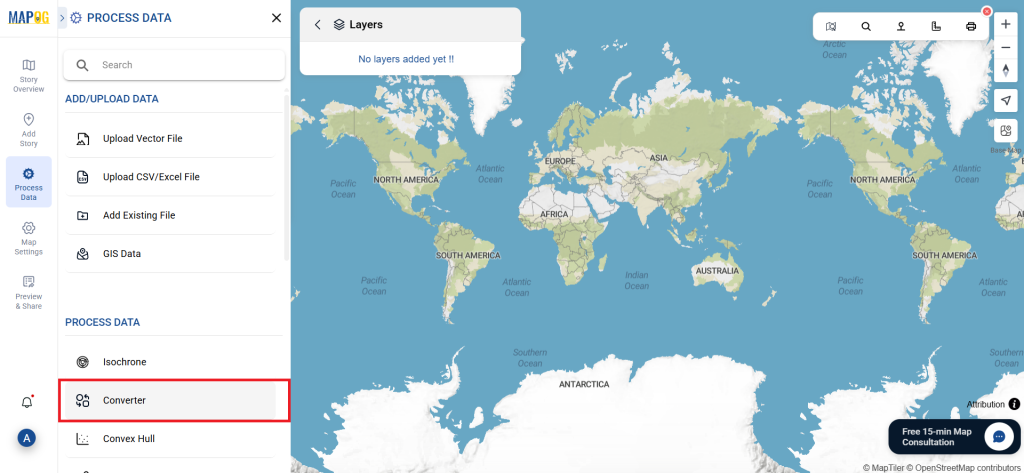
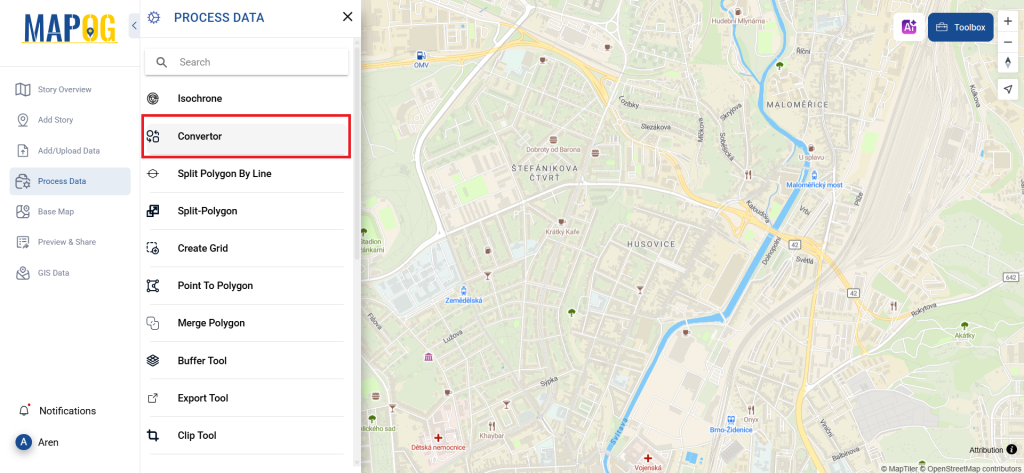
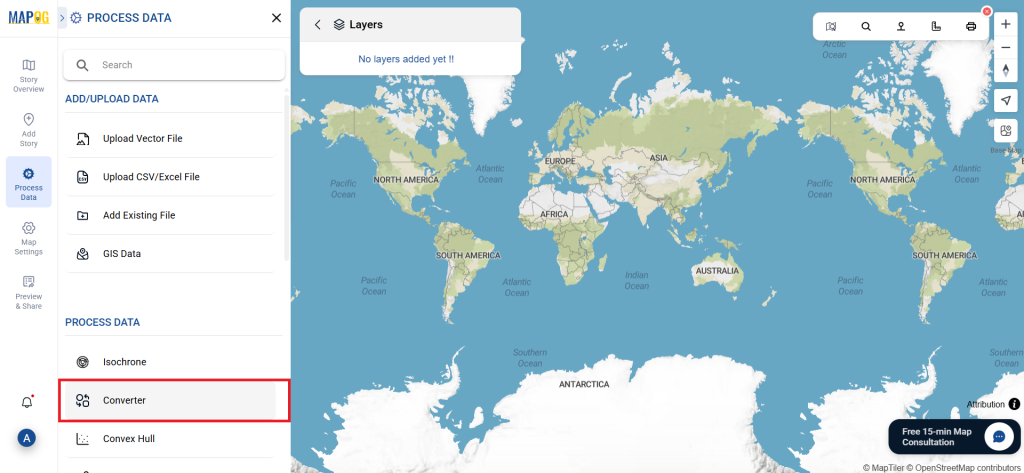
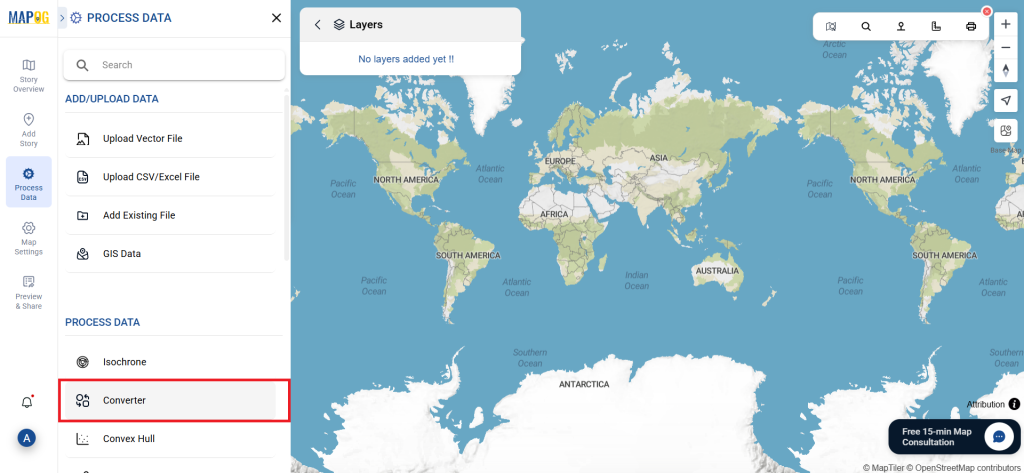
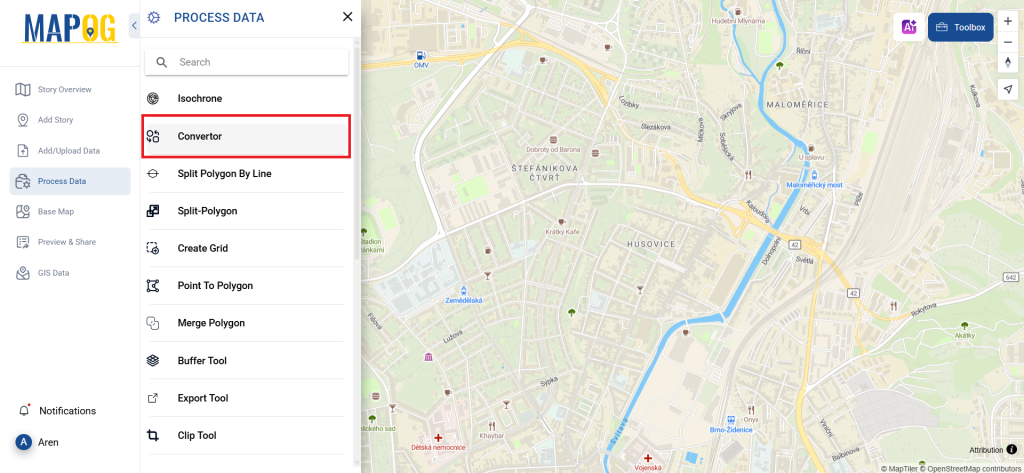
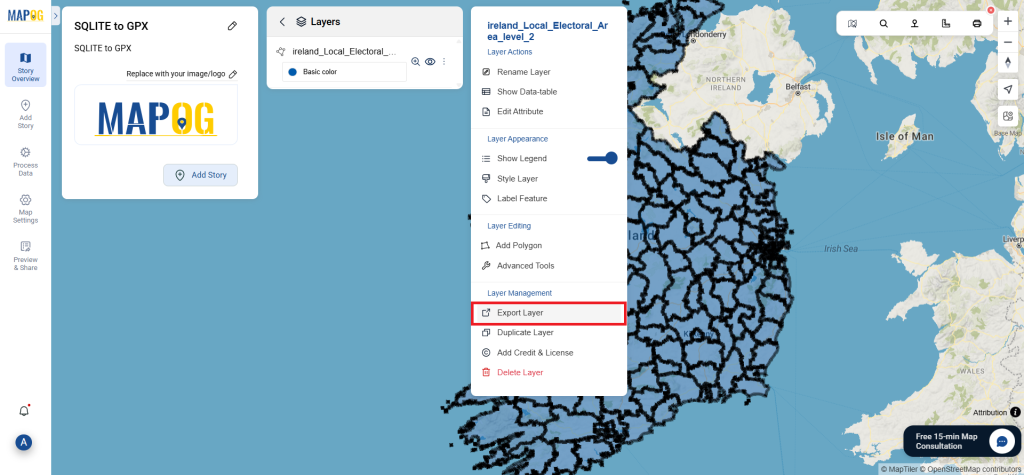
Navigate to “Process Data” and select the “Converter Tool” option.
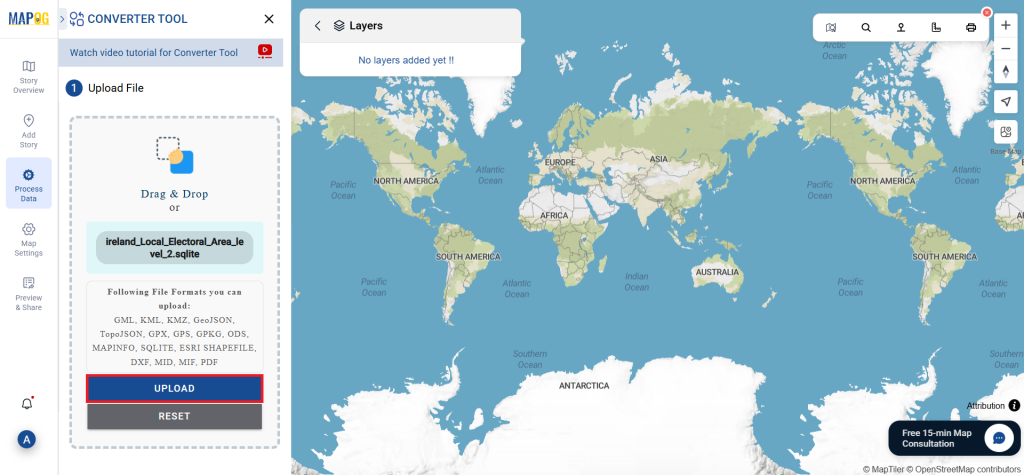
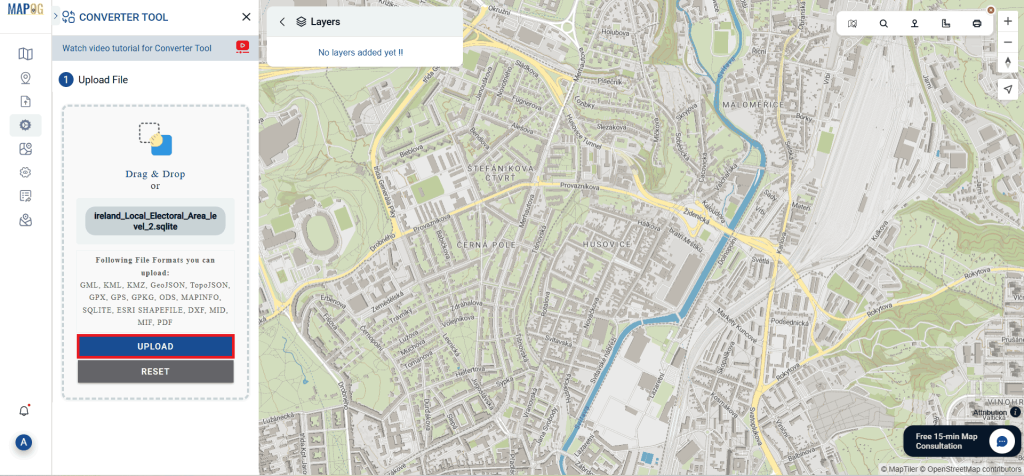
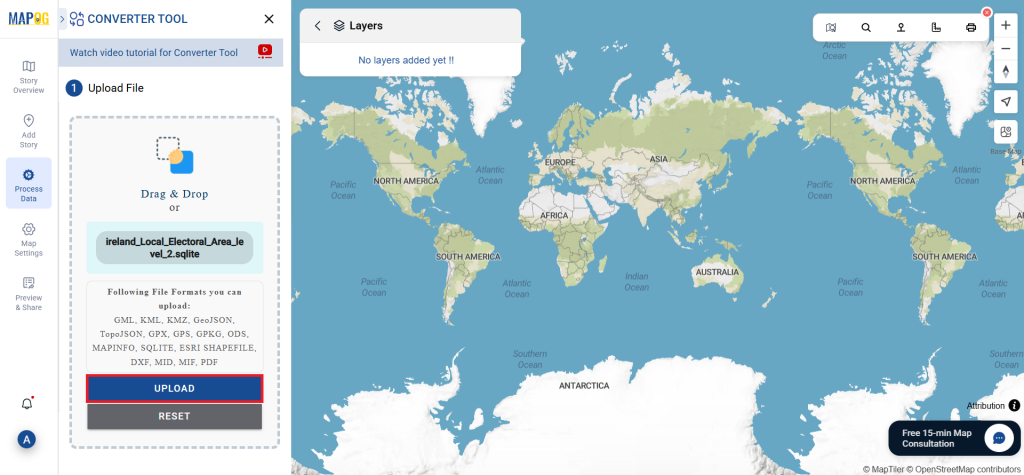
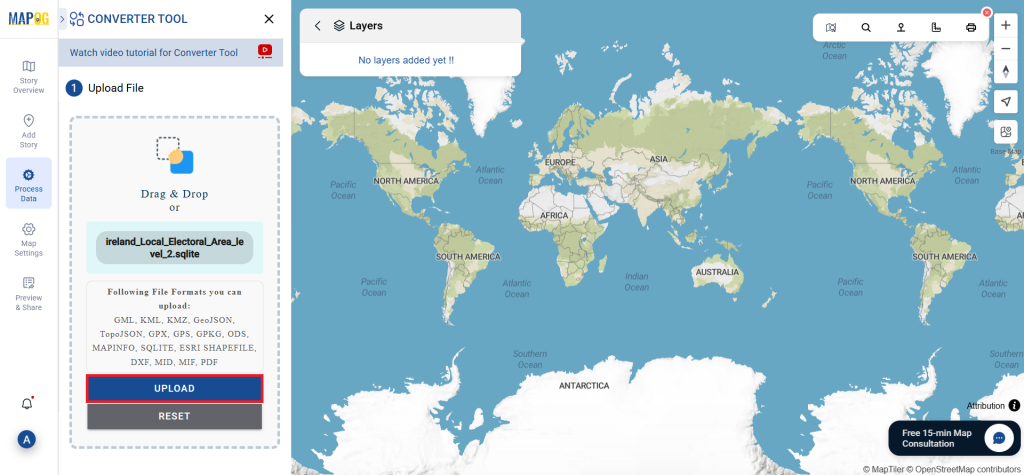
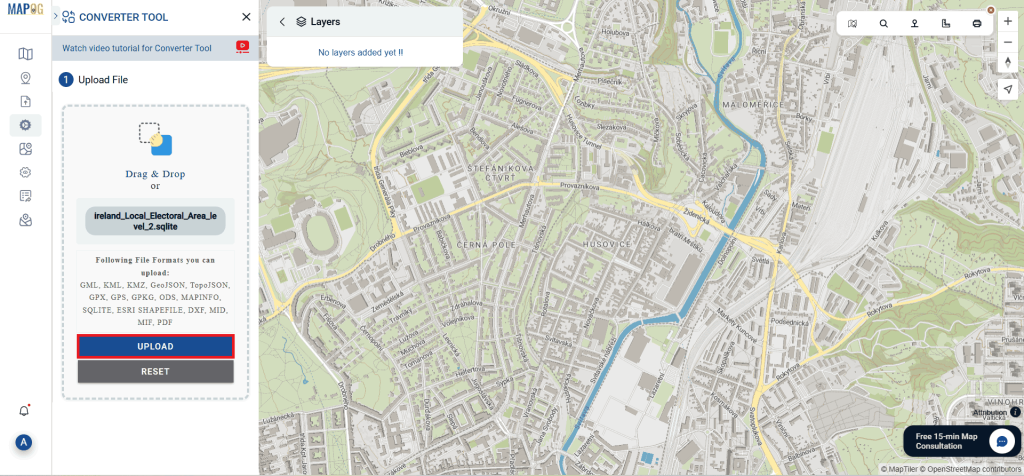
2. Upload your SQLITE file, that needs conversion.
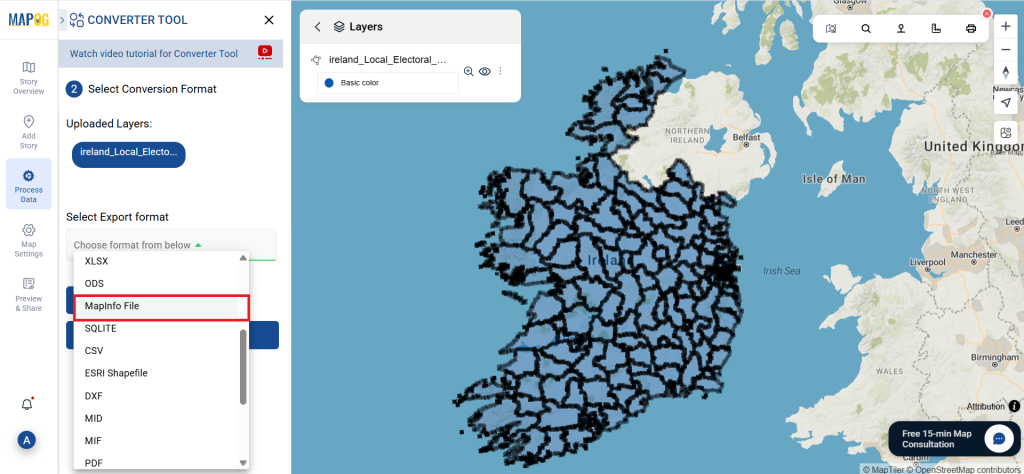
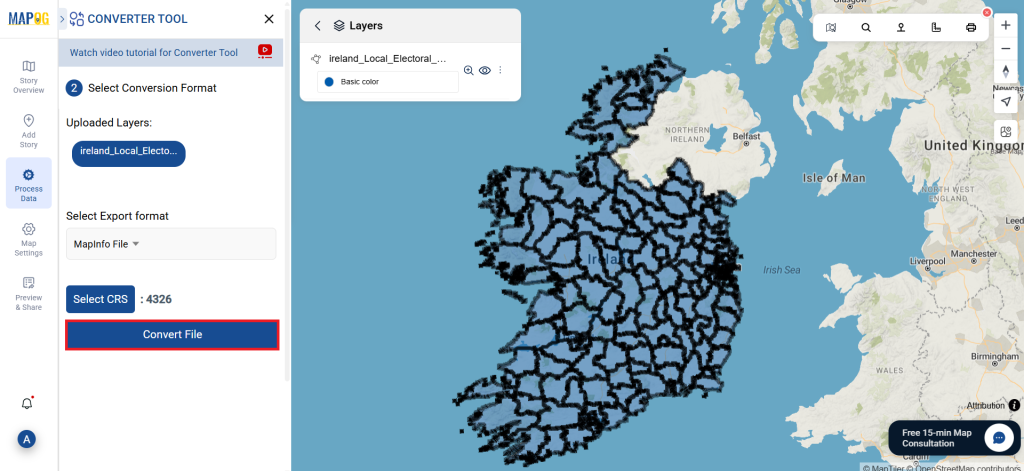
Step 2: Choose the Conversion Format:
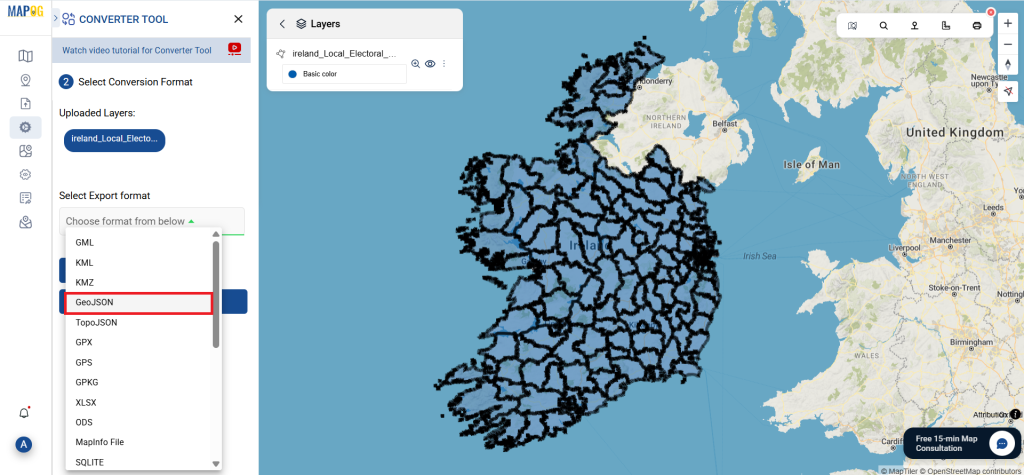
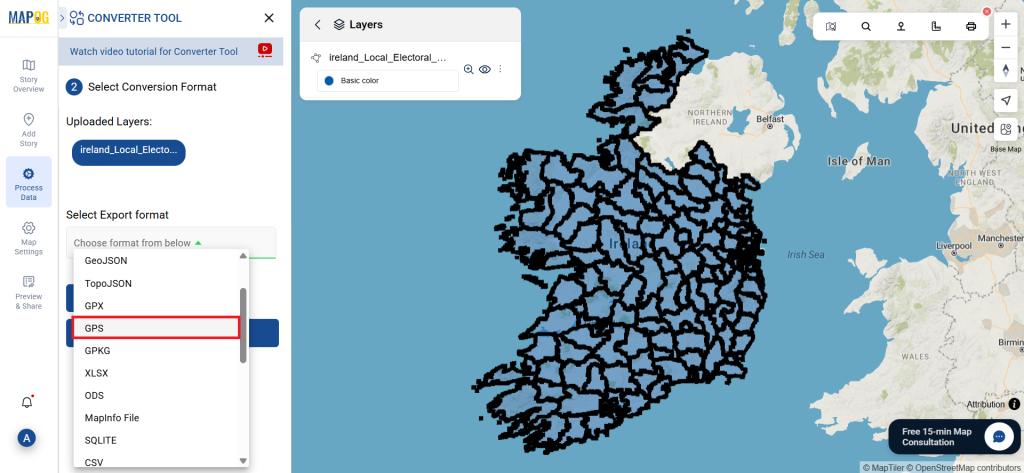
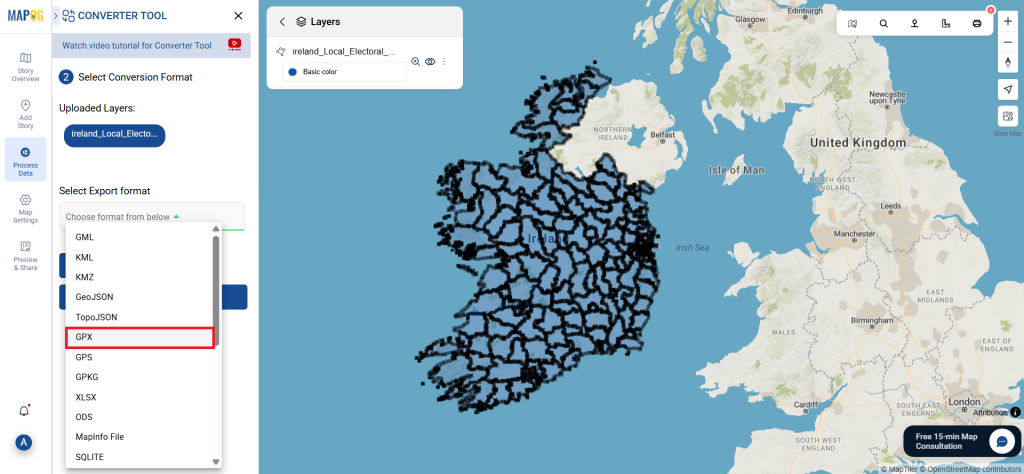
Furthermore, MAPOG offers flexibility by allowing GIS data downloads in multiple formats. So, depending on your project requirements, you can choose the one that fits best. In this case, pick MapInfo File as your output format if your goal is to export only the core data.
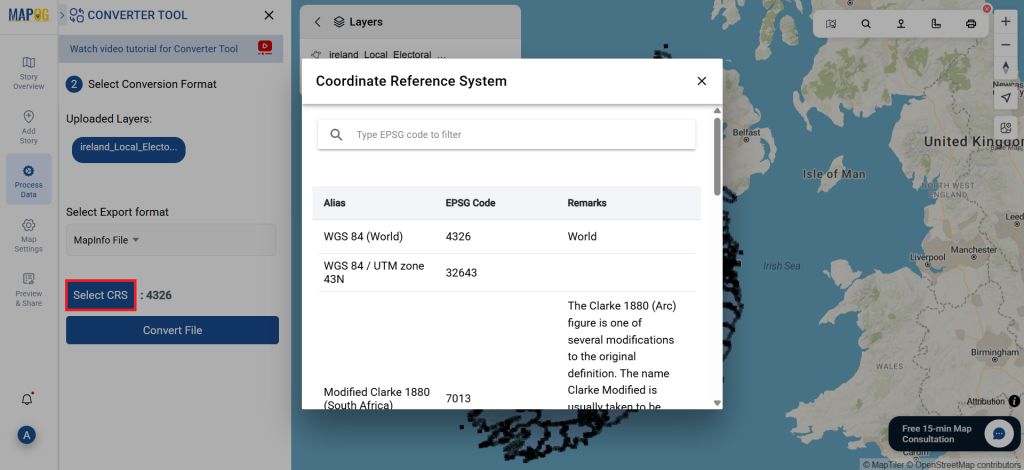
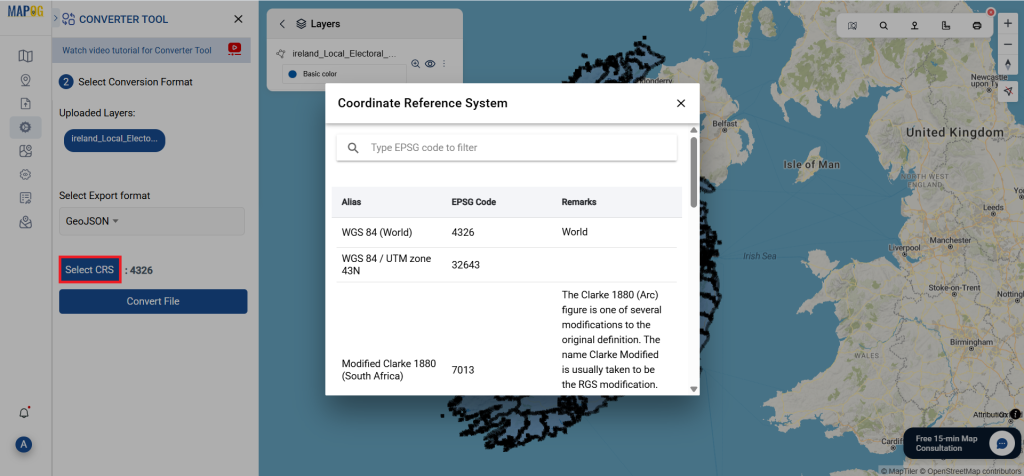
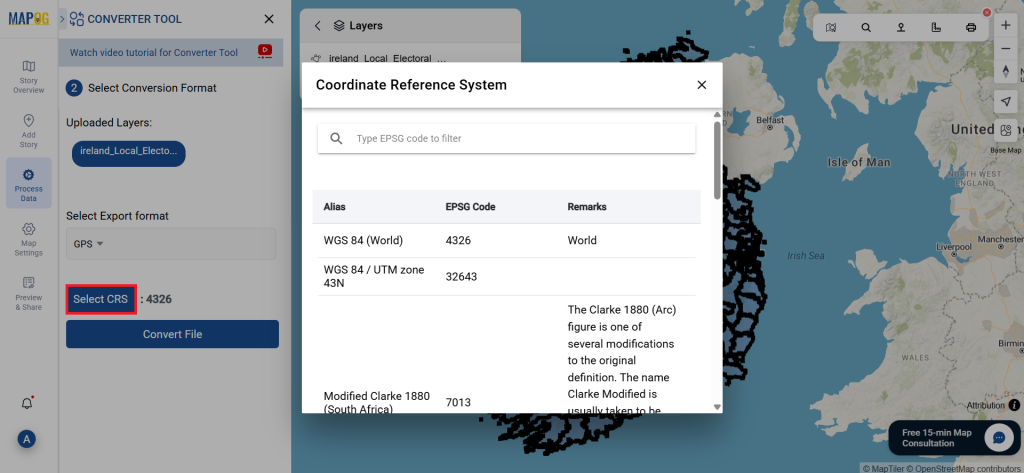
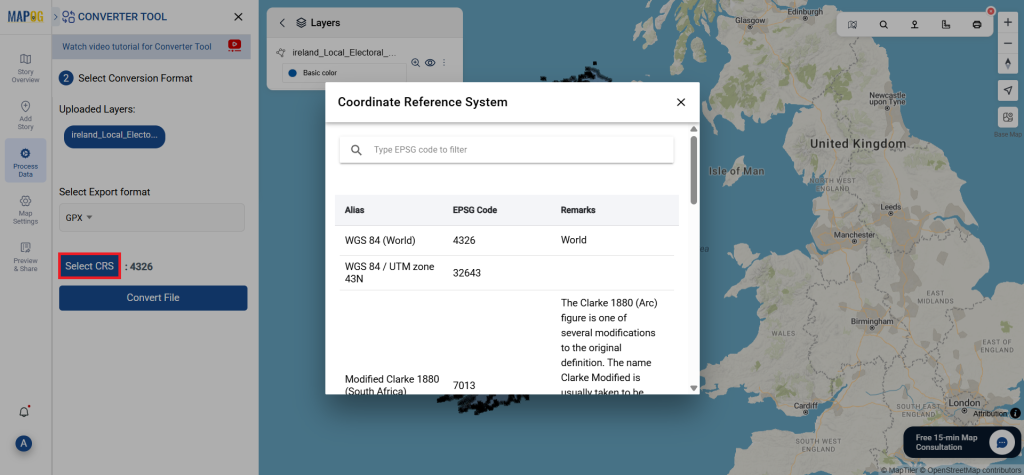
You can also set the Output CRS as per your spatial analysis.
Step 3: Execute the Conversion:
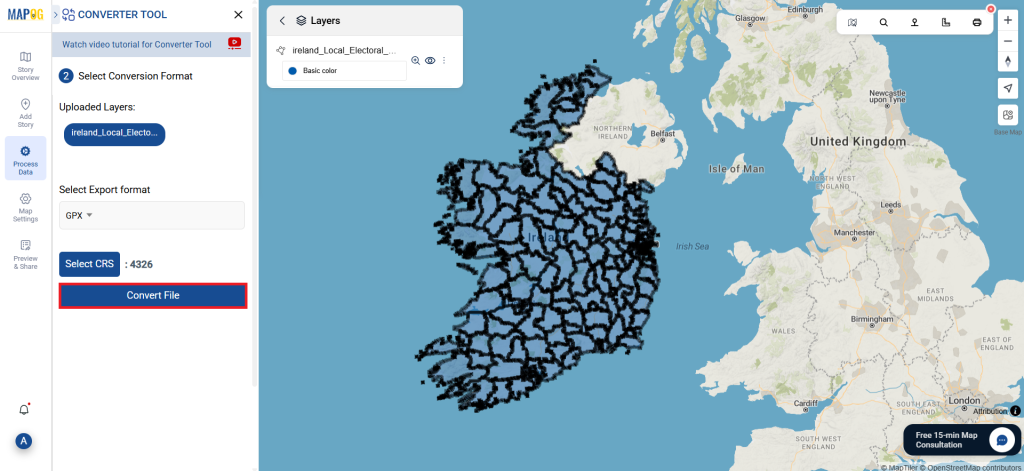
Head over to ‘Convert Files’ and let the tool do its magic. Simply input your data, and the Converter Tool will transform it from SQLITE format toMapinfo File format.
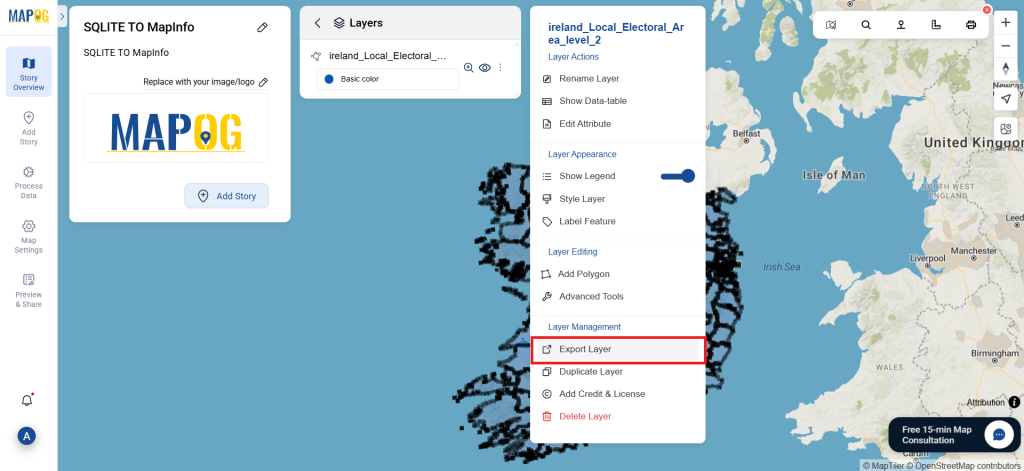
Step 4: Review and Download:
Carefully check your converted Mapinfo data to ensure accuracy. Once you’re satisfied with the results, proceed to download the file. This step is crucial to confirm that the conversion was successful and that all your data has been preserved.
Need location-based information about employment agencies for your next GIS project? Download Employment Agencies Data easily using the GIS Data by MAPOG platform. Designed for efficiency and accessibility, MAPOG offers geospatial data in multiple formats like Shapefile, KML, GeoJSON, MID, and many more—making it adaptable for use in a wide range of GIS software. Whether you’re analyzing workforce distribution, planning career support centers, or developing job accessibility tools, this platform offers organized and ready-to-use datasets tailored to your needs.
How to Download Employment Agencies Data
MAPOG simplifies the data retrieval process by offering a clean interface and structured layers. With over 900+ thematic datasets and support for 200+ countries, users can easily download Employment Agencies Data in the format that best suits their technical or analytical requirements—be it MID, KML, Shapefile, CSV, DXF, SQL, or GeoJSON.
All data is provided in GCS datum EPSG:4326 WGS84 CRS (Coordinate Reference System).
Users need to log in to access and download their preferred data formats.
Step-by-Step Guide to Download Employment Agencies Data
Step 1: Search for Employment Agencies Layer
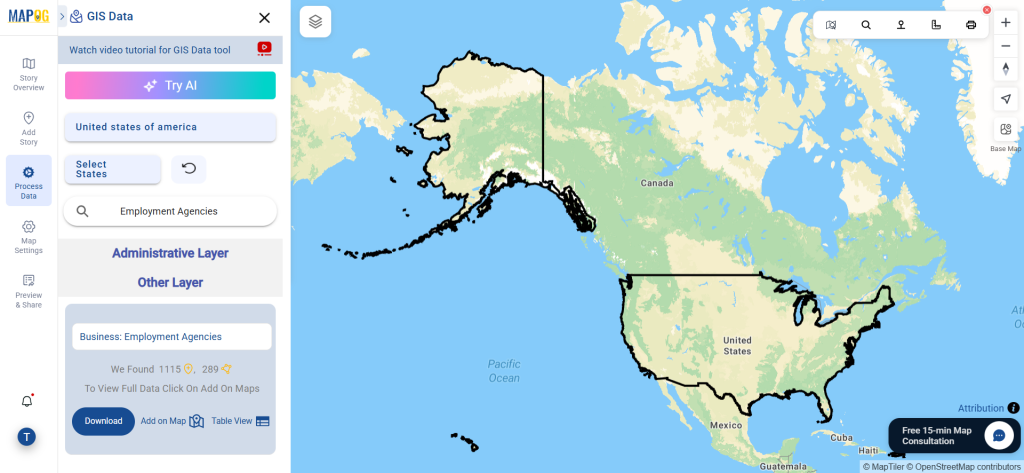
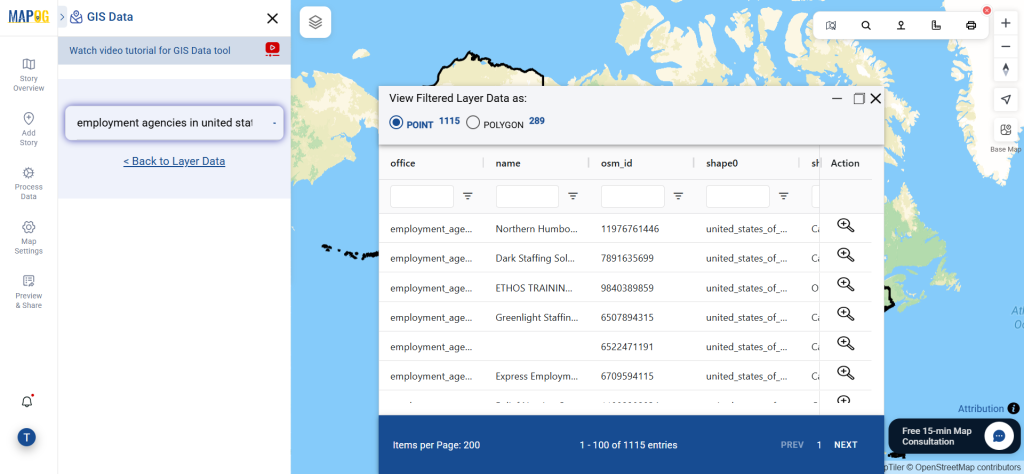
Begin by navigating the MAPOG interface and go to process data and select GIS Data, select your area of interest. Use the “Search Layer” function and type in “Employment Agencies Data.” Preview the dataset to check if the data is in point or polygon format, depending on how the agency locations are structured.
Use the built-in “Try AI” feature to speed up the search process. Just enter a phrase like “Employment Agencies near industrial zones” or “Job centers in the region.” The AI quickly retrieves the most relevant datasets, reducing manual searching and increasing accuracy.
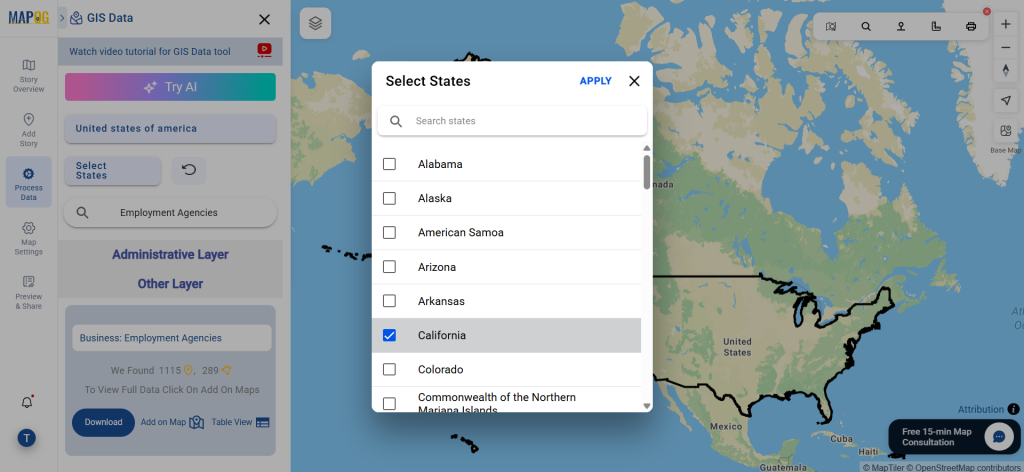
Step 3: Filter Data by Region
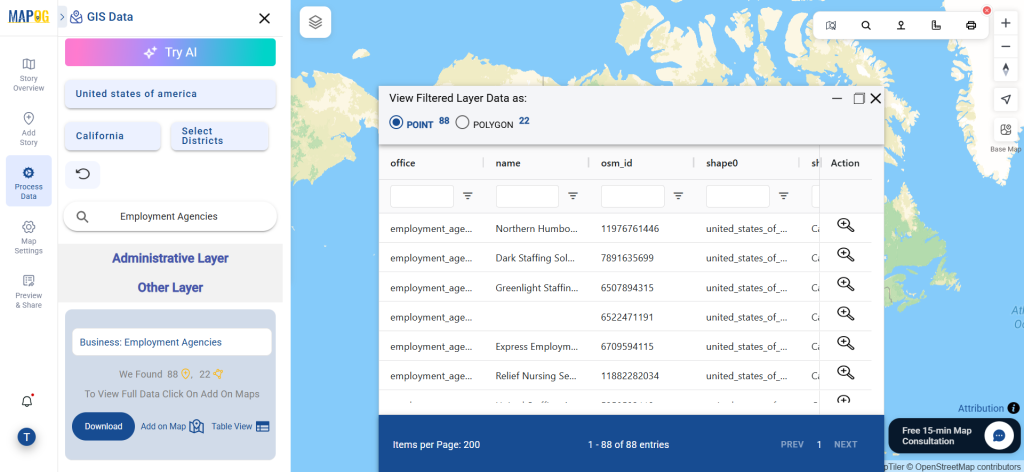
Use the Filter Data option to refine your dataset based on states and districts. This makes it easier to access hyperlocal data, allowing you to work with more targeted and specific employment agency information within a larger national or regional dataset.
Step 4: Visualize Using ‘Add on Map’
Click “Add on Map” to overlay the selected employment agency data on the GIS map interface. This visualization step helps in analyzing spatial distribution, coverage gaps, and regional clustering—all useful for planning outreach, policy-making, or research.
Step 5: Download the Dataset
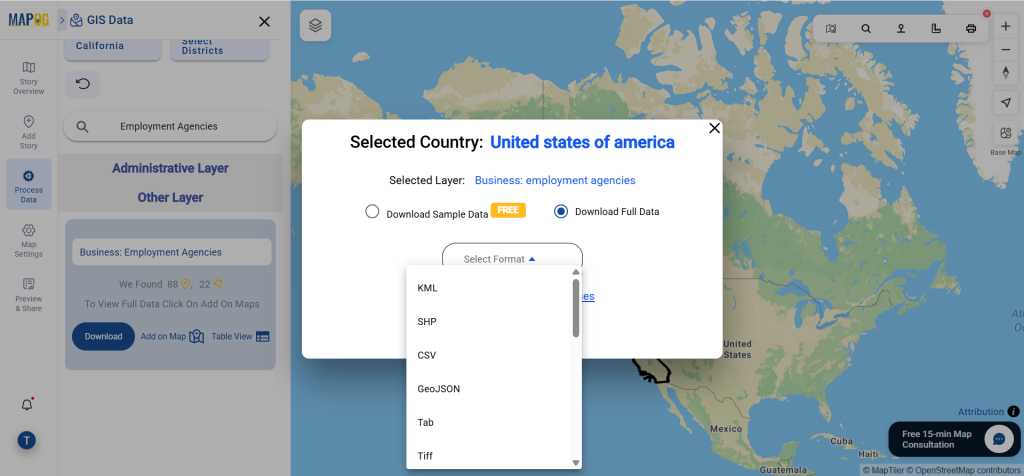
Once you’ve finalized your dataset, click the “Download Data” button. Choose your preferred file format—such as Shapefile, KML, GeoJSON, MID, or another supported type. After agreeing to the terms, initiate the download. A sample version is available for preview, or you can access the complete dataset.
Final Thoughts
With a focus on accessibility and precision, GIS Data by MAPOG makes it seamless to Download Employment Agencies Data across different geographies and formats. This powerful platform is ideal for researchers, GIS analysts, and public planners aiming to study employment service networks. The combination of AI tools, filter options, and rich file support ensures you get exactly the data you need—no more, no less. If you’re working on employment-related spatial projects, now is the time to Download Employment Agencies Data and take your analysis to the next level.
Disclaimer : The GIS data provided for download in this article was initially sourced from OpenStreetMap (OSM) and further modified to enhance its usability. Please note that the original data is licensed under the Open Database License (ODbL) by the OpenStreetMap contributors. While modifications have been made to improve the data, any use, redistribution, or modification of this data must comply with the ODbL license terms. For more information on the ODbL, please visit OpenStreetMap’s License Page.
In this guide, it will provide step by step of how to convert SQLITE to GeoJSON format with the help of Converter Tool in MAPOG. So, both if you are a first-time user and a regular one, Converting SQLITE to GML with MAPOG, the entire process will be explained in simple steps for you.
Key Concept to Convertingf Files:
The Converter Tool in MAPOG functions to transform data from one format to another like for this guide convert SQLITE to GeoJSON, it’s like a magical process. You input the data in one format, and it will provide the outputs in a different format suitable for your analysis. Additionally, GIS Data can be downloaded in various formats, making it adaptable for multiple uses.
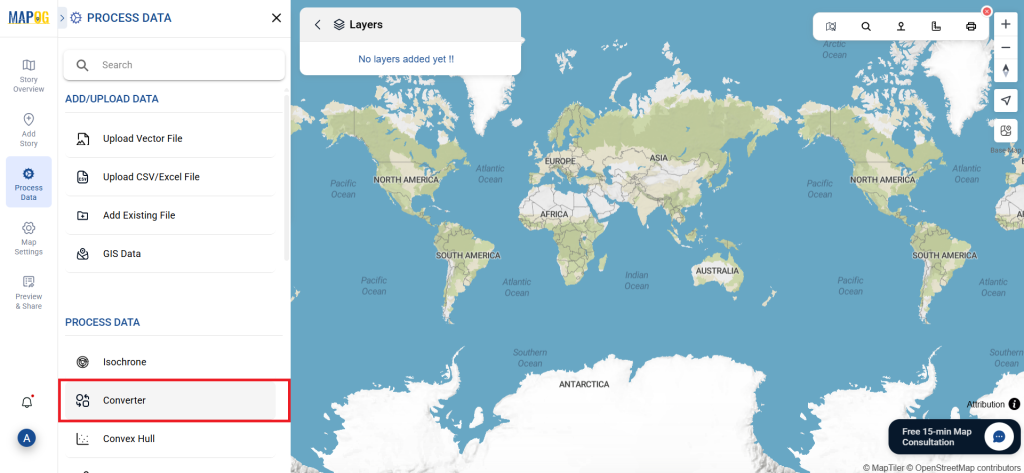
Go to “Process Data” and click on “Converter Tool” option.
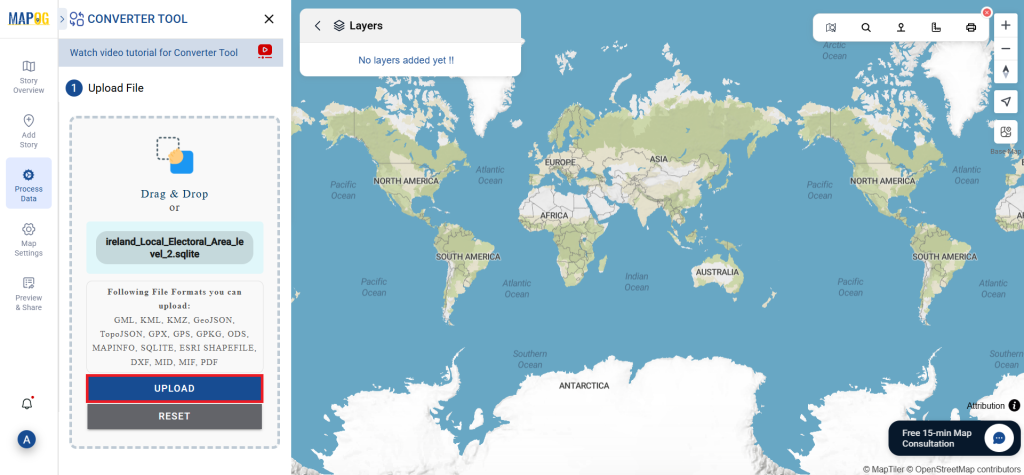
Upload your SQLITE file. This is your entry point where you feed in the information that needs conversion.
Step 2: Select the Format for Conversion:
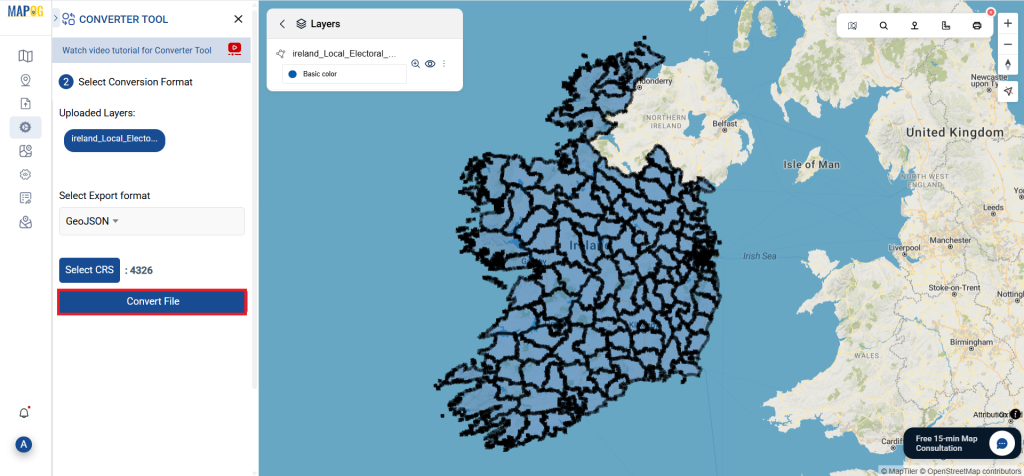
Select the output format as GeoJSON if you want to expatriate only the data. The tool provides several options in arriving at the result but for this guide, we are using the option to convert the file to GeoJSON.
You can also set the Output CRS as per your need.
Step 3: Run the Conversion:
Go to ‘Convert Files’ and watch the tool at work. Working with the Converter Tool you input your data and then the tool converts it from the SQLITE format to the GeoJSON format.
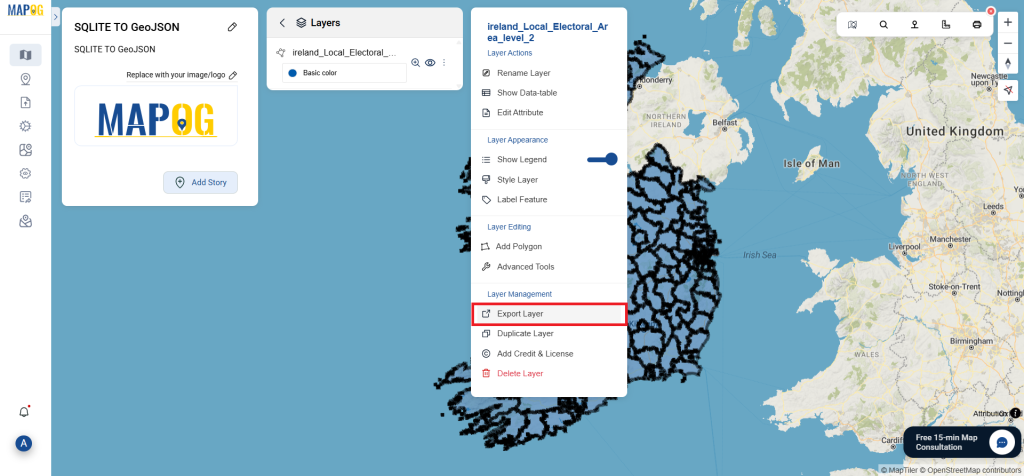
Step 4: Review and Download:
Take a moment to review your converted GeoJSON data to make sure everything looks correct. Once you’re happy with it, go ahead and download the file. This step is really important to ensure that the conversion worked properly and that all your data is intact.
This guide will take you through the simple steps of Convert SQLITE to PNG format using the Converter Tool in MAPOG. Whether you’re new to the tool or already familiar with it, this tutorial will, first of all, show you just how easy and fast it is to Convert SQLITE to PNG with MAPOG. To begin with, we’ll walk you through each step, in detail, so that the process is completely clear and easy to follow. In fact, even if you’ve never used the tool before, you’ll find it intuitive.
Key Concept of File Conversion:
The Converter Tool in MAPOG is designed to effortlessly transform data from one format to another. You input your data in one format, and the tool outputs it in a different format tailored to your analysis needs. Additionally, GIS Data can be downloaded in multiple formats, providing versatility for various uses.
Go to “Process Data” and select the “Converter Tool” option.
Upload your SQLITE file. This is where you input the data that you want to convert.
Step 2: Select the Conversion Format:
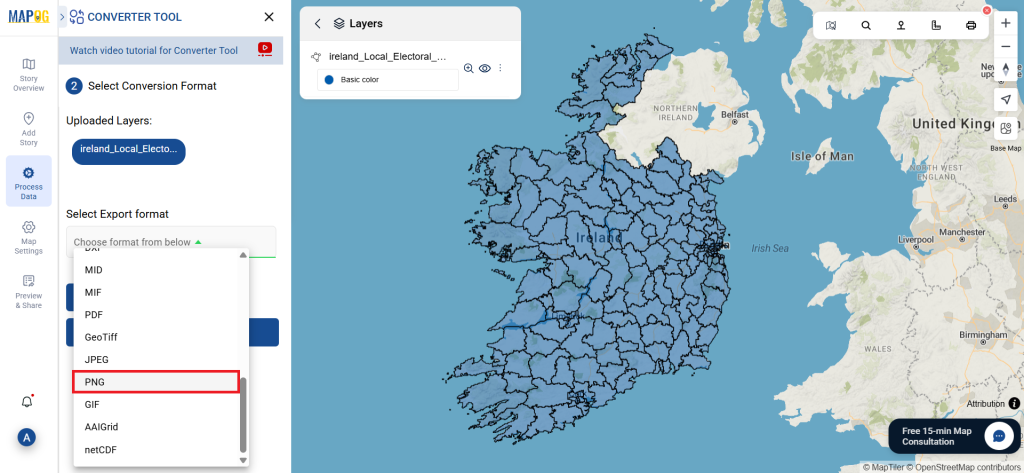
Choose PNG as the output format if you’re looking to export the data. While the tool provides various conversion options, this guide will focus on converting the file to PNG.
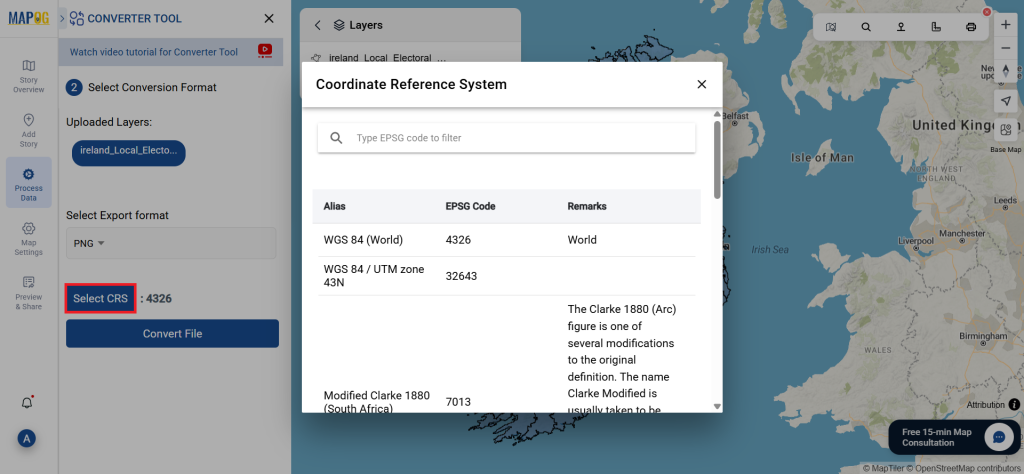
You can also customize the Output CRS based on your specific needs.
Step 3: Run the Conversion:
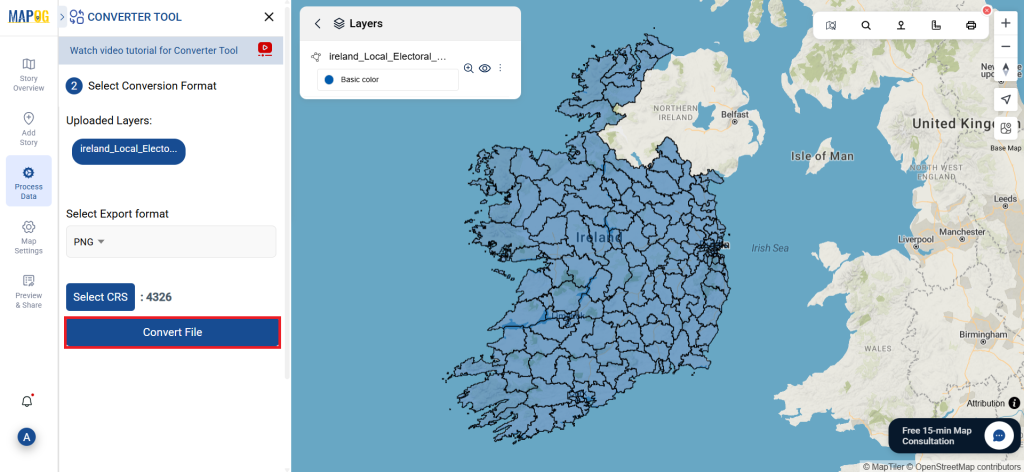
Click on Convert Files and allow the tool to work its magic. Once your data is uploaded, the Converter Tool will convert it from SQLITE format to PNG format.
Step 4: Review and Download:
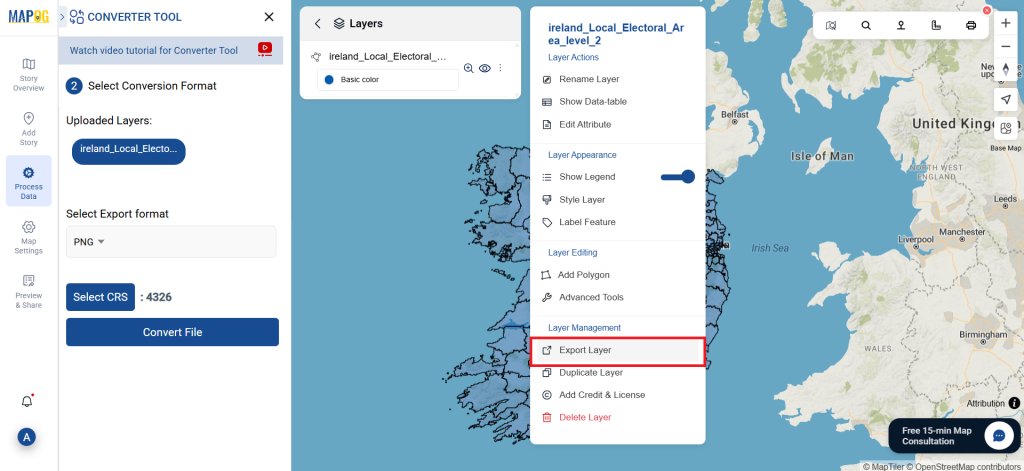
Take a moment to verify your converted PNG data to ensure everything looks correct. Once you’re happy with the results, go ahead and download the file. This step is essential to confirm that the conversion was successful and that all your data is intact.
This tutorial will guide you through the straightforward process of convert SQLITE to GPS format with theConverter Tool in MAPOG. Whether you’re a beginner or an experienced user, you’ll learn just how quick and effortless it can be to perform this conversion with MAPOG. We’ll explain each step in detail, ensuring the process is simple and easy to understand.
Understanding File Conversion:
The Converter Tool in MAPOG makes it simple to change data from one format to another with ease. You just need to upload your data in its original format, and the tool will convert it into a format that suits your specific analysis requirements. Moreover, it allows you to download GIS Data in various formats, offering flexibility for different applications.
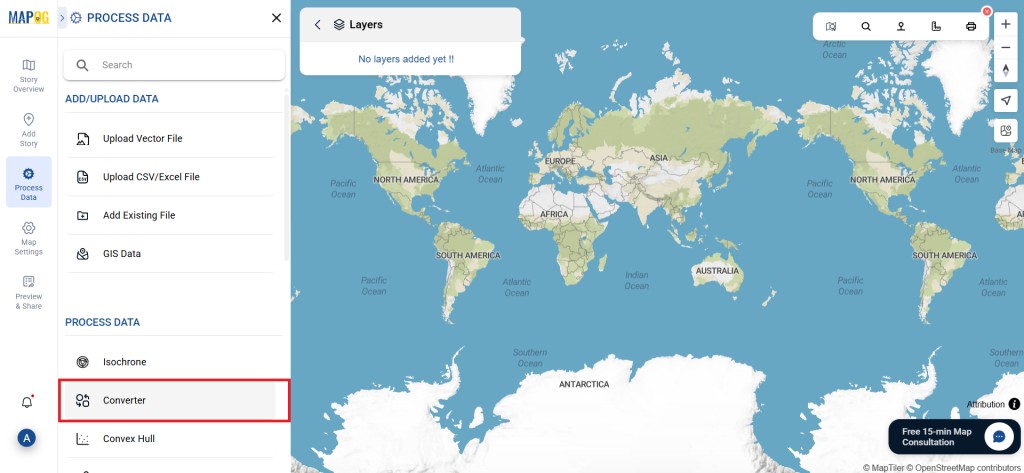
Start by navigating to the “Process Data” section and choosing the “Converter Tool” option.
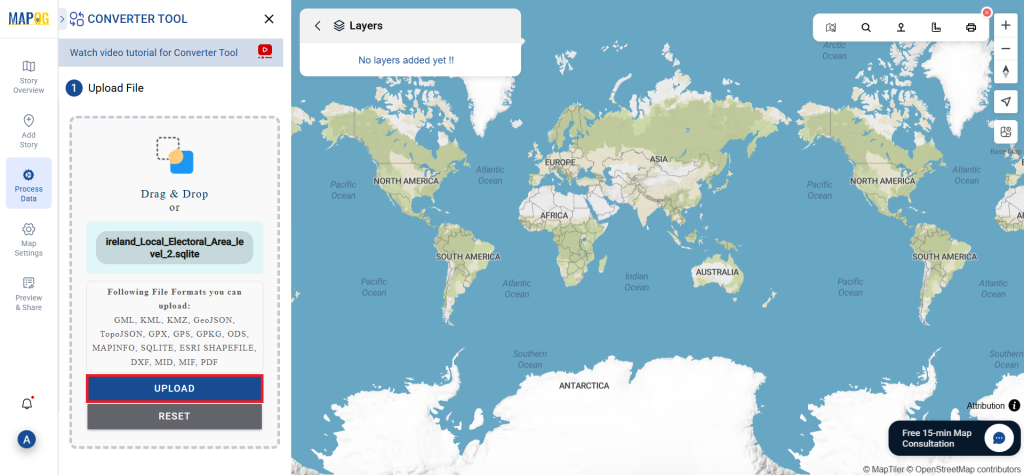
Here, you’ll upload your SQLITE file, which serves as the input data for conversion.
Step 2: Choose Your Output Format:
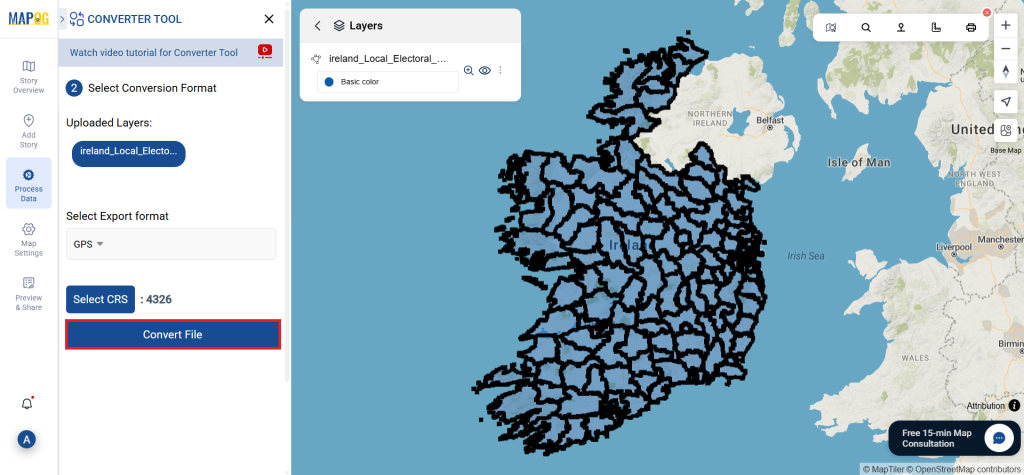
If you want to export the data, select “GPS” as the desired output format. Although the tool offers multiple conversion options, this guide will specifically cover converting your file to the GPS format.
2.You can also customize the Output CRS based on your spatial needs.
Step 3: Run the Conversion:
Click on Convert Files and allow the tool to work its magic. Once your data is uploaded, the Converter Tool will convert it from SQLITE format to GPS format.
Step 4: Verify and Download:
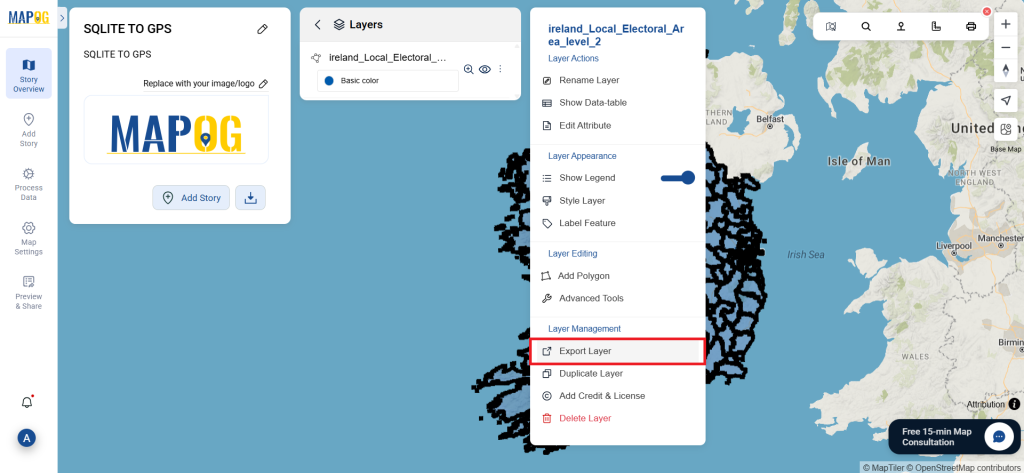
Review the converted GPS data to make sure everything is accurate. Once you’re satisfied with the results, proceed to download the file. This step is crucial to ensure the conversion was successful and that all your data remains complete and correct.
This tutorial will guide you through convert a SQLITE file to GPKG format using the Converter Tool in MAPOG. Whether you’re a MAPOG novice or an experienced user, this step-by-step guide will make the conversion process straightforward, helping you confidently transform your SQLITE files into GPKG format.
Key Concept to Converting Files:
The Converter Tool in MAPOG serves as a key mechanism for converting data between two different formats like convert SQLITE to GPKG . Imagine it as a smooth transition where you provide data in one format, and it efficiently transforms it into another format tailored to your analytical requirements. Additionally, GIS Data can be exported in multiple formats, enhancing its versatility and applicability across different uses.
1. Navigate to “Process Data” and select the “Converter Tool” option.
2. Upload your SQLITE file. This is where you begin by supplying the data that you want to convert.
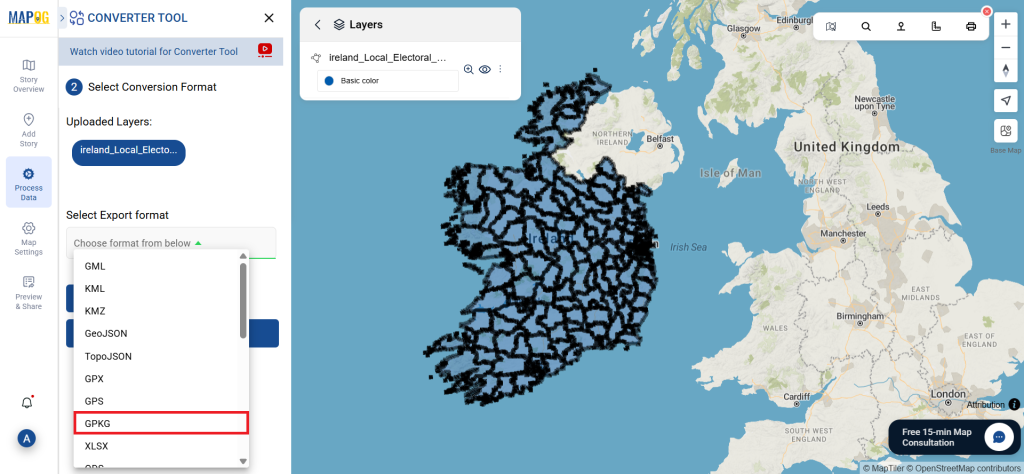
Step 2: Choose the Conversion Format:
Select GPKG as the output format if you intend to export just the data. Although the tool provides several options to achieve this, this guide specifically focuses on converting the file to GPKG.
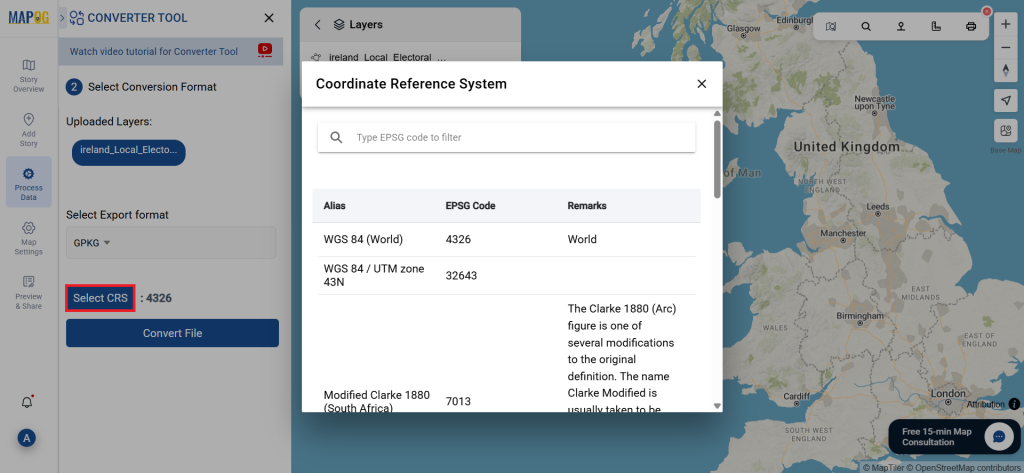
You can also set the Output CRS as per your need.
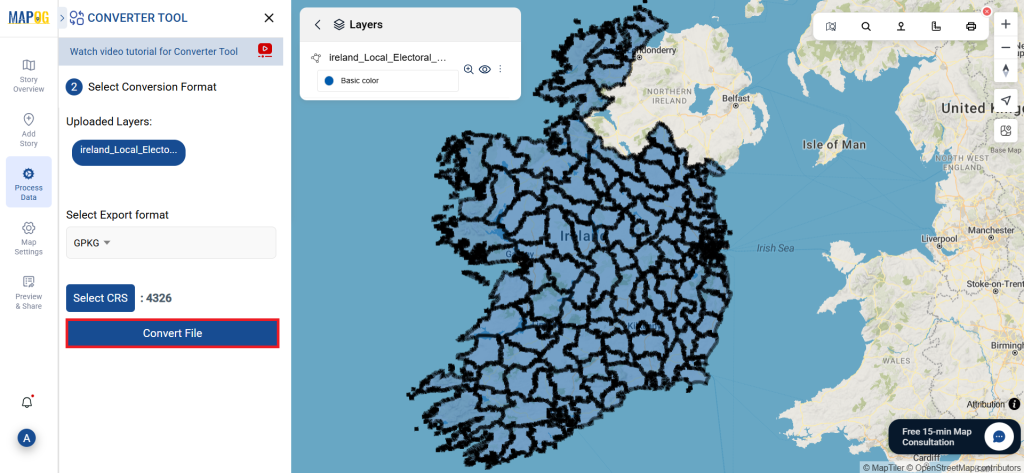
Step 3 : Execute the Conversion:
Go to ‘Convert Files’ and allow the tool to work. With the Converter Tool, you just supply your data, and it takes care of converting from SQLITE to GPKG format.
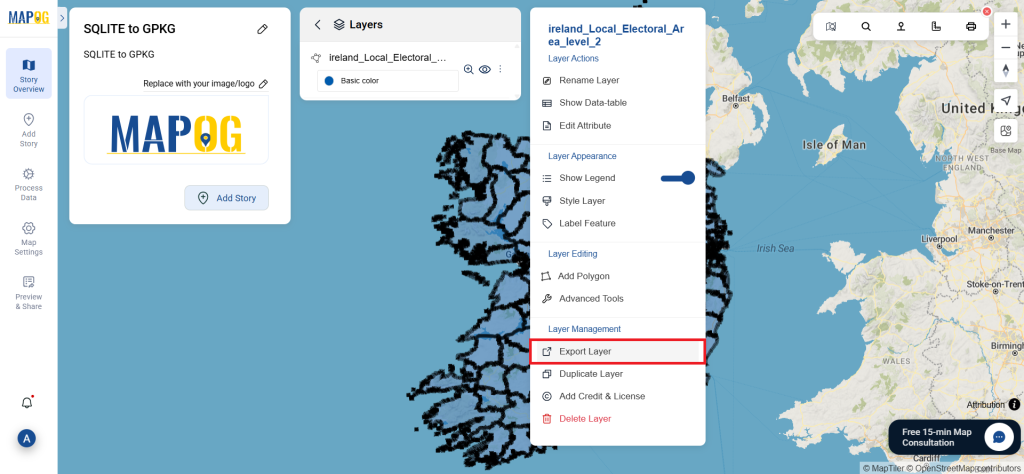
Step 4: Review and Download:
Take a moment to examine your converted GPKG data to confirm its accuracy. Once you’re confident with the outcome, go ahead and download the file. This step is essential to ensure that the conversion was successful and that all your data is correctly maintained.
This guide will take you through the simple steps to convert SQLITE to JPEG format using the Converter Tool in MAPOG. Whether you’re completely new to the tool or already somewhat familiar with it, you’ll quickly see how easy, fast, and efficient it is to convert SQLITE to JPEG with MAPOG. To begin with, the Converter Tool in MAPOG is specifically designed to effortlessly transform data from one format to another. As a result, you can input your data in one format and seamlessly receive an output in a different format that is tailored to meet your analysis needs.
Key Concept of File Conversion:
In addition, MAPOG offers the advantage of supporting multiple GIS formats, making it not just flexible but also ideal for various use cases. Whether you’re working on a presentation, spatial analysis, or visual documentation, having the ability to convert SQLITE to JPEG opens up new possibilities for data sharing and visualization. Ultimately, by the end of this guide, you’ll understand not only how to convert SQLITE to JPEG but also why MAPOG’s Converter Tool stands out as a reliable, user-friendly solution for diverse GIS Data needs.
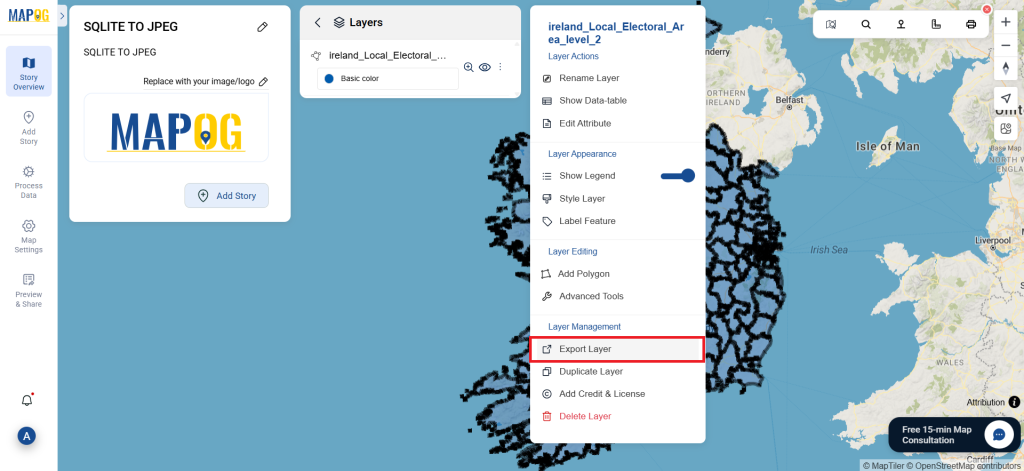
Go to Process Data and select the Converter Tool option.
Upload your SQLITE file. This is where you input the data that you want to convert.
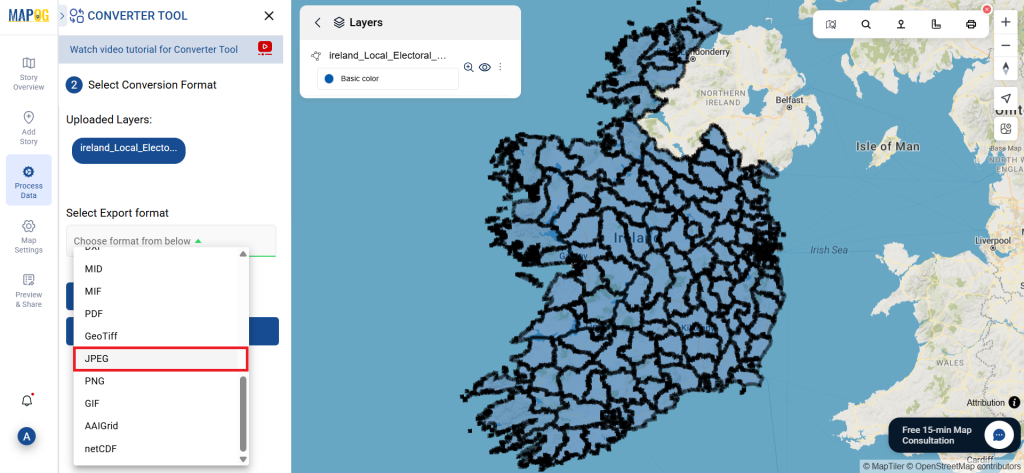
Step 2: Select the Conversion Format:
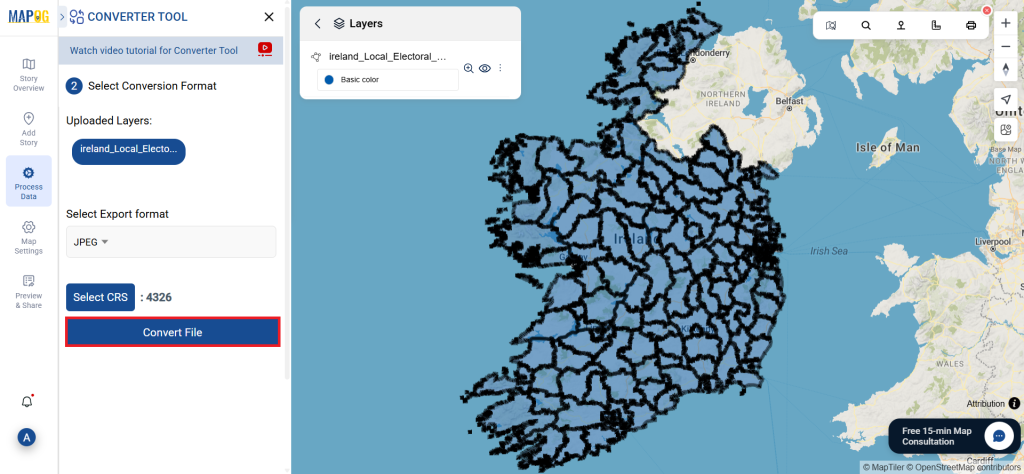
Choose JPEG as the output format if you’re looking to export the data. While the tool provides various conversion options, this guide will focus on converting the file to JPEG.
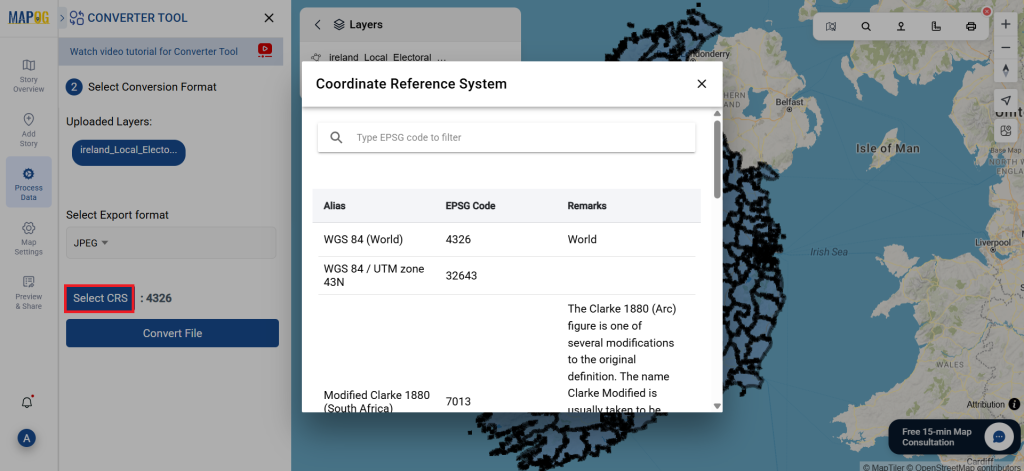
You can also customize the Output CRS based on your specific needs.
Step 3: Run the Conversion:
Click on Convert Files and allow the tool to work its magic. Once your data is uploaded, the Converter Tool will convert it from SQLITE format to JPEG format.
Step 4: Review and Download:
Take a moment to verify your converted JPEG data to ensure everything looks correct. Once you’re happy with the results, go ahead and download the file. This step is essential to confirm that the conversion was successful and that all your data is intact.
Looking to Download Forest Boundary Data in multiple GIS-compatible formats? GIS Data by MAPOG makes this process intuitive and efficient. Whether you’re working on ecological research, forest management, biodiversity planning, or land-use studies, MAPOG provides well-structured and detailed forest boundary datasets. The platform supports over 15+ GIS formats, including Shapefile, KML, GeoJSON, MID, and more—ensuring flexibility across different mapping software and analytical tools.
How to Download Forest Boundary Data
GIS Data by MAPOG simplifies your workflow by offering access to over 900+ data layers from across the globe. From small patches of forest to extensive woodland zones, the platform enables users to Download Forest Boundary Data accurately and efficiently.
• All data is provided in GCS datum EPSG:4326 WGS84 CRS (Coordinate Reference System). • Users need to log in to access and download their preferred data formats.
Step-by-Step Guide to Download Forest Boundary Data
Step 1: Search for Forest Boundary Data
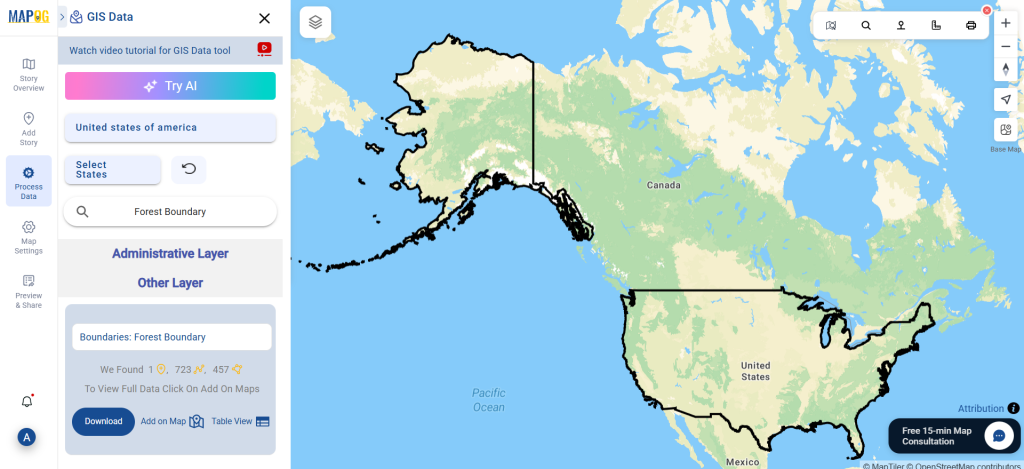
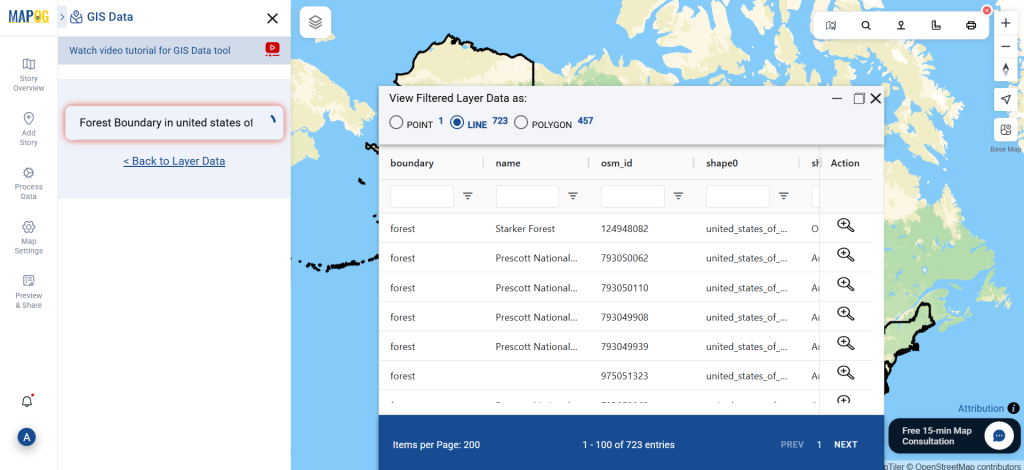
Begin by going to process data and select GIS Data & selecting your area of interest in the MAPOG interface. Use the search bar or layer tool to look for “Forest Boundary Data” datasets. The metadata will help you verify if the data is in polygon format—ideal for forest mapping.
Leverage MAPOG’s “Try AI” feature for smart, faster search results. Just type in terms like “forest areas in any specific region” and the system will automatically suggest the most relevant datasets. This reduces manual effort and increases efficiency in data discovery.
Step 3: Filter by State or District
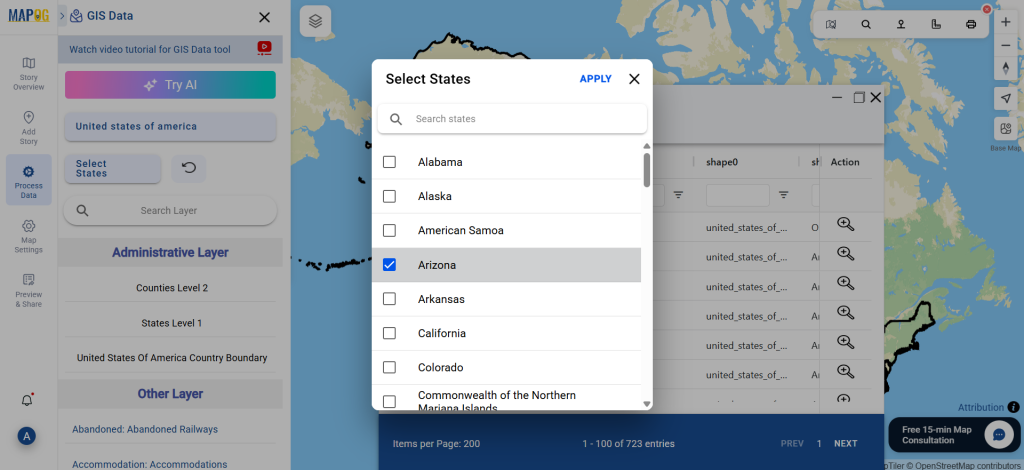
Use the “Filter Data” tool to narrow down your search to specific states or districts. This feature is especially useful for detailed, localized forest planning, letting you drill deeper into regional datasets and gain more accurate insights.
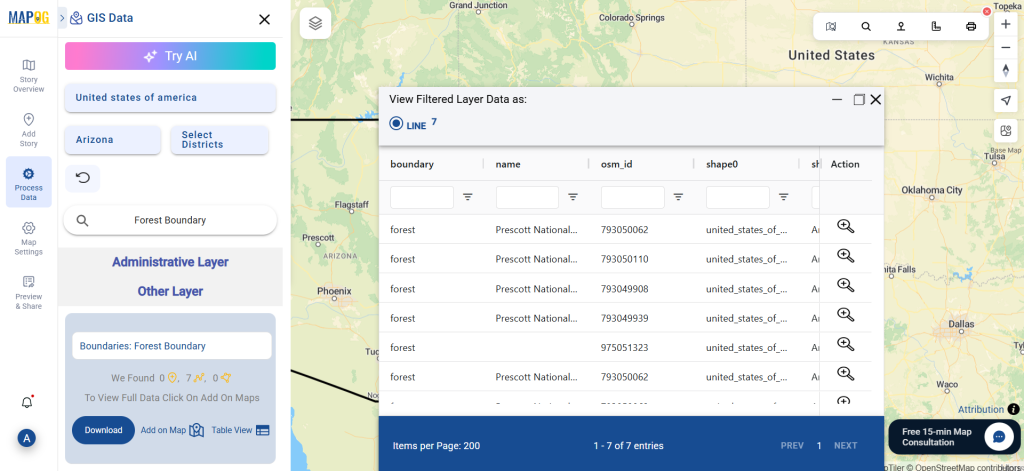
Step 4: Visualize with ‘Add on Map’
Click “Add on Map” to instantly view your selected forest boundary layer on MAPOG’s interactive map interface. This step helps in spatial analysis, making it easier to assess forest coverage, proximity to urban zones, or environmental impact areas.
Step 5: Download the Dataset
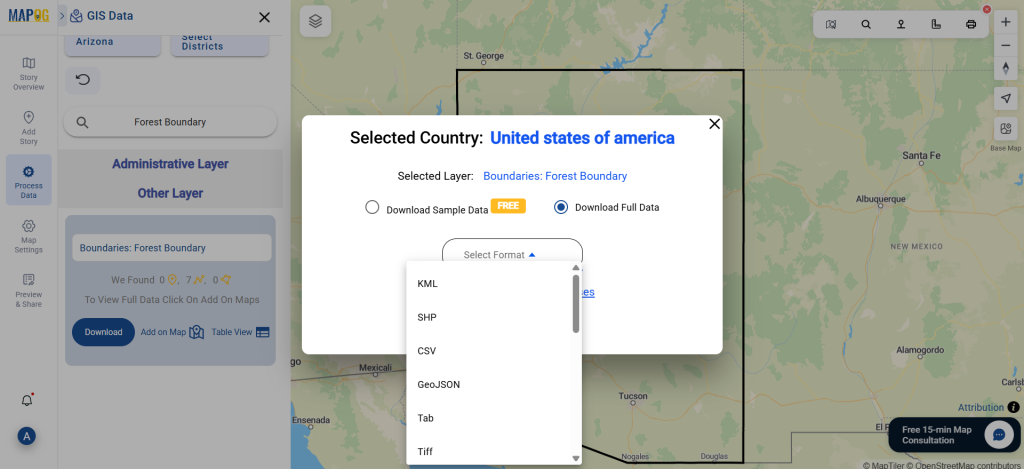
Once you’ve reviewed and selected your data, click “Download Data.” Choose between sample or full datasets. Select your desired format—Shapefile, KML, MID, or others—agree to the usage terms, and initiate the download.
Final Thoughts
The ability to Download Forest Boundary Data in a variety of GIS formats from MAPOG offers a streamlined experience for researchers, planners, and environmental experts alike. With its rich features like smart AI search, data filtering, and visualization tools, GIS Data by MAPOG turns a once-complex task into a straightforward, efficient process. Explore, analyze, and act confidently with accurate forest boundary data at your fingertips.
Disclaimer : The GIS data provided for download in this article was initially sourced from OpenStreetMap (OSM) and further modified to enhance its usability. Please note that the original data is licensed under the Open Database License (ODbL) by the OpenStreetMap contributors. While modifications have been made to improve the data, any use, redistribution, or modification of this data must comply with the ODbL license terms. For more information on the ODbL, please visit OpenStreetMap’s License Page.
This guide will walk you through the process of how to convert SQLITE to GPX format using the Converter Tool in MAPOG. Whether you’re new to MAPOG or, alternatively, a seasoned user, this step-by-step tutorial will clearly and confidently simplify the conversion process for you, ensuring that you can easily convert SQLITE to GPX with confidence.
Key Concept to Converting Files:
Moreover, the Converter Tool in MAPOG acts as a bridge for transforming data from one format to another. In other words, think of it as a seamless process where you input data in one format, and it subsequently converts it into another format that better fits your analytical needs. Additionally, GIS Data can be exported in different formats, therefore making it versatile and useful for a variety of applications.
Go to “Process Data” and click on “Converter Tool” option.
2. Upload your SQLITE file. This is the starting point where you provide the data that needs to be converted.
Step 2: Select the Format for Conversion:
Choose GPX as the output format if your goal is to export just the data. While the tool offers various options to achieve the result, this guide focuses on converting the file to GPX.
You can also set the Output CRS as per your need.
Step 3: Run the Conversion:
Navigate to ‘Convert Files’ and let the tool do its job. By using the Converter Tool, you simply provide your data, and it handles the conversion from SQLITE to GPX format.
Step 4: Review and Download:
Take a moment to check your converted GPX data to ensure everything is accurate. Once you’re satisfied with the results, proceed to download the file. This step is crucial to verify that the conversion was successful and that all your data is correctly preserved.
Fire stations play a crucial role in emergency response, ensuring public safety in urban and rural areas. To enhance fire risk assessment, infrastructure planning, and response strategies, GIS professionals rely on accurate fire station data. Download Fire Station Data in multiple GIS formats using GIS Data by MAPOG, a user-friendly platform offering seamless access to geographic datasets worldwide.
Simplified Fire Station Data Retrieval Process
GIS Data by MAPOG streamlines the fire station data download process, providing access to over 200 countries and 900+ layers in multiple formats, including Shapefile (SHP), KML, GeoJSON, and MID. This ensures GIS compatibility across different applications.
All data is provided in GCS datum EPSG:4326 WGS84 CRS (Coordinate Reference System).
Users need to log in to access and download their preferred data formats.
Step-by-Step Guide to Download Fire Station Data
Step 1: Search for Fire Station Data
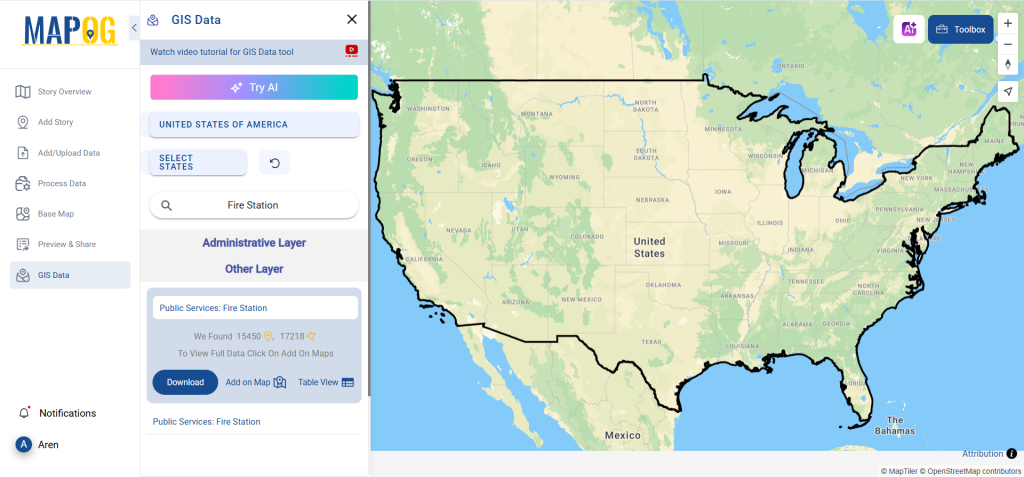
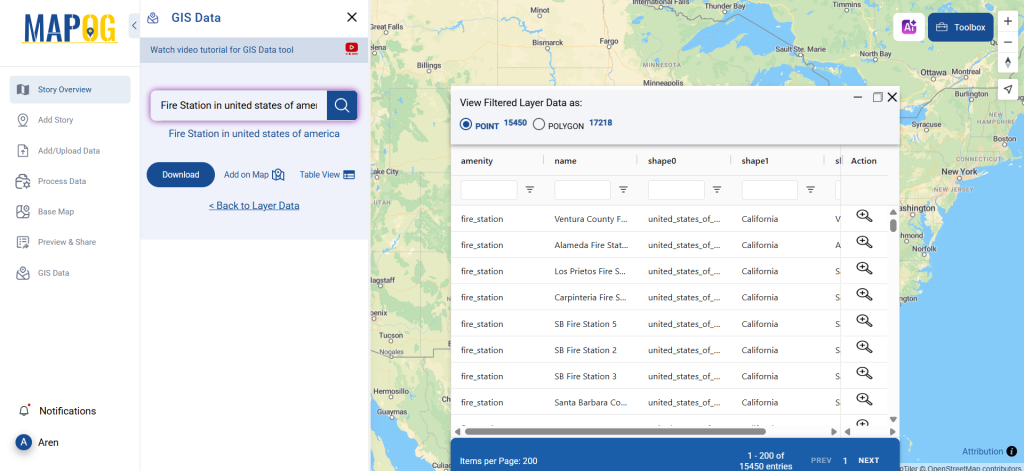
After logging into GIS Data by MAPOG, select the desired country. Use the search layer feature to find Fire Station Data. Users can explore point or polygon-based datasets with detailed attributes.
Try the “AI Search” tool in the upper-left corner to simplify your search. Enter “Fire Station Data” along with the desired region, and the AI tool will display relevant datasets instantly.
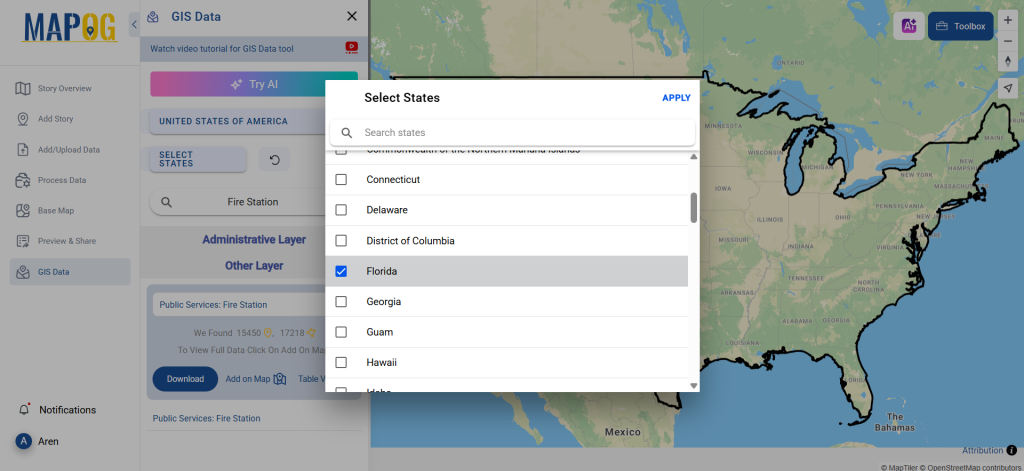
Step 3: Filter Data for Specific Regions
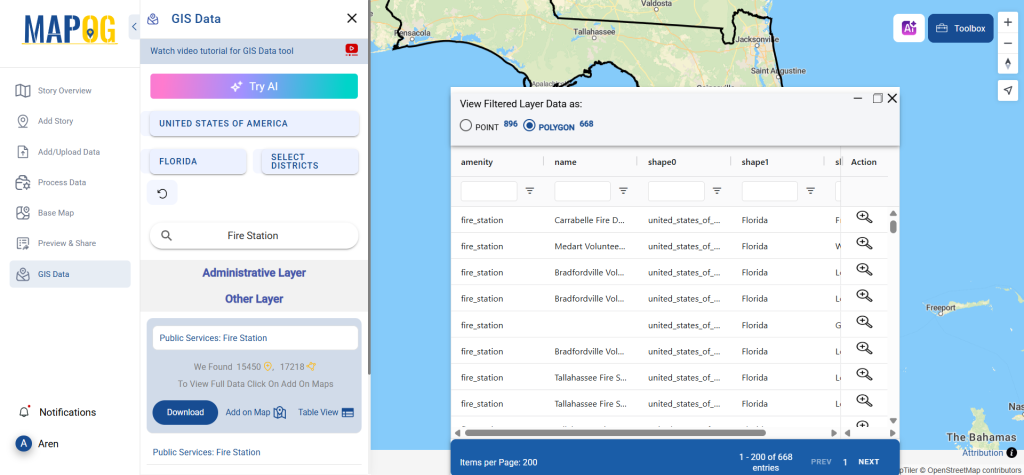
Use the Filter Data option to refine results based on country, state, or district. This feature helps narrow down datasets, ensuring precise analysis for GIS mapping and urban planning projects.
Step 4: Add Data to the Map
With the “Add on Map” feature, users can overlay fire station locations onto an interactive map. This helps in spatial analysis, risk assessment, and planning for fire safety management.
Step 5: Download Fire Station Data
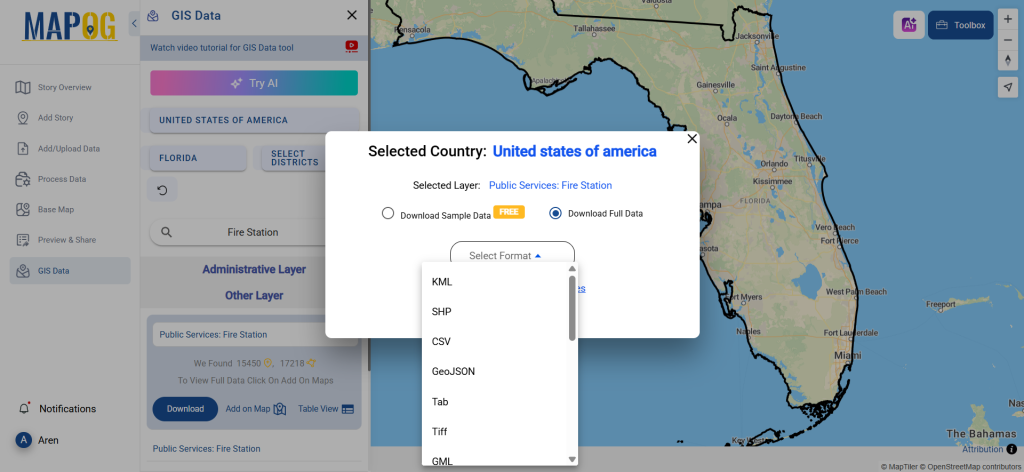
Click the “Download Data” button. Users can choose between sample data or full dataset. Select the required format—Shapefile, KML, GeoJSON, or any of the 15+ available formats. Accept the terms and conditions, then click Download to start the process.
Conclusion
GIS Data by MAPOG makes it easy to Download Fire Station Data in multiple GIS formats, supporting urban planning, emergency response, and infrastructure development. Whether you’re a GIS professional or a researcher, accessing accurate fire station data is now effortless with MAPOG.
Disclaimer : The GIS data provided for download in this article was initially sourced from OpenStreetMap (OSM) and further modified to enhance its usability. Please note that the original data is licensed under the Open Database License (ODbL) by the OpenStreetMap contributors. While modifications have been made to improve the data, any use, redistribution, or modification of this data must comply with the ODbL license terms. For more information on the ODbL, please visit OpenStreetMap’s License Page.
We use cookies to ensure that we give you the best experience on our website. If you continue to use this site we will assume that you are happy with it.