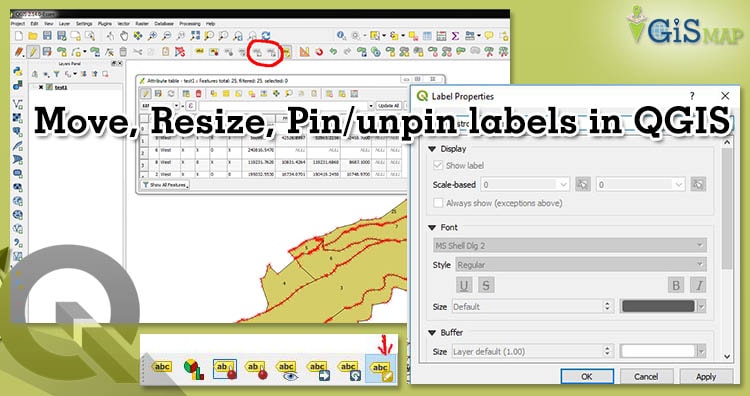
Pin/unpin labels, move labels and diagrams, resize labels of layer using QGIS 3.2.1

In the previous article Layer labeling in QGIS we learn about the basic labeling of layer. Today in this session we touch Pin/unpin labels, move labels and diagrams, resize labels of layer using QGIS 3.2.1

Resize labels of layer

In the map you find find that the labels are not appropriately formatted and either overlap or are too far away from their point markers. You can change label font size in points/mm/pixels.

Pin/unpin labels, move labels and diagrams, resize labels of layer using QGIS 3.2.1

  • Go to the Layer styling

You can reach layer styling dialog box by three ways:

Choosing layer icon on label toolbar or by choosing labeling from layer menu and third by right click on layer.

  • Increase and decrease font size.

Pin/unpin labels, move labels and diagrams, resize labels of layer using QGIS 3.2.1Move labels and Diagrams

Choose Move label icon from layer styling panel. Before this make sure toggle editing is activated. Pin/unpin labels, move labels and diagrams, resize labels of layer using QGIS 3.2.1

After choosing, you are able to move label or diagram on canvas of QGIS. By this method you can move labels individually. Its quite time consuming if we want to shift or move labels.

For all the labels go to Labels > Placement

Pin/unpin labels, move labels and diagrams, resize labels of layer using QGIS 3.2.1

You can change the value of distance and click apply.

Change Labels or Rename

  • Select change label icon from label toolbar

Pin/unpin labels, move labels and diagrams, resize labels of layer using QGIS 3.2.1

  • After activating go to the label and drag

Pin/unpin labels, move labels and diagrams, resize labels of layer using QGIS 3.2.1

  • Change the label and click on apply.

Print your labelled Map 

Pin/unpin Label in Qgis

Pinning means label at its current position.  You can choose pin and unpin from icon from label tool bar. You can highlight the pinned label.Pin/unpin labels, move labels and diagrams, resize labels of layer using QGIS 3.2.1

View attribute table

QGIS 3.2.1 for beginners

This all on Pin/unpin labels, move labels and diagrams, resize labels of layer using QGIS 3.2.1. Let me know if you have any questions or comments.

Furthermore on QGIS:

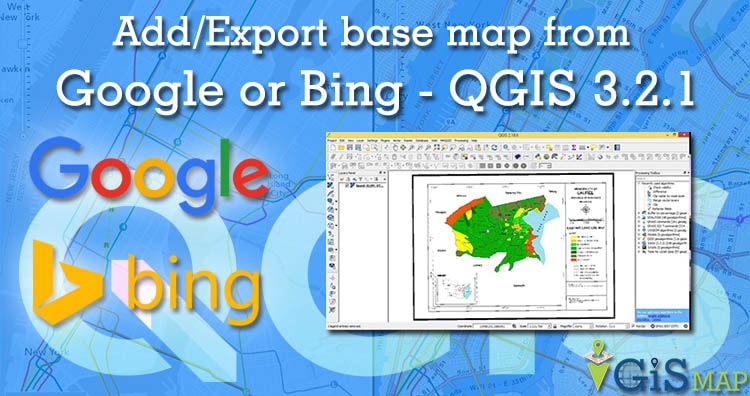
Add/Export basemaps from google or bing – QGIS 3.2.1

With the release of new version of QGIS, many new features are implemented like new zipped project files, geometry and advanced map tool. So today we learn how to add/export basemaps from google or bing – QGIS 3.2.1 .

You can also create basic map  in QGIS 3.2.1

Adding Basemaps from Google or Bing

Add Google Map layer and print them in QGIS 3.2.1 by following steps:

add/export basemaps from google or bing - QGIS 3.2.1

  • Right Click on XYZ tiles, Choose New connection. XYZ tile server provider has a UX enhancements for tiled services.

add/export basemaps from google or bing - QGIS 3.2.1

Enter the name for example: Google Map then copy and paste the URL given below. And tap on OK. Enter the URL of the service which you would like to use, replacing x, y and z parts with curly brackets substitution

URL for adding basemaps from different sources:

For Google  Map: https://mt1.google.com/vt/lyrs=r&x={x}&y={y}&z={z}

Google Satellite: https://mt1.google.com/vt/lyrs=s&x={x}&y={y}&z={z}

For Bing aerial: http://ecn.t3.tiles.virtualearth.net/tiles/a{q}.jpeg?g=1

Google Roads: https://mt1.google.com/vt/lyrs=m&x={x}&y={y}&z={z}

In the same way you can add from bing map by putting above URL. Hope this may help you. If you like the post please comment and share. All suggestions are welcome.

Furthermore, you can also check:

Select, Save/Export feature as a new layer using QGIS 3.2.1

Learn how to select, save/export feature as a new layer using QGIS 3.2.1 by  following expeditious tutorial.

Are you newbie QGIS 3.2.1 user check QGIS 3.2.1 for beginners

Selection of Features in QGIS 3.2.1

Add a new vector layer and create a project. In the tutorial we used world continents shapefile. You can do selection by two ways. First option click select feature icon. Choose select features and select the required layer from multiple layer.

Select, Save/Export feature as a new layer using QGIS 3.2.1

Selected screen is shown below.

Select, Save/Export feature as a new layer using QGIS 3.2.1Second method of selection is for very precise value.

Select, Save/Export feature as a new layer using QGIS 3.2.1 >> Select Features by Expresion. Dialog box of selection by expression will           open.

Select, Save/Export feature as a new layer using QGIS 3.2.1Generate Query in QGIS 3.2.1

Before generating the query you can check attribute table in QGIS. Select the field and values then tap on all uniques and select the desired value. We generated for Australian region “NAME_0” = ‘Australia’ 

Select, Save/Export feature as a new layer using QGIS 3.2.1

Export or Save into new layer

For Save as, right click on layer >> click on export and choose selected feature as

Select, Save/Export feature as a new layer using QGIS 3.2.1

After choosing save selected feature as… dialog box will appear. Choose correct location where you want to save. Otherwise QGIS will give error message like failed to save. Select, Save/Export feature as a new layer using QGIS 3.2.1

Method of open exported new layer

For open and view exported file click Open and view vector data

This all about the Select, Save/Export feature as a new layer using QGIS 3.2.1. I tried my best by pictorial explanation. I hope this would help you. Any suggestion or feedback are welcome.

More on QGIS :

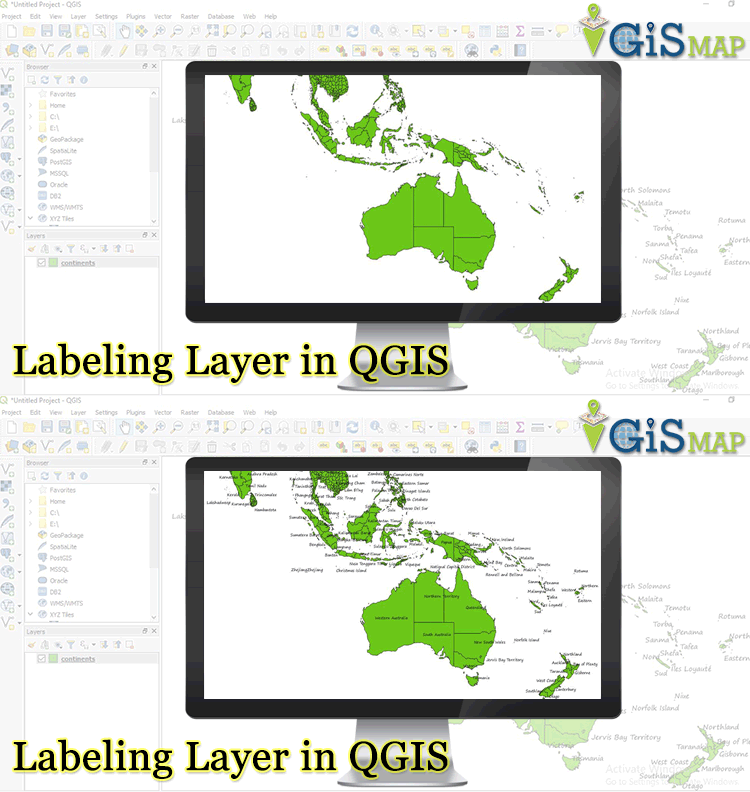
How to do layer labeling in QGIS 3.2.1 – use and change label

Map is not just a picture in GIS,  they represent several hidden information of objects. So in the upcoming days we try to understand it more and unearth the hidden data. After creating Basic Map, today we try our hands on layer labeling in QGIS 3.2.1 – use and change label. For extracting more information about the object we do labeling. It makes the layer interactive.

Need Data for study then Download Shapefile of Australia and United States Shapefile

layer labeling in QGIS 3.2.1

Labels are for providing more information about the object. This layer property depends on the attributes of the layer. So, lets start

How to get label dialog box

You can reach Layer Labeling dialog box by 2 ways:

By right click the layer >> Properties>> label (icon shown below)Or, Go to layer menu, select labeling. 

layer labeling in QGIS 3.2.1 - use and change label

Above map is not looking so attractive and informative.

  • In Labeling Dialog Box, it will show no label.
  • Click over it and select Single labels
  • Now come to the Label with (here you need to choose the field from attributes which is to be labeled). In the previous blog you learnt that. View attribute table
  • Lets select Name_0 from the drop down list.
  • Customize Font and Size.
  • Click Apply (live updates are available)

layer labeling in QGIS 3.2.1 - use and change label

Now the map of continent is label like this.

layer labeling in QGIS 3.2.1 - use and change labelSo, this makes your map more informative. But still above map is not looking so good because off overlapping labels. These label are not placed in centre of object also. Multiple labels are also can be done  in QGIS.

More related topics on QGIS:

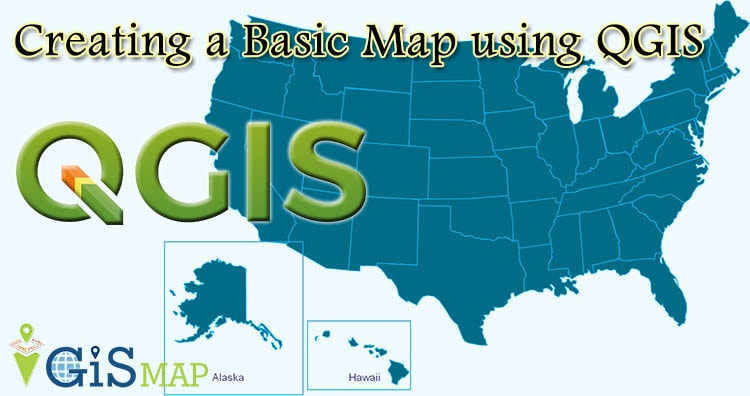
Creating a Basic Map – QGIS

QGIS 3.2.1 works well for creating interactive maps, using good set of tools and symbology its become easy to implement. In the previous post we learn how to open and view vector data. So, today we are Creating a Basic Map – QGIS. For creating  basic map we work with the vector data. Vector data is very common data format it describes the information in points, lines and polygons.

Creating a Basic Map: Adding vector layer

If you are not familiar with QGIS user interface then check our previous article QGIS 3.2.1 GUI

Creating a Basic Map - QGIS

  • In the dialog box, click on the Browse button. And navigate to the exercise data. (before using make sure to download the Exercise data)Creating a Basic Map - QGIS
  • Select the appropriate file, let say select road.shp
  • Here you are, this is your basic map
  • Save the project.

View attributes

If you are absolute beginners then question comes in your mind what is attributes. No worries when we are here, attributes is a data which store  information about spatial data. It gives where, what and why about spatial data in tabular form.

So for roads, the layer we loaded in our basic map we will view its attributes. ->>  Click on  this icon for opening attribute table or you can use F6 or Go to Layer>> Open attribute table.

Creating a Basic Map - QGIS

->>  This attribute table provides more data about road layer, the lines that you see in the map are spatial data. These lines represents the roads.

Creating a Basic Map - QGIS

Current basic map is not so easy to read. We will make it more understandable and interactive using Symbology (use of symbol).

Symbology

In the cartography design,  symbology  is technique to use symbols to represent graphic features of map. Visual appearance is very much important. Follow the steps for making your map more attractive –

  • Click two times on layer>> Layer properties dialog box will appear. Select symbology OR right on the layer>> click the layer properties in the menu.  Symbology window shown below.

Creating a Basic Map - QGIS

Creating a Basic Map - QGIS

This all the creating a basic map – QGIS. Symbology is useful but the information contained in the layer is still hidden. In the next blog we will learn how to represent this data on map.

Hope it will be useful for GIS professional. Suggestions and feedback are most welcomed.

More on QGIS:

QGIS 3.4.4 open and view vector data

In GIS , geographic features are often expressed in multiple data formats. Vector and raster data are prime data formats. In this post you will know  about QGIS 3.4.4 open and view vector file – shapefile, kml, dxf, geosjon etc. Vector describes geographic data into three types of geometry. Data represented in terms of points, line and polygon.

Use MAPOG Tool for creating map

QGIS 3.4.4 open and view vector data

Before using QGIS user interface we can add or remove panel by right click on toolbar. We can also do this in view menu. Enable browser panel and layer panel.

  • Click the “Add Vector Layer” icon Or use “Layer” menu from the toolbar and navigate to “Add Layer” -> “Add Vector Layer”.

  • Set the Source Type to “File” and Encoding to “System”.

In most cases system encoding is fine but if you find strange characters in attributes table then you have to change appropriate encoding.

  • Click “Browse” and navigate to the appropriate files, using the appropriate
    file types.
  • You can select and deselect layer from layer panel. Adjust the layer order by clicking and dragging layers up and down in the “Layers” panel.
  • You can move by Pan Map icon or you can find Pan Map in view menu

QGIS 3.2.1 open and view vector file - shapefile, kml, dxf, geosjon

Export your saved map as SVG – Scalable Vector Graphics

Selection of feature for editing

If you want to change any feature then choose Select Feature(s) and move feature to entire feature, where you want to do changes.

QGIS 3.2.1 open and view vector file - shapefile, kml, dxf, geosjon

  • To save the project click the “Save” icon and designate a file location. When you re-open a project, any layers that you were using should be in the same
    locations on your computer; if they are not, you will need to re-designate the appropriate file paths.

Check out step by step approach in video provided below:

Want to Extract a feature from existing shapefile.

Our  goal is to provide new users a working knowledge of QGIS. Although we only had time for a handful of operations, I hope that you now have sufficient familiarity with QGIS to explore it further on your own. If you face any problem in implementing above steps please comment. Any suggestion are welcome.

You also publish your data on web without using QGIS visit MAPOG Tool

Furthermore on QGIS tutorial please explore:

💬 Book a Meeting